Using QGIS to prepare Custom Maps in PowerBI

This blog post is to document my first experience with mapping in PowerBI, usually the reports we produce are time series and pivot tables, but in this case, there is a geographic dimension to the data, so I thought it is a good opportunity to try map chart in PowerBI, it turn out, it is a bit difficult than I thought.

So the data is in the thousand of piles, a lot of piles in a huge area, my first attempt was just to load the data in PowerBI and view it in a map, for some reason, PowerBI show an empty map.

PowerBI expect the data to be in latitude and longitude format, my the data is using easting and northing, I had to convert it, there are plenty of online converter, but there are not practical, as they don’t support batch processing, converting point by point is not an option.

After some googling, I find this excellent open source software QGIS, it was very straightforward, the software automatically convert the coordinates reference system (I think the technical term is reprojection), my data is GDA94 / MGA zone 55 and the result should be in WGS 84.

Voila the data is ready for PowerBI,

map-1

That’s a bit disappointing, PowerBI complain it cannot show all the points ( PowerBI has a maximum of 3500 points per chart).As a comparison, this is how Tableau show the data

tableau

Tableau doesn’t have a limitation on the number of points.


Alternative approach


As PowerBI cannot show all the point, one solution is to create a shape file that group the points into smaller areas, and again, it was trivial to be done in QGIS.

QGIS will group the point based on a filed you provide.

Group


sub-array

And volia

qgis


QGIS save the layer in ESRI shapefile, PowerBI require TopoJSON, I used the excellent tool mapshaper.org

Just make sure you import all the files not only .shp

export

Now the TopoJSON is ready to be loaded in PowerBI

topojson


Time to celebrate 🙂  not really there is a problem, I want to show different colour based on the status, if a sub-array is completed, I want it to show Yellow, if it is > 75 %, I want another colour and so on, the shape Map in PowerBI does not offer this option.

Fortunately Synoptic Panel   has more options, it use SVG as a map format, which I got from mapshaper.org

filled map


Preparing the custom map is a one time operation,  the color will change as per the construction progress, you need just to assign which measures you want to show

measures

What’s Next

As long as your data model is properly built,  you can do a lot of interesting stuff, you can filter by type of works (piling, Tracker installation, PV Modules), you can click on one sub-array and see in details what’s have been installed and what’s missing.


Build a Dashboard using Data Studio

Google Data Studio is a new reporting service from google, it is still in beta, has rudimentary capabilities compared to established players ( PowerBI, Tableau and Qlik) and can be very slow, yet it has two killer features, it is free, with amazing sharing options.

Google business model for this product is very simple, the visualisation layer is free, but the preferred data source is BigQuery which is a paid product, but other source usage are free.

In the last two months, I have been experimenting with the product, I never managed to make it produces any meaningful charts, that was my mistake as I was thinking from a semantic model background, which is not valid here.

Data studio do not support multiple datasets, you can use multiple datasets in the same reports but not in the same chart, but you can filter multiple datasets using a common dimension, when solution is to create a master datasets that combine all the tables, if is the same concatenate table used in Qlik.

Now if you have a data workhouse you could simply write an SQL query to combined all the dimensions you want to report on, I don’t, so I will use what I have PowerBI desktop !! You can use R studio too, or any data management solution you are familiar with.

So the approach is build a data model in PowerBI desktop,  Query the model using Dax and export the result to CSV,  then load the CSV to Data Studio and share the report, Data Studio is only used as reporting service.

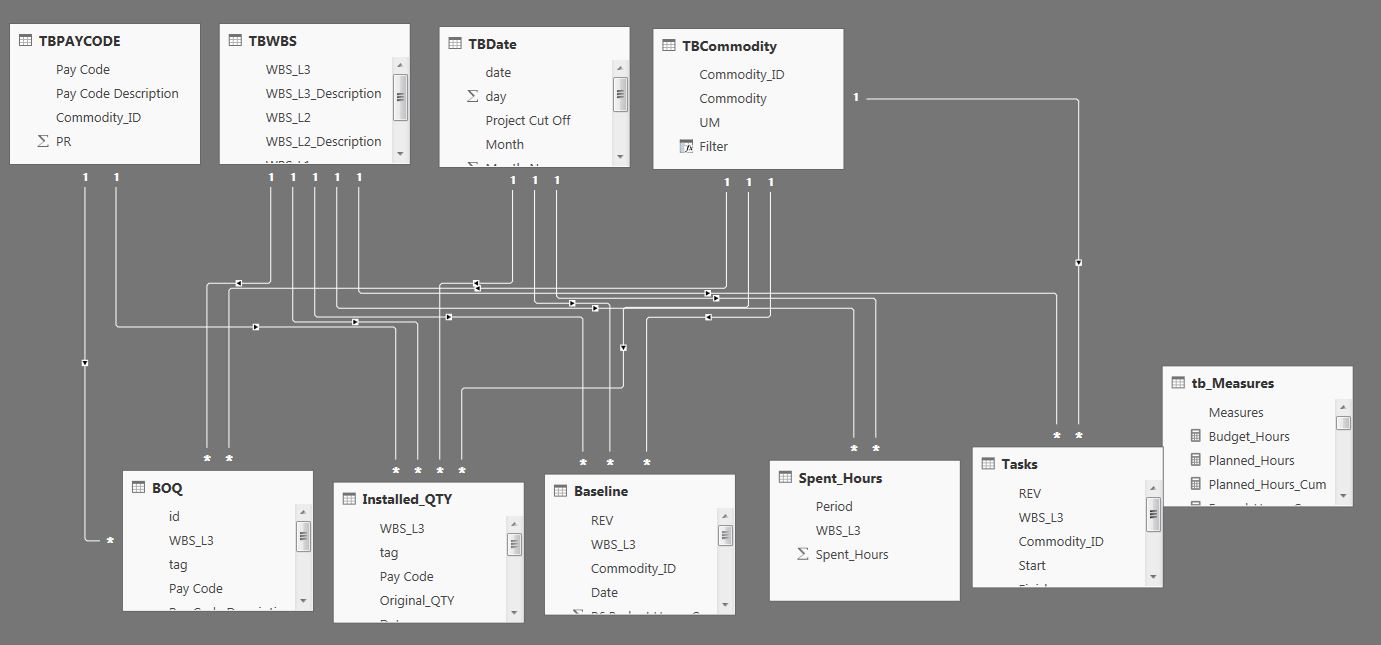
1- I will use this datamodel.

Data_Studio_1

2- And use this query to extract the dimensions and measures I want to report on


EVALUATE
VAR Earned_Table =
FILTER (
ADDCOLUMNS (
SUMMARIZECOLUMNS (
TBPAYCODE[Commodity_ID],
TBCommodity[Commodity],
TBWBS[WBS_L3],
TBDate[Project Cut Off],
"Budget", tb_Measures[budget_hours],
"Period", tb_Measures[Earned_Hours_Period],
"Cumulative", tb_Measures[Earned_Hours_Cumulative]
),
"TYPE", "Earned"
),
MIN ( TBDate[date] ) <= [Cut off] && MIN ( TBDate[date] ) >= DATE ( 2012, 1, 1 )
)
VAR Plan_Table =
FILTER (
ADDCOLUMNS (
SUMMARIZECOLUMNS (
TBPAYCODE[Commodity_ID],
TBCommodity[Commodity],
TBWBS[WBS_L3],
TBDate[Project Cut Off],
"Budget Hours", tb_Measures[budget_hours],
"Planned Hours", tb_Measures[planned_Hours],
"planned Hours Cumulative", tb_Measures[planned_Hours_Cum]
),
"TYPE", "Planned"
),
MIN ( TBDate[date] ) >= DATE ( 2012, 1, 1 )
)
VAR Spent_Table =
SELECTCOLUMNS (
FILTER (
SUMMARIZECOLUMNS (
//TBPAYCODE[Commodity_ID],
//TBCommodity[Commodity],
TBWBS[WBS_L3],
TBDate[Project Cut Off],
"Budget", tb_Measures[budget_hours],
"Period", tb_Measures[spent_Hours_Period],
"Cumulative", tb_Measures[spent_Hours_Cum]
),
MIN ( TBDate[date] ) <= [Cut off] && MIN ( TBDate[date] ) >= DATE ( 2012, 1, 1 )
),
"Commodity_ID", BLANK (),
"Commodity", BLANK (),
"wbs_l3", [WBS_L3],
"TBDate", [Project Cut Off],
"Budget Hours", [budget_hours],
"Planned Hours", [planned_Hours],
"planned Hours Cumulative", [planned_Hours_Cum],
"Table", "Spent"
)
RETURN
ADDCOLUMNS (
UNION ( Earned_Table, plan_table, spent_table ),
"Data_Date", IF ( [Project Cut Off] = [Cut off], 1, 0 )
)

Basically I am using union to concatenate the values for Earned Hours, Planned Hours and spent Hours, I added a column type to distinguish between the different tables and in the case of spent, I assign the value blank for Commodity_ID and Commodity as the measures don’t have the same granularity.

I added a column ‘Data_Date” so I can filter only the dates where it is equal to the cut off.

3-Load the CSV

Data_Studio_2

If a field aggregation is none, then it is a dimension, otherwise it is a metric (measure), now, there are some functions to do calculations like sum, average but it is not DAX, it is really limited.

As an example for the measure Planned Hours = SUM(CASE WHEN REGEXP_MATCH(TYPE, ‘^Planned.*’) THEN Period ELSE 0 END)

4-build the report

Data_Studio_3

You can view the report here , and the datasets here , (sorry does not support internet Explorer, Only Chrome, Firefox, and Safari,  Internet Explorer works now, although not officially supported)

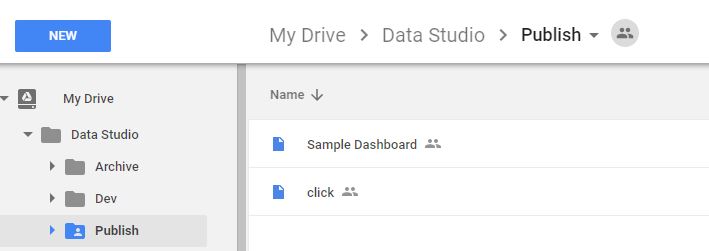
Personally the most interesting aspect of Data Studio is the integration with Google Drive, the reports you build will show in your Google drive and you can organize them in different folders, for example then you can group reports by departments, shop etc

Data_Studio_4

I think it has potential, they got the sharing right, now they need to add some basic features ( pivot table, controlled cache ….) , and more options in the calculated field formula, ( hint return null for example is not supported,  ok there is a workaround, Just create Metric*Metric/Metric, if it is 0 then it is an error, GDS return null in this case) and you will have data visualisation for the masses.

Using Powerquery List.Dates to generate time phased Budget and account for holidays

There are plenty of templates on the internet on how to spread a budget using Excel formula, in this blog post we will use the Powerquery function “List.Dates”, and a calendar table to account for holidays and periods with less working hours, for example under extreme weather conditions, the working hours per day will be less than standard working hours.

Obviously Planning software handle this scenario very well, but contrary to popular belief, Excel is still the most widely used planning software among non-planners. (I have yet to see a cost controller or QS using a planning software, even MS Project).

The function is straightforward:

List.Dates(start as date, count as number, step as duration)

In this case, count will be the durations in days, and step will be 1 day

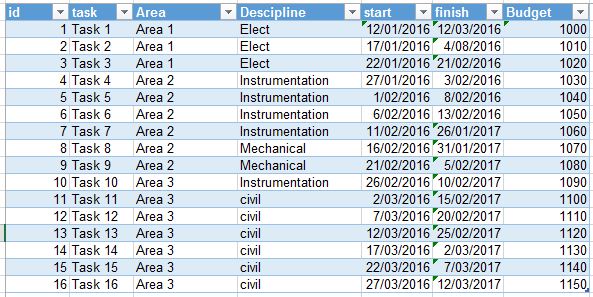
Let say you have a list of tasks, with a start and finish date, and some kind of budget, (cost, revenue, quantities, Effort required etc).

Budget_0

Let’s load the table Task and generate the spread.

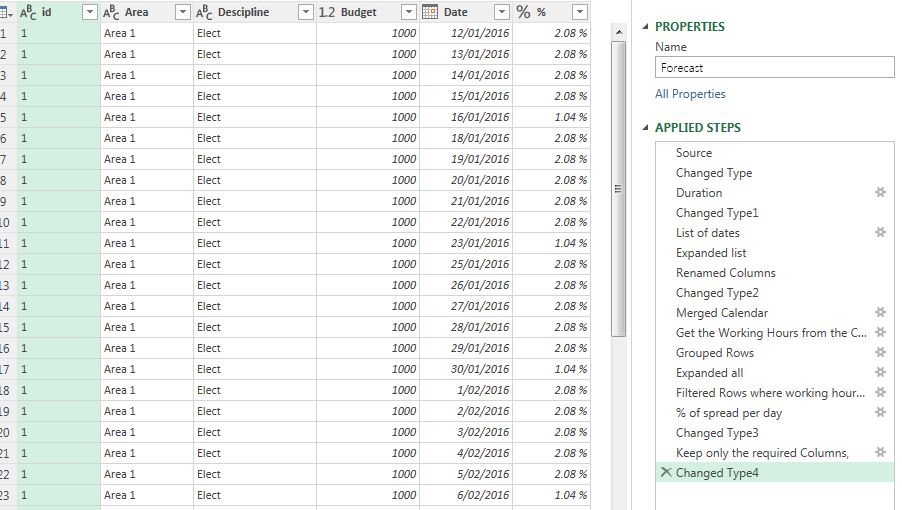
  • First we calculate the duration ( Finish-Start)
  • We use the List.Dates to generate the list of dates between the start and finish of every task.
  • Expand the list to become a column.
  • Merge the list of date with the calendar table to get the working hours per day.
  • Now we sum the total working hours per id.
  • The % by day = working hours per day/ Total working hours per task.

Budget_1

Voila, you have % per day.  Now to spread the budget, just multiply the budget by % per day.

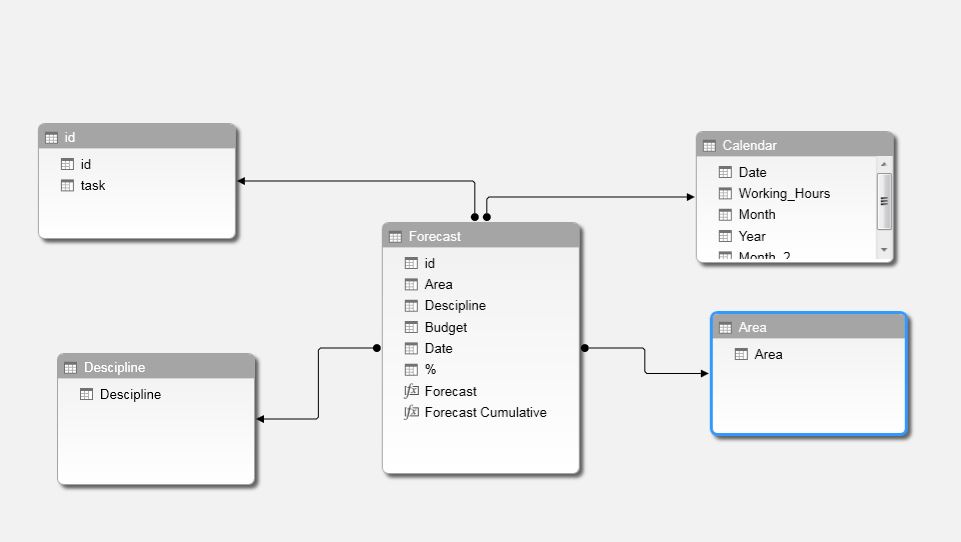
Then we load some dimensions table in order to slice and dice the pivot table and WE add a measure to calculate cumulative Budget time. As we are using a calendar table, we can show the budget per day, Month, year or any time period.

Here we got a nice little Star schema

Budget_2


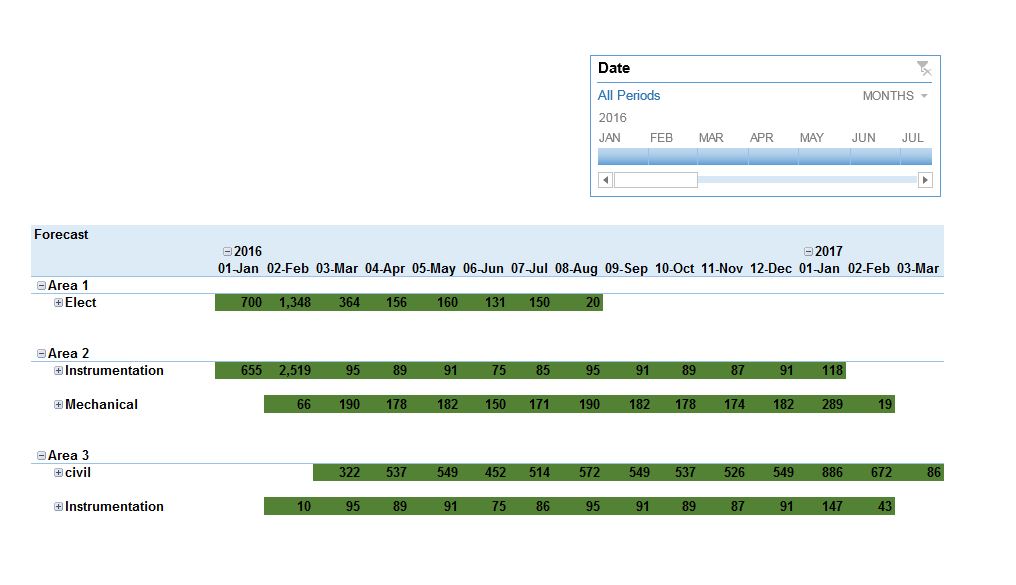
Now a Pivot table with conditional formatting will show a Gantt like chart.

Budget_3

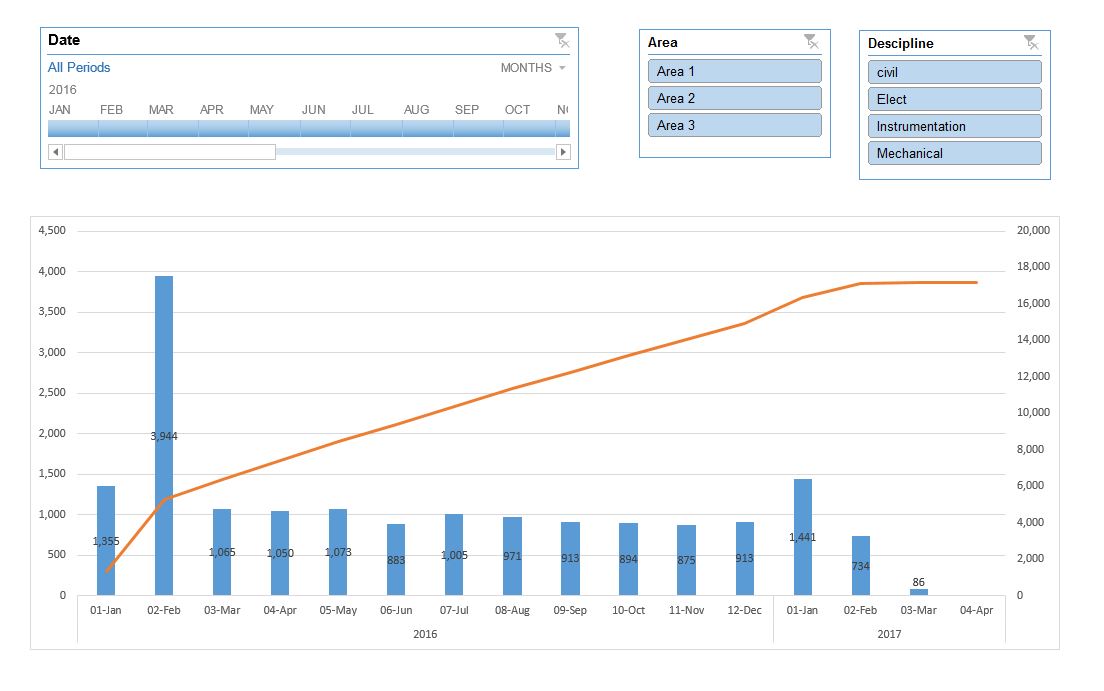
And a pivot chart to show the Budget per Period and the cumulative.

Budget_4

You can download the template here, you need Excel 2013+, if you don’t have it, you can always download PowerBI desktop for free, and import the Excel file, but you need to redo the charts though.


Integrated Project Control system using PowerBI

One of the most popular discussion in planning forum is how to have an integrated project control system, every practitioner has a different opinion how it must be done, and of course you get a lot of marketing from people trying to sells their systems

In this blog, we share high level description of a data warehouse built using PowerBI desktop.

Data warehouse are not widespread in the construction industry, because the reporting specifications are different from project to project, and every client has a different systems and tools, and trying to have a standard system works only if you are the main contractor but if you are a subcontractor you have to adopt the client system.

Another reason is; it required a specialised IT skills, we are just business users not programmers, we do understand data very well, but not necessarily having the skills and tools to manage it, The good news is, with the rise of self-service Business intelligence, we have exactly that, Powerful data management tools yet accessible (assuming you want to learn something else than Excel).

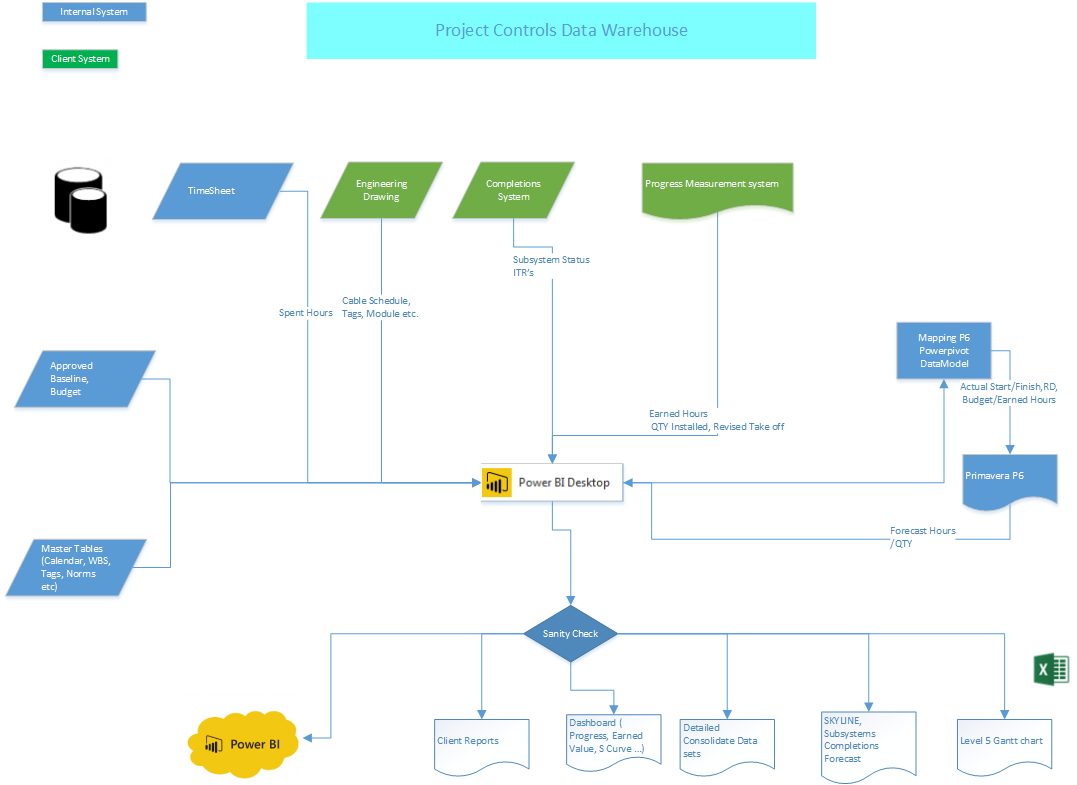
So at high level this is how it works.

 Project Controls Data Warehouse

  • The Data warehouse was built using PowerBI desktop, I know it should be called sematic model, (for me data model, data warehouse are fundamentally the same thing), initially it was using Excel PowerPivot but it did not scale well with the increase of the volume of data.
  • As the data is not always in the format we want, PowerQuery is very handy in this case, as virtually it can transform any source of data, example lookup the subsystem using the tag field, trying to do that if you have 8 Million rows using Excel or Access is not feasible.
  • We maintain Master tables to integrate all the different source of data (tags, WBS, subsystems etc)
  • Every week, we get new Export from the source systems (Cobra, proprietary database systems etc), we load the new data and keep the historical records, it took 15 minute to refresh, which is quite impressive, Cobra alone is a folder 60 Excel file, and nearly 2 Giga in size.
  • Usually you publish your reports into PowerBI.com service to end users once your refresh your data model, in our case we can’t use the cloud for privacy reason, instead we use Excel as a reporting tool that pull the data from PowerBI desktop, the advantage of this approach is that we have different reports for different users, Skyline, Gantt chart, Client reports (in their required format), management reports etc.

Some thoughts.

  • As you can see Primavera P6 is used only as a forecasting tool and to calculate the critical path, the earned value calculation is done in the data model, personally I think P6 should not be used as the centre of your project control system, I remember the first time I start learning Primavera P3 ( a long time ago:), we kept asking the trainer how it is possible to track the spent hours at the activity level, the answer is we don’t, actually deciding at which level you track you spent hours it is the most important decision to make when you start a new project.
  • the basic idea here is in order to have an integrated project controls system is stop trying to have one, data will be always in silo, don’t try to change other department how they manage their specific data, it will not work and they will not listen to you anyway, So instead of trying to have one system to rule them all, just use the existing systems and build a data warehouse for reporting and Integration with P6.