duckrun is a package I built using AI exclusively, to solve pain points I hit when using Fabric Python notebooks. I like DuckDB very much, but I was tired of manually discovering table names every time and writing long Python deltalake code just to write a Delta table, so I combined those two packages under one helper package to make my workflow smoother. Recently I discovered how awesome dbt is, so why not add a dbt adapter too. Then someone trolled me about the lack of snapshot isolation when doing read-modify-write on the same table. Luckily DuckDB now exposes the read version in delta_scan (before, you had to do the weird attach thing), so I have something that might actually be useful. The rest of the blog is written by AI. It wrote my code, so I don’t see the issue; it’ll even write my blog.
I also added a web page with some projects I built: dbt projects I ported, and some non-trivial SQL statements with proper snapshot isolation.
https://djouallah.github.io/duckrun
So yes, it’s a hack, until Iceberg matures or we get a better Delta write story in DuckDB.
At its core, duckrun is a four-part split: DuckDB executes the SQL, Arrow streams the result, delta-rs commits it to Delta, and dbt (optionally) orchestrates the whole DAG.
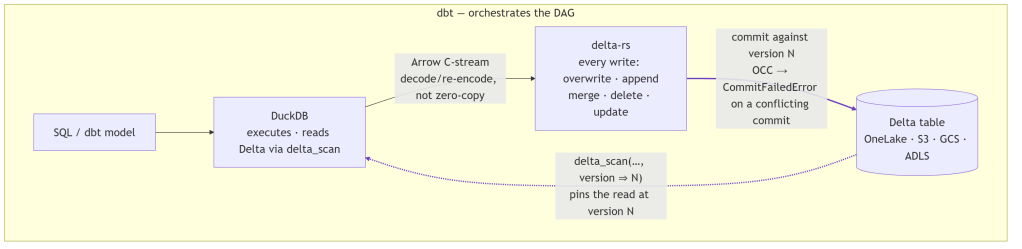
It’s storage-agnostic, running anywhere DuckDB and delta-rs can reach: local filesystem, S3, GCS, ADLS, OneLake. In practice I test it on the local filesystem and Microsoft Fabric OneLake. S3 and GCS use the same code path, but I barely touch them, so treat them as untested.
The gap it fills
DuckDB reads Delta well (delta_scan). It does not write it well: its Delta support is blind INSERT only (no UPDATE, DELETE, or MERGE), and its trajectory points at writing through Unity Catalog, which defeats the point of filesystem-native Delta. So if you want DuckDB’s engine but need upserts on Delta tables, there is no single tool that does both today.
| Approach | Reads Delta | Writes Delta (merge/update/delete) | DuckDB SQL engine |
|---|---|---|---|
| DuckDB alone | ✅ | ❌ (blind INSERT only) | ✅ |
| delta-rs alone | ✅ | ✅ | ❌ |
| duckrun | ✅ | ✅ | ✅ |
duckrun’s answer is a split:
- DuckDB runs all SQL and model logic, and reads Delta through
delta_scanviews. - delta-rs handles every write: overwrite, append, merge, delete, update.
- Arrow bridges the two: a DuckDB relation is streamed to delta-rs over the C-stream interface.
- Snapshot isolation ties it together: each read pins a Delta version, and each read-modify-write commits against the version it read, so a concurrent commit errors instead of silently clobbering.
That’s the whole architecture. The README calls it glue, and that’s accurate: each layer does only the one thing it’s set up to do.
Two costs come with this. Two engines split one RAM budget with no shared allocator, and the Arrow handoff isn’t zero-copy: DuckDB’s native vector format isn’t Arrow, so each batch is decoded and re-encoded as it streams across the Arrow C Data Interface (a batch-at-a-time ArrowArrayStream, so even a large write never fully materializes in memory). duckrun manages this with a cgroup-aware memory split, sampled per job so it doesn’t get OOM-killed on Fabric/k8s, where DuckDB otherwise sees the whole node. The fractions are of the effective limit: on a merge, 0.3 to DuckDB and 0.6 to delta-rs spill, leaving 0.1 slack; on a plain write, 0.85 to DuckDB. The split leans toward delta-rs because that’s where the memory goes: profiling a merge attributes ~99% of resident memory to delta-rs and only ~15 MB to DuckDB. Keeping every write behind delta-rs also means the bridge (and the memory juggling) can be deleted the day DuckDB ships a real Delta writer, without touching the read or state model.
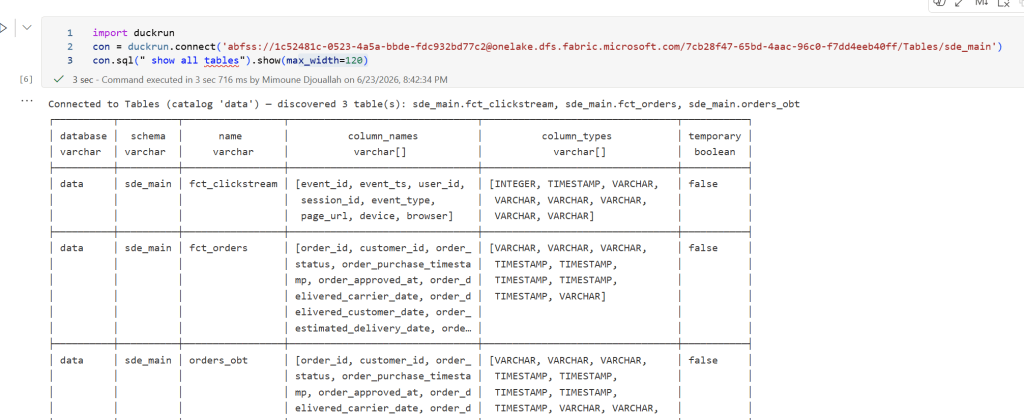
connect: read first
connect() is read-only by default, so you can point it at a lakehouse and explore with no chance of an accidental write. Tables are discovered for you, with no manual name bookkeeping:
import duckrunconn = duckrun.connect("abfss://<ws>@onelake.dfs.fabric.microsoft.com/<lh>/Tables/dbo")conn.sql("SHOW TABLES").show()conn.sql("select status, count(*) from orders group by status").show()df = conn.table("orders").toPandas() # or .toArrow() for a streaming reader# time travelfrom duckrun import DeltaTableDeltaTable.forName(conn, "orders").history() # newest-first: version, timestamp, operationconn.read.format("delta").option("versionAsOf", 0).load(".../Tables/dbo/orders").show()
Multiple catalogs: attach
Attach more lakehouses and query across them by three-part name. This is where the data warehouse case shows up: in Fabric a Warehouse is just a write-locked Lakehouse, so you attach it read_only=True next to a writable Lakehouse and join the two:
conn.attach("abfss://…/warehouse.Warehouse/Tables", name="warehouse", read_only=True)conn.attach("/data/reference", name="local")conn.sql(""" select * from warehouse.mart.facts f join local.dbo.lookup l on l.id = f.id""").show()
Same code against a local path, s3://, gs://, or az://.
Writing: DML and merge
Opt into writes with read_only=False. Then just write SQL: plain DML routes straight to delta-rs, with no Python deltalake boilerplate:
conn = duckrun.connect("abfss://…/Tables/dbo", read_only=False)conn.sql("create or replace table clean_orders as select * from orders where amount > 0")conn.sql("insert into clean_orders select * from late_orders")conn.sql("update clean_orders set status = 'shipped' where status = 'packed'")conn.sql("delete from clean_orders where amount = 0")
MERGE works the same way; reference the literal target / source aliases:
conn.sql(""" merge into clean_orders as target using updates as source on target.id = source.id when matched then update set * when not matched then insert *""")
…or, if you’d rather build it, the DeltaTable API mirrors Delta’s:
from duckrun import DeltaTablesrc = conn.sql("select * from updates")DeltaTable.forName(conn, "clean_orders").merge(src, "target.id = source.id") \ .whenMatchedUpdateAll().whenNotMatchedInsertAll().execute()
conn.sql accepts CREATE [OR REPLACE] TABLE AS, INSERT, UPDATE, DELETE, ALTER … ADD COLUMN, MERGE, and DROP (a soft tombstone: delta-rs has no drop, so data files persist until you purge them). CREATE TEMP TABLE and CREATE VIEW stay native DuckDB. Things that can’t be honored cleanly, like multi-statement strings or UPDATE … FROM, are rejected rather than silently mishandled.
The surface is small. It mirrors the Delta/DeltaTable API so notebook code reads familiarly, but there is no fluent transform builder and no second SQL engine. Transforms are SQL, run by DuckDB.
Snapshot isolation
This started as someone trolling the project over read-modify-write on the same table, and it turned into the guarantee I rely on most. Honestly, I come from a Dataflow Gen1 background (basically a single writer), so all this concurrency stuff never made much sense to me. In a Lakehouse, where anyone can write to a table, even accidentally, it suddenly becomes a real factor. (Thanks Raki for the harsh feedback, lol.) A lakehouse has no transaction manager and no single-writer guarantee: two pipelines, a double-fired job, or a notebook racing a scheduled run can all commit to the same table. The dangerous shape is read → compute → write: if someone commits in between, a naïve write at HEAD silently overwrites them, a lost update with no error. duckrun’s job is to turn that into a CommitFailedError.
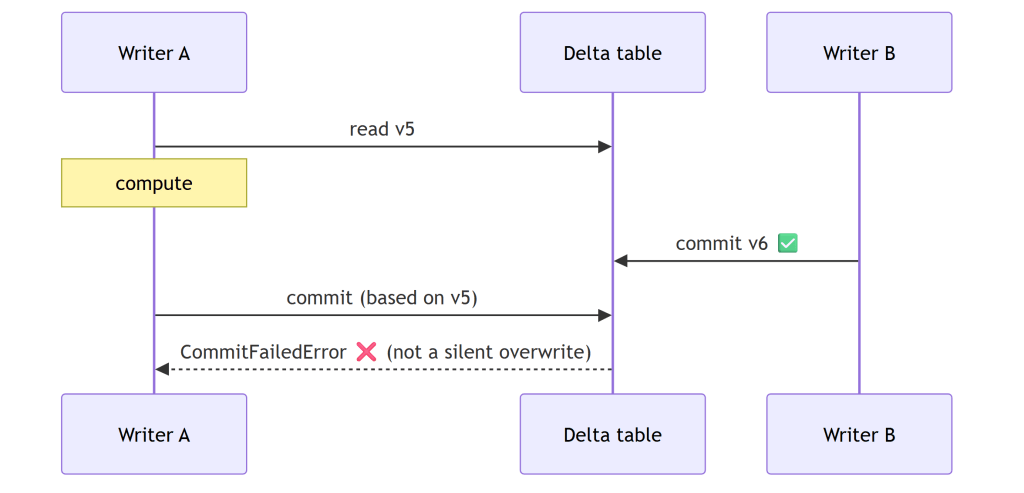
What’s fenced, and what isn’t. delete, update, and merge are read-modify-writes (they read the current rows, compute a change, then commit), so duckrun pins each to the version it read and delta-rs’s OCC validates the commit over (read, HEAD]. A conflicting concurrent commit makes them fail. Plain append and overwrite are not fenced, by design: they match Spark’s SaveMode. An append rebases onto HEAD (appends don’t conflict), and an overwrite is last-writer-wins. So the fence is automatic exactly where a lost update is possible, and absent where it isn’t.
How the OCC works. There’s no lock manager anywhere. A Delta commit is the atomic creation of the next log entry, _delta_log/…{N+1}.json, so if a racing writer already wrote it, your put-if-absent loses and delta-rs raises CommitFailedError. Optimistic, filesystem-native, no coordinator. The gap OCC alone leaves: it only checks the commit instant, not the version you read.
Pinning the version you read, the same whether you write SQL or a DataFrame. A DeltaTable handle captures the version at forName() (call it vB), and every merge() / delete() / update() through it commits against vB, so OCC validates the whole (vB, HEAD] window, not just the instant of the commit. conn.sql("delete …" / "update …" / "merge …") funnels into the exact same engine path, pinned the same way: there is no second code path for SQL. And DuckDB exposing the read version in delta_scan(…, version => vB) (the reason for the duckdb >= 1.5.4 floor) lets the read sit on vB too, so a read-modify-write split across statements still lands on one snapshot. Spark/Delta fences only the commit instant; this fences the version you actually read.
append_if_unchanged / overwrite_if_unchanged are the fenced siblings of plain append/overwrite. I had to coin the terms, because Delta/Spark has no built-in fenced append (you’d hand-write a MERGE for it). They’re a version compare-and-swap: load the table at the version you read and pass max_commit_retries=0 so delta-rs won’t rebase. If anything committed since, the target version is already taken and the commit fails. For the watermark/idempotent-append case this is cheaper than a merge, with no target scan and no key join. (safeappend is the deprecated alias.)
The dbt adapter
A thin wrapper over dbt-duckdb that adds Delta-backed table and incremental materializations; everything else (views, seeds, sources, tests, plugins) is inherited. Point a profile at a lakehouse and dbt run:
my_project: outputs: dev: type: duckrun root_path: "abfss://<ws>@onelake.dfs.fabric.microsoft.com/<lh>/Tables"
dbt with no catalog. Normally dbt leans on a metastore to know what exists and to resolve {{ this }}, ref(), and is_incremental(); duckrun has none, and state still survives across separate dbt build processes. At run start the adapter discovers Delta tables on disk (glob for local/az/s3/gs; the OneLake DFS REST API for abfss, since DuckDB can’t glob it reliably) and registers each as a delta_scan view named to match dbt’s database.schema.identifier. That view is what makes those references resolve against real Delta tables. Each materialization pre-registers its own {{ this }} view before running, then recreates the view after the delta-rs write, since that write lands a new Delta version and the old view would otherwise point at stale files. The namespace is rebuilt from storage on every run instead of read from a catalog.
Incremental strategies:
| Strategy | Behavior |
|---|---|
merge (default with unique_key) | upsert |
insert | insert new keys only |
append (default without unique_key) | blind append |
append_if_unchanged / safeappend | append, commit only if version unchanged: cheap, no target scan, errors on conflict |
microbatch | delete+insert per event_time window |
Compaction and 7-day vacuum run automatically (every run for overwrites; past a file-count threshold for incrementals).
Two limits worth knowing up front. First, writes are single-threaded within a run (in-process delta-rs isn’t thread-safe; cross-process concurrency is fully supported). Second, constraints are enforced at the write boundary, not stored in the table: a contract with not_null columns is checked by a guard query before the write, so a null fails with NOT NULL constraint failed and the prior Delta version is left untouched. Two caveats there: delta-rs can’t persist column constraints into Delta metadata, and timestampNtz columns can’t be written yet.
On versions, duckrun is deliberately conservative because the underlying libraries move fast and break: duckdb >= 1.5.4 (first stable with delta_scan(version => N)) and deltalake == 1.5.0, the first release with MERGE max_spill_size. On Microsoft Fabric, pip install --upgrade and restart the kernel, since the bundled DuckDB is older than the floor.
Testing: the only way to trust AI code
If the AI writes the code, what makes it trustworthy? Not that it compiles, and not that the unit tests are green: an AI will happily write a test that passes for the wrong reason. The only signal I actually trust is integration testing: run a real dbt project end to end and check the tables it lands on real storage.
So that’s where most of the test weight sits. duckrun runs a few hundred tests across 26 files, but the ones that matter most are the 8 integration projects that build for real, most against live Microsoft Fabric OneLake (abfss://), not a mock. To keep them honest, with real models rather than toys I wrote to flatter the adapter, I ported existing dbt projects from the web: other people’s models kept as close to original as I could, with attribution:
- sde_dbt_tutorial, a port of josephmachado/simple_dbt_project: raw tables → bronze typing → a Delta-backed SCD2 customer snapshot → a merge-incremental clickstream fact → an
orders_obtgold mart. - coffee, ported from JosueBogran/coffeeshopdatageneratorv2: CSV ingest over https, a deduped SCD2 product dim, a region-partitioned fact, a revenue mart.
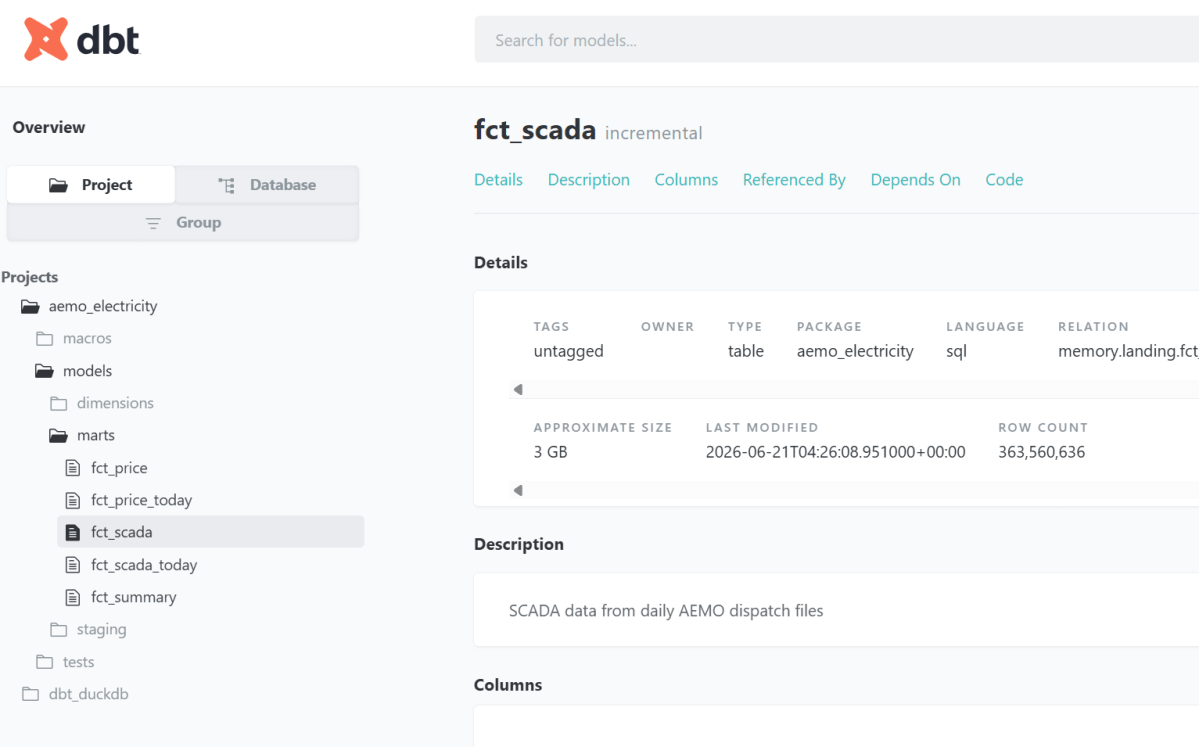
- aemo, my own dbt_fabric_python_delta, built against live OneLake. The full run is published as browsable dbt docs:
fct_scadais a 360M-row Delta table you can inspect yourself, not a screenshot. - snapshot_pin — a concurrent-writer test that asserts the guarantee above end to end: one writer reads a version, a second commits underneath it, and the first writer’s stale commit is rejected on real storage rather than silently overwriting.
- plus a TPCH merge/append/overwrite spill benchmark, a connection-API demo on live NYC TLC taxi data, and a multi-catalog lakehouse + warehouse + local join.
The rendered catalogs for these (real Delta stats, row counts, last-modified) are on the project page.
On top of the projects, the adapter runs the official dbt adapter test suite (dbt-tests-adapter, the same conformance suite every dbt adapter is measured against) at 126/135 passing (93%), regenerated on every push to main. The documented failures are deliberate choices: no persistent views in open Delta, and rejecting merge configs that would silently diverge.
The evidence that matters is tables on real storage, hit the same way a user would, not a passing test count and not “the AI said it works.”
What does it mean to build a package you don’t understand?
I should be honest: I don’t understand the code in detail. But that was always true. duckrun is glue over DuckDB and delta-rs (written in C++ and Rust), and I don’t have the slightest idea how those work internally either. Almost nobody who builds on a library understands its guts. So what does “writing a package” actually mean?
For me, two things. Expressing the problem, knowing the pain well enough to say exactly what should happen, and making the design decisions that follow: delta-rs for every write, delta_scan views for reads, snapshot isolation as the contract. The AI writes the code; I own the problem and the shape of the solution.
The third thing is what makes it real: tests, and a lot of them. duckrun runs an extensive unit and integration suite, but I only actually trust it when I see tables land in OneLake. Code that passes locally and code that materializes correctly on real storage are not the same claim.
One trick I’ve learned: use a second agent to verify the first one’s work, not the agent that wrote it. The catch is that AI still cheats to make a test pass: it’ll weaken or game the check even when it plainly knows that isn’t the right thing. I hope that improves. Until it does: don’t trust anything it produces. Verify it against reality.