I love Google data Studio, I am using it for this project nemtracker.github.io and it is perfect for this use case.
For other Dashboard at Work, I am using PowerBI, for no reason, I tried a new experiment, can GDS be used instead, it is an academic exercise only. the use case is a typical Business Reports, a lot of different small datasets with different granularity , something like budget vs items sold etc.
I am just recording the pain points in GDS , the good thing, most of them are under development, and some of them overlap, for example if we have Parameters controls, probably, there will be less need for blending ( which is very limited at the moment).
it is not a critique, GDS has some killer features, I particular like custom visuals as there are no limit the number of data plotted which is a pain in other Software.
the assumption is all the data-sources is already loaded and cleaned and ready to be analysed in BigQuery.
TL,DR : the pain points are at the Calculation level , Obviously if all you data is at the same granularity, then everything is easy my conclusion, nearly there !!!, but will revise when Parameter controls are supported.
Instead of Writing a full blog, I thought showing a report is a more practical approach
whenever I need to join Primavera Activity id to the quantity measurement system, I use this pattern, it did serve me well all those years, recently I started a new project where for the first time, I don’t get an extract using Excel but a proper live connection to SQL server 🙂
To get something quickly running, I started using the same approach, load Primavera export, unpivot the date and normalize it, every activity has a spread from 0 to 100 % then merge it to a Table from SQL server, all working as expected.
Although it works well, it is a bit clunky , specially that the export from Primavera does not change frequently, for the baseline maybe once a year and the forecast once a month, so instead of merging the data using Powerquery, I loaded the Primavera data as a separate table, here what the model looks like
As you have guessed the Activity id is duplicated in both tables
Now the Metric I am looking for is how to spread the budget hours from the table BOQ using the spread ( 0-100 %) from Primavera, let’s say I filter 1 row from the BOQ the result should be something like this
As it is multiple to multiple if you simply multiply the hours X spread you get duplicate values
I checked with the old model and all the results match, to be honest I am not a huge fan of multiple to multiple but in this case, it is worth it, less refresh time and got rid of two big tables.
Edit : 14 April 2020, Updated the report to load all the tags amenity in the world, I am using this formula to dynamically calculate the distance between two points
Due to the COVID19 pandemic Google has made some public dataset free to query, one of them is openstreetmap, I thought it is an excellent opportunity to play with BigQuery GIS functions.
Using the existing documentation, I come up with this Query which return all the geometries in a radius of 100 Km from an arbitrary point ( for some reason I choose Microsoft office building in Brisbane as a reference) and with a tag =amenity
WITH
params AS (
SELECT
ST_GeogPoint(153.020749,
-27.467539) AS center,
100000 AS maxdist_m )
SELECT
ar.key,
ar.value,
feature_type,
osm_id,
osm_way_id,
geometry,
ST_CENTROID(geometry) AS center_location,
ST_Distance(ST_CENTROID(geometry),
params.center)/1000 AS distance
FROM
bigquery-public-data.geo_openstreetmap.planet_features,
params,
UNNEST(all_tags) AS ar
WHERE
('amenity') IN (
SELECT
(key)
FROM
UNNEST(all_tags))
AND ST_DWithin(ST_CENTROID(geometry),
params.center,
params.maxdist_m)
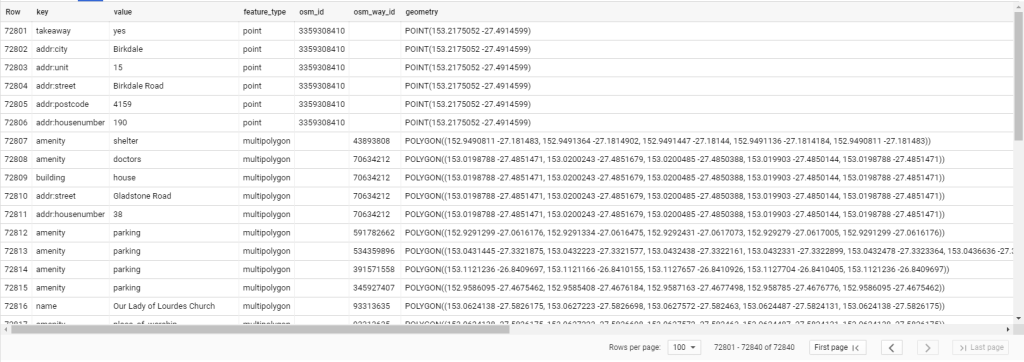
the query return
WARNING
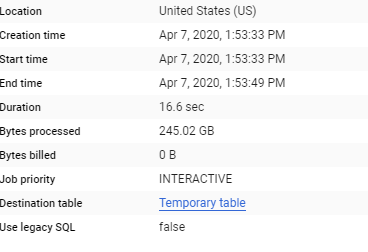
the query processed 245 GB in 16 seconds !!!, and it did cost 0 $ at least till 14 Sept 2020, after that it will incur cost ( 1 TB/5 $)
you can explore the result using the built in Geoviz, but you can’t share the data.
PowerBI does not support custom queries when connecting to Bigquery , I had to save the query results in a view, then the connection to PowerBI is straightforward.
the query results is returned as a Key, Value
using PowerQuery pivot, it is trivial to denormalize the table ( I could not find how to do that in SQL), anyway the results looks much easier to analyze.
by the way just be careful , PowerBI support a maximum of 32766 characters , but there is an easy workaround, split the column by 32766 and then concatenate in a calculated column, yes it will increase the memory size, but it works.
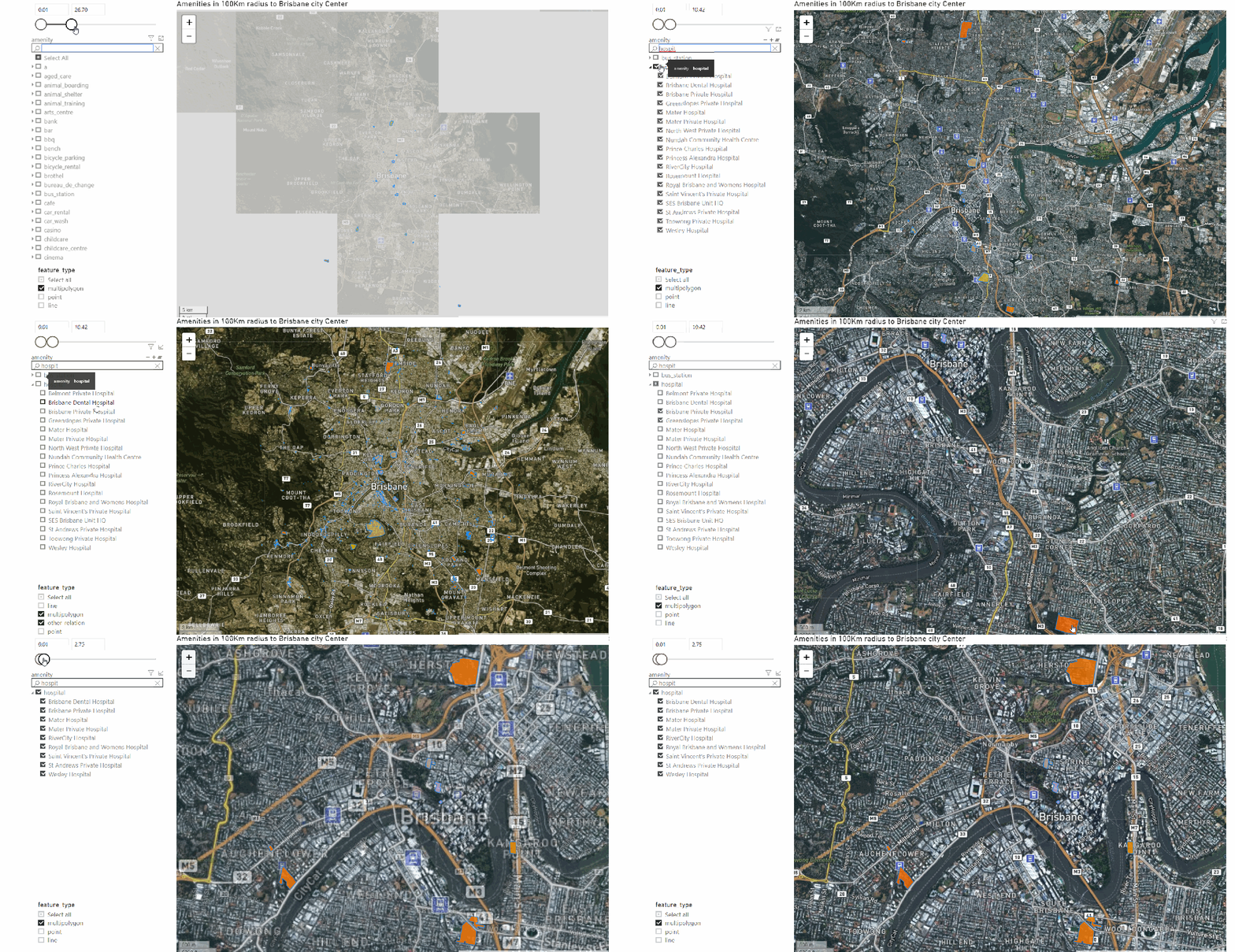
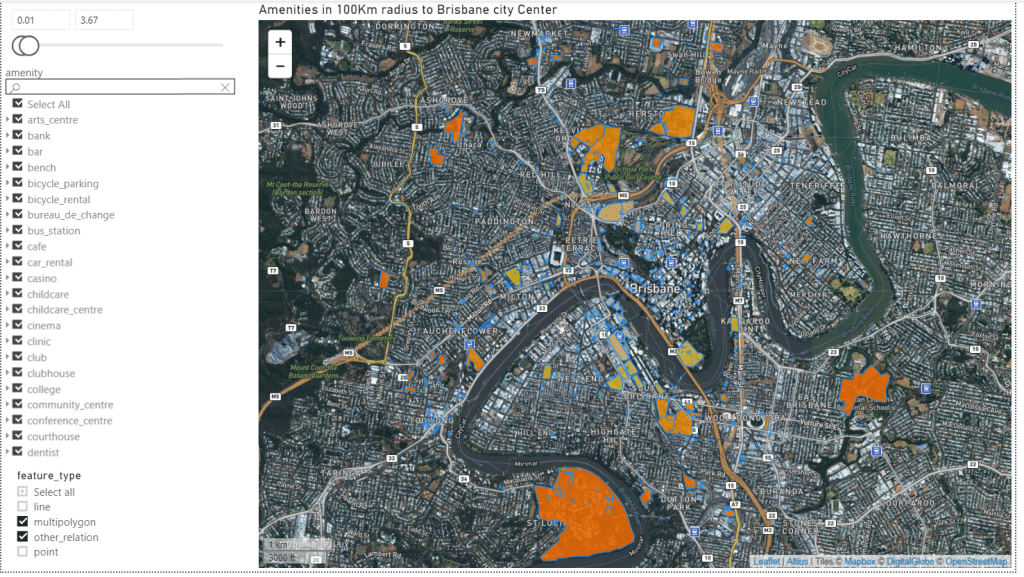
and here is the final results using the beta version of icon Map, for example filtering all the data less than 4 Km, if you want print quality map you can always use R visual, see example here
the custom visual is still in beta, polygons and multipolygons render perfectly, point works but with a visual discrepancy, and I don’t think linestring is supported at all.
Icon map is a very versatile visual, I hope the author will release an official update and fix the rendering bugs and add an option for color per category.
Bigquery GIS is very powerful and easy to use, the documentation is excellent, I wished only they release a smaller public GIS dataset to play with.
In a previous blog, I showed how to load a raster tiles into PowerBI data model, in theory that should solved all my issues with doing a detailed maps in PowerBI.
unfortunately, no, even if R and Python visual support up to 150K points, the reality is the implementation of R in the PoweBI service has a massive overhead and you can’t do anything about it, as it is literally a black box, all you can do is try to reduce the data passed to R visual and hope it works.
Actually, in my case, the visual did not even show up and I got an error message that resources are exceeded
I am in a situation where I can’t filter data because the whole point of the visual is to show all the data, at the same time, if the visual does not work in the service then there is no point in the whole exercise.
The trick is using wkt, I will simplify the geometry without losing any visual data, for example:
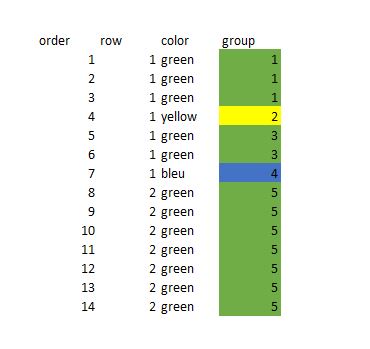
Instead of showing all the points, I will just group the points in the same order and colour as a line, as you can see from 14 rows of data, it is reduced to 5 rows, and the visual representation is the same, it is like sampling, but we keep the exact shape of the data.
Now in PowerBI, all we need to do is to automatically group those points together, turn out the solution was very easy using Rankx, keep in mind the wkt is dynamic for every update, I get a new geometry
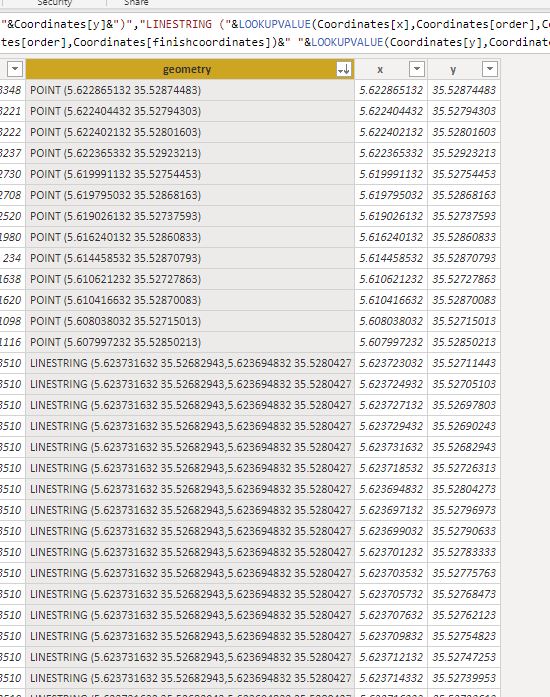
After that I just added some calculated columns to create the wkt format
For a point, POINT (X Y)
For a line, STRINLINE (start_X start_Y,finish_X finish_Y)
Keep in mind you can create polygons too, but the DAX become more complex (maybe for another blog)
you can create the wkt file in QGIS very easily but as my data change daily, it was not practical
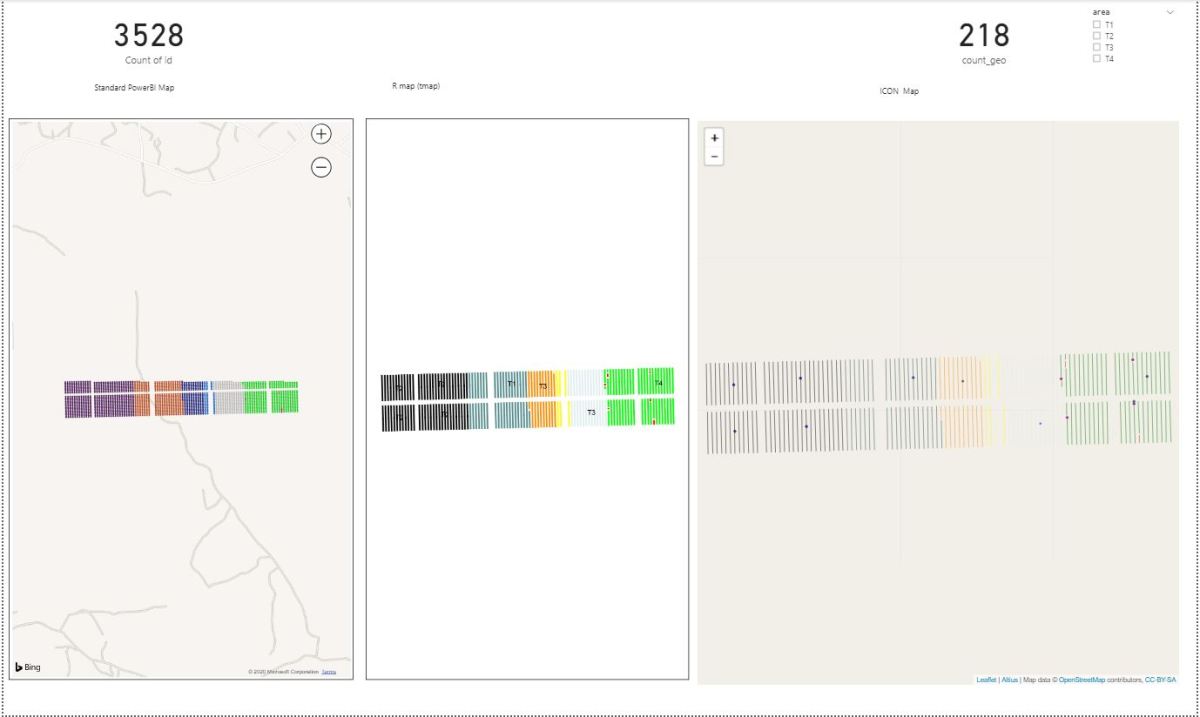
And here is the final result
The number or rows were reduced from 3528 to 218
That make a massive difference in PowerBI service, my real data is 58K rows and I can’t tell how much I was happy when finaly it worked in the service,not only that, but the total rows using wkt keep decreasing when I do more updates 🙂
There is a catch though, unfortunately as of Dec 2019, only R and Python script can render wkt geometry, there is a new custom visual by @james dales, but it is in a private beta and has some limitation on colors by category. ( icon map support color per category now)
I hope that in 2020, Microsoft invest more on improving the Maps offering in PowerBI , and optimize R and Python scripts on the service, I am very optimistic
with the new ICON map my use case is fully solved 🙂