Normalize multiple progress files using PowerQuery

A typical situation in the construction industry the progress data is sourced from multiple system with different format, generally we get two type of reports.

  • Time stamp items

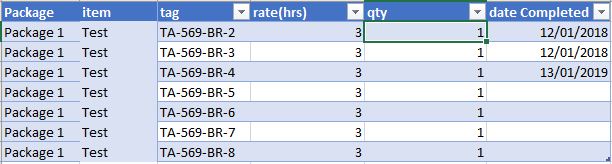
My preferred one, the data is tracked at a very low level (cable, spool, pre-commissioning and commissioning tracking), and you get a date when the item is completed something like this

This format is very convenient as you need to maintain only 1 file, the history is recorded in the data itself unfortunately, this kind of report is not always available for multiple reasons, the main one is, in some kind of work to finish one item it will take  longer period of time, for example completing 1 drawing will take 3 weeks, no manager will wait 3 weeks to claim a progress.

  • Cumulative Progress

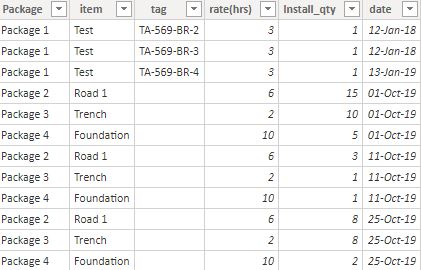
This format reports the cumulative progress at a time period (daily, weekly, or whenever there is a progress) something like this

This is format is very common, it is very easy to update by the supervisor, and works with any level of details

the challenge of this format is

  1. To get the historical data you need to keep all the previous files.
  2. As it is cumulative data, calculating the progress per time period is a bit harder, and getting something like year to date is very awkward.

we need to normalize those files to be in the same format, one approach I use with PowerQuery is

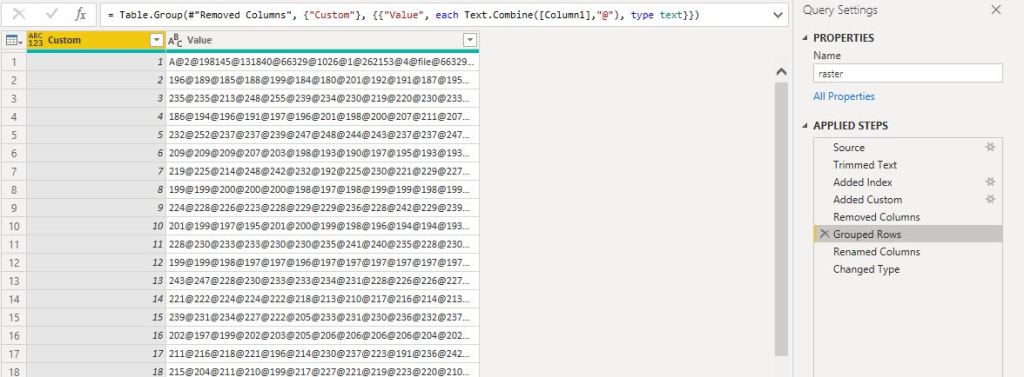
  • Load the cumulative files.
  • Calculate the reverse total cumulative using self-join
  • Filter only the values where there is a progress
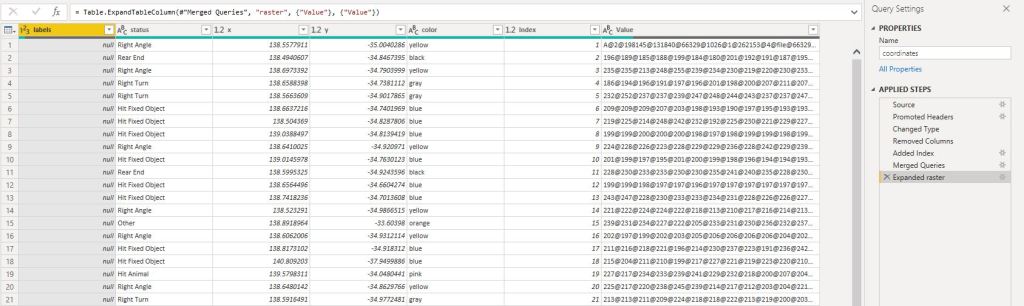
  • Append to the time stamp file.

 Now we have a normalize Actual Table, where quantity per period, year to date and all date calculations are very easy to calculate.

The pbix files and the source data is saved here

I know it is tempting to just load data and start making visual and do some complex DAX calculation, but it is not sustainable and it will make your life miserable, a simple data model will make further development much easier.

PowerBI, generate multiple Print quality Maps using R

In this blog, I will present a workflow, I have been using for the last 2 years with a rather a good feedback.

Obviously, I like interactive Dashboard, I want everyone to login to the PowerBI service and start doing their own analysis, but to my dismay, not everyone is interested in doing that, a lot of users want only a report that they can print. A took me a while to understand that that there is nothing wrong with that, and in a lot of use cases, a printed report is the best medium to convey information.

in my case, we do a lot of maps, and users want print quality maps, and because the data change daily, you need automation.

In previous blog, I wrote how to integrate PowerQuery with R, in the current blog, I will show how to generate multiple pdf with a customized map, by using R custom visual.

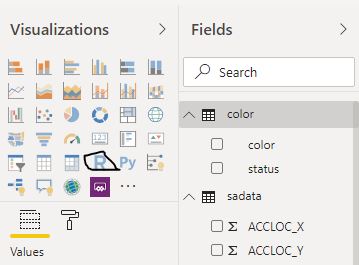
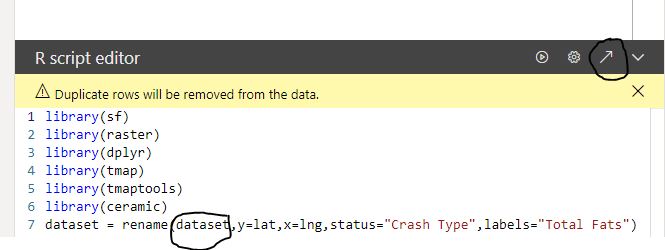
The PowerBI team has done a fantastic job, all you have to do is add the R script visual, add the fields you need, which automatically create a dataframe and write your code, and with one click, you can edit your code in RStudio!!!

Rstudio Integration works by creating a temporary csv file that hold the dataframe data

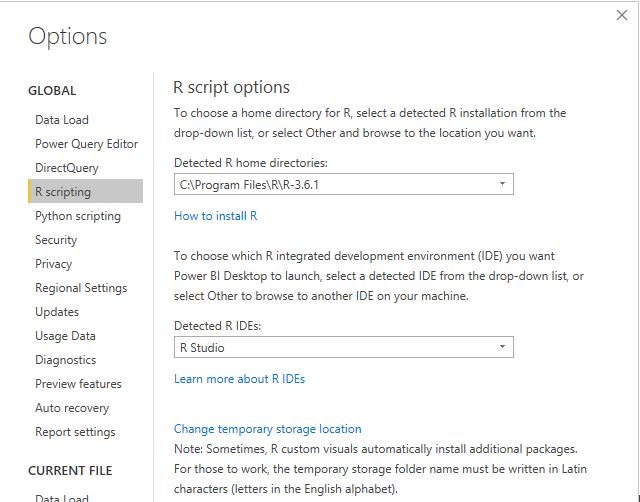
I personally prefer RStudio, but you can use any IDE

There are two caveats though

  1. The dataframe has a maximum of 150k rows.
  2. When you work in the desktop, it will use your R installation, all packages are supported, but when you publish to the service only the packages in this list are supported (ceramic is not supported, I think packages that downloaded external data are not supported), I found a workaround

Let’s generate some maps.

I am using the excellent package tmap for the mapping, you can customize any aspects of the map, layout, Text Size, legend, titles, it is really an amazing product and show the power of R, for tiles I am using ceramic .

you need a Mapbox token (their free tier is very generous), I will use South Australia car crash data as an example.

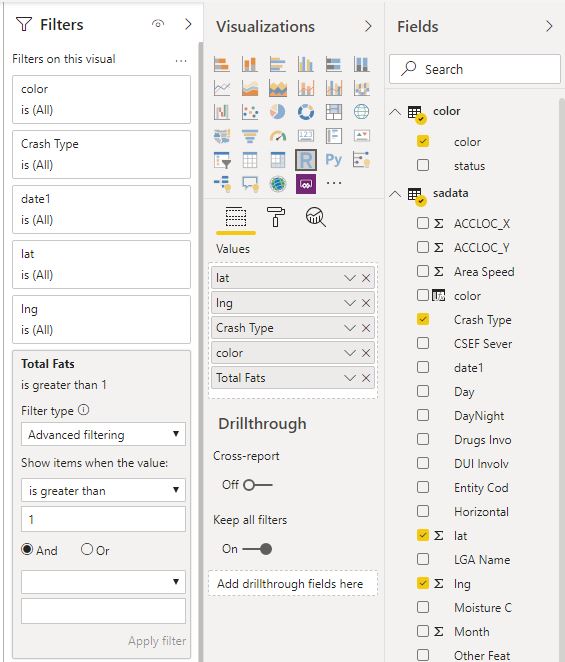
  • Fatalities >1

No code just adds a filter in the visual

The code

library(sf)

library(raster)

library(dplyr)

library(tmap)

library(tmaptools)

library(ceramic)

dataset = rename(dataset,y=lat,x=lng,status="Crash Type",labels="Total Fats")

dataset$color <- as.character(dataset$color)

dataset$labels <- as.character(dataset$labels)

map <- st_as_sf(dataset, coords = c("x", "y"), crs = 4326)

Sys.setenv(MAPBOX_API_KEY =”get your own key")

background <- cc_location(map)

dataset[dataset==""] <- NA

new_DF<-filter(dataset, !is.na(labels))

map1 <- st_as_sf(new_DF, coords = c("x", "y"), crs = 4326)

chartlegend <- unique(dataset[c("status", "color")])

m2 <- tm_shape(background)+

  tm_rgb() +

tm_shape(map) +

tm_symbols(col = "color", size = 0.04,shape=19)+

  tm_shape(map1) +

 tm_text(text="labels",col="white")+

  tm_add_legend(type='fill',labels=chartlegend$status, col=chartlegend$color)

  tmap_save(m2, "C:/Users/mimoune.djouallah/pdf/happyValey.pdf",width=3508, height=4961)

  m2

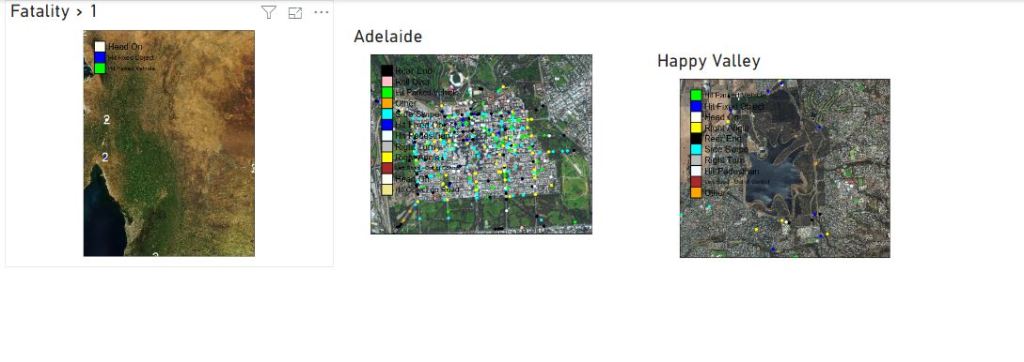
  • Copy the same custom visuals and just change the filters

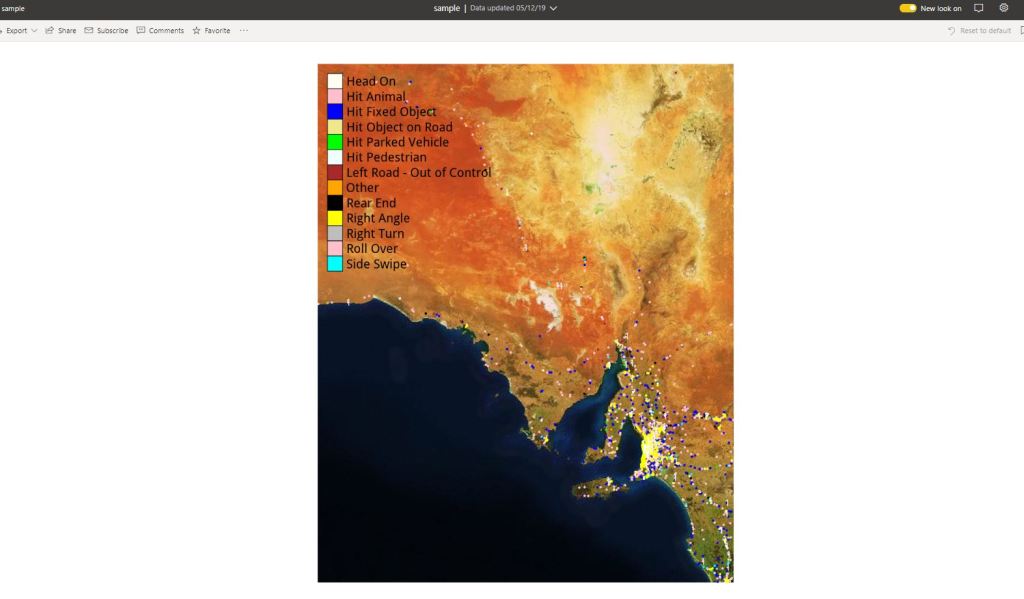
Here we go

 Best part the pdf files

Now you can share those files per email or save it in a shared folder. the map show only dots, but you can load polygon if you need to, see this blog for further details

 You can download the pbix here, you need R to be installed, and your own Mapbox token.

PowerBI Incremental refresh using Python or R

In this blog, I will show how to leverage Python (or R) to implement an incremental refresh in PowerBI using PowerQuery and Python, nothing is really new ( I am sure Imke and Maxim has blogged about it before).

in a previous blog, I showed how to use R & Python integration to load data to a Database

This approach make sense only when you do a lot of heavy transformation and your data source change based on time.

As an example, in my previous job, we receive a new excel file every Monday (300K rows), this file gets approved and corrected every Thursday.

the workflow was:

save the files in a folder, do the transformation, which was fine , but after the first year, it was around 52 files, and although technically you need only to do transformation for the last file, and as PowerBI does not support incremental refresh, twice a week we redo everything, after two years, the refresh took nearly 30 Minutes and sometimes we get out of memory errors.

in the big picture,Half an hour was not that bad (we have a desktop just for refresh), the worst was, you refresh the model and once you finish, you get a new revision and you must refresh again.

Now using Python/R script, the idea is every file get transformed only 1 time, regardless of how many times you refresh, just by exporting the results of the transformation of every file as a csv in a staging folder.  

  • The first run is slow, as it will process all the existing files in Source Data, but the subsequent run, will transform only new files.
  • Let’s say File 2 was revised, all you need to do,is to delete File2.csv and it will be transformed again, but only that file.
  • Ok, if you see step 4, the files are reloaded each time, I am not too much worried about that, as the batch loading of csv files from a folder using PowerQuery is relatively fast (yes, a bit slow compared to R), the bottleneck is rather the transformation.

the code for python script is here, as you can see PowerQuery integration is amazing, just add a new step and you get a dataframe, that’s all,

# 'dataset' holds the input data for this script

df_by_filename = dataset.groupby("filename")

for (filename, filename_df) in df_by_filename:

    filename = filename.replace("zip", "csv")

    filename = filename.replace("PUBLIC_DAILY", "UNIT_PUBLIC_DAILY")    filename_df.to_csv("C:/results/"+filename,index=False)

the script split the dataframe by the column filename, and then export each file separately, currently it is saving into a local folder, but you can easily save those files into a cloud storage

to test it, I built a quick workflow using public data, PBIX here,  the source data is zip files in a public website, there is a new zip file daily, it is relatively complex transformation as you need to unzip the file split it, delete some columns etc, the first run is slow, as it is processing all the files (62 files), but the next run, will just process 1 file, you can simulate that just by deleting some csv files in the staging folder, when you refresh again, only the files deleted will be processed again.

I think the main take away is, Python and R integration are amazing tools to implement new possibilities that will not be necessary available in PowerBI, and you don’t need to be a programmer to use those integration, a serious search on stackoverflow will get you started quickly.

How to Export data from PowerQuery to BigQuery

Today was playing with a report in PowerBI and I got this idea of exporting data to BigQuery from PowerQuery, let me tell you something, it is very easy and it works rather well, PowerQuery is an amazing technology ( and it is free).

in PowerBI,you can export from R or Python visuals but there are a limitation of 150K rows, but if you use PowerQuery, there is no limitation ( I tried with a table of 23 Millions records and it works)

here is the code using Python, but you can use R

import pandas as pd
import os
from google.cloud import bigquery
dataset['SETTLEMENTDATE']=pd.to_datetime(dataset['SETTLEMENTDATE'])
dataset['INITIALMW']=pd.to_numeric(dataset['INITIALMW'])
os.environ["GOOGLE_APPLICATION_CREDENTIALS"] = "C:/BigQuery/test-990c2f64d86d.json"
client = bigquery.Client()
dataset_ref = client.dataset('work')
table_ref = dataset_ref.table('test')
job_config = bigquery.LoadJobConfig()
job_config.write_disposition = bigquery.WriteDisposition.WRITE_TRUNCATE
job_config.schema = [
bigquery.SchemaField("SETTLEMENTDATE", "TIMESTAMP"),
bigquery.SchemaField("DUID", "STRING"),
bigquery.SchemaField("INITIALMW", "FLOAT"),
bigquery.SchemaField("UNIT", "STRING")]
job = client.load_table_from_dataframe(dataset, table_ref, job_config=job_config)
job.result() # Waits for table load to complete.

interesting after the step in Python we get a table, simply expand it

here is the total rows of the table in PowerBI

the results in BigQuery

ok, PowerQuery flow can execute many times, it is a black magic knowledge that’s only a handful of people knows, but in this cases, it does not matter, the BigQuery job truncate the tables every time, so there is no risk of data duplication.

probably you may ask why do that if there are a lot of data preparation tools that natively support BigQuery, based on my own experience, most of my data sources are Excel files and PowerQuery is just very powerful and versatile specially if you deal with “dirty” format.