Power BI product team kindly provided us a private Preview of Datamart a couple of Months ago, the product has many components and may mean different thing to different people( with different technical background ), but at the core, it is a SQL Server DB with columnar compression, and a SQL Endpoint, the Data is loaded using Power BI dataflow, and a brand new Web Experience for Data Modelling and measures authoring, no desktop is required.
Before we start talking about details, let’s get some key feature first.
- It is premium only and to my surprise, it is available to PPU too ( 20 $/Month/User is an insane value proposition).
- Security is managed by Power BI using Azure active directory, you don’t need any obscure SQL Security knowledge.
- Sharing a database is a two click Operation. ( even with external users )
- Datamart is very fast, sometimes I had to double check I am not in import mode.
- It is a single node server, Data currently is limited to 100 GB per Database.
- Currently Only Power BI dataflow can load data ( incremental is supported too), and no support for creating views yet.
- Multiple users can use Datamart UI at the same time.
- You don’t need to know anything about compression, partition etc, table distribution, data skew, shuffle etc, Datamart handles it automatically, it does create Clustered Columnstore index, statistics, partitions etc.
- The product team promises that full DDL/DML is coming soon.
- I find this blog very useful on explaining how SQL Server Clustered Columnstore Index Works
The First success we had was to make some data from Power BI dataflow available using the SQL Endpoint, it was just trivial, Just one Click on the server setting, and voila, a connection string that any tool with SQL Server support can use , Obviously Power BI, SSMS, Excel, Tabular reports, but Tableau, R, Python you name it.

I am a “Traditional” Power BI developer, what does it mean to me ?
Nothing has changed, it is not Power BI version 2,it is not replacing the Vertipaq, you can just keep using Power BI desktop as usual, in my opinion it is just Power BI product team trying to reimagine a better data experience and solving some pain points.
- Make Power BI Dataflow a more “Enterprise” solution, there is a SQL Endpoint point, Data engineer will take PowerQuery more seriously now 🙂
- An online Modelling Experience, no need to install a VM for Mac users.
- A new experience for users with SQL skills, yes you can just write SQL and get results without out Modelling, you don’t need to Know anything about DAX.
- Addressing a market that was poorly served before, an easy to use SQL Experience for Business users that don’t necessarily know SQL, and don’t want to model anything.
- Bonus point, no Azure access requirement, it is just Power BI experience as we know it and love it.
So how it Works ?
You load the data using Power BI dataflow, it is instantly available in a SQL database, if you know SQL, you can just write Queries, and download an Excel spreadsheet that contains a connection to Datamart SQL Server with a SQL Query , the data will be always up to date, it is not a simply a copy of the results.

One nice thing about using SQL Server as an Execution Engine, the documentation available on the internet is amazing, let’s say I want to know how much memory the server is using, I just copy it and it works.

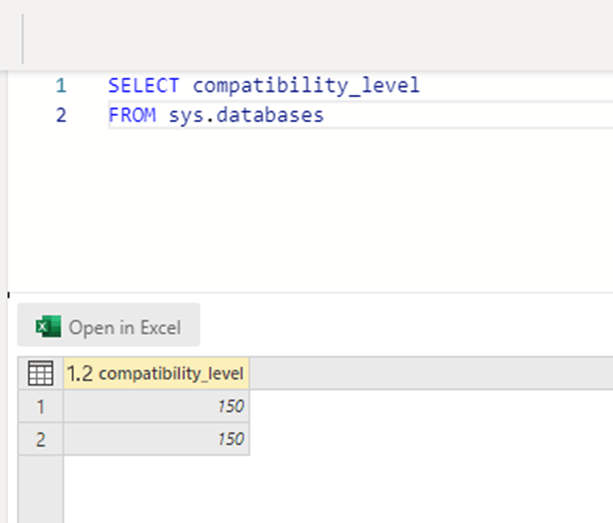
Let’s check which SQL server edition, Datamart uses ( 150 means, SQL Server 2019)
here you can see the table structure created by Datamart, 1 partition and multiple segments ( the table has 60 Million rows, each segments is around 700K rows), I think with incremental refresh it create multiple partitions ( I have not test it yet)

Visual SQL
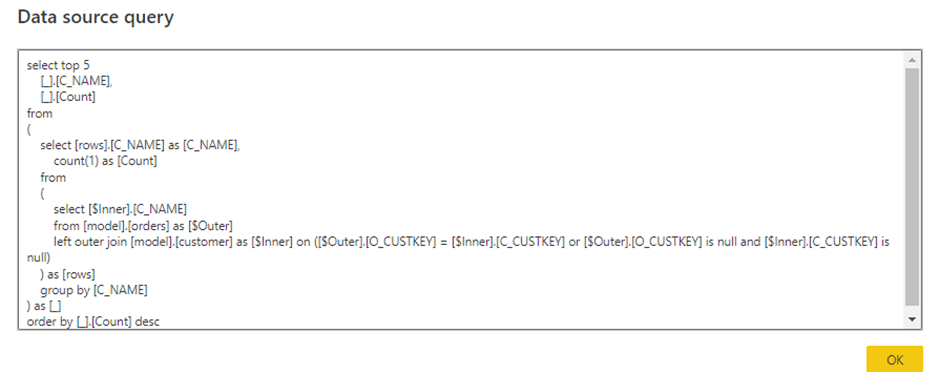
If you don’t want to write SQL, fine just use a Visual Experience to get the results, here I am getting the top customers by number of orders without writing any SQL code, bonus point the SQL is written behind the scene, it is like a Visual dbt 🙂

And the SQL generated
Ok, you don’t want ad hoc stuff fine, you can Model your data by defining relationship and row level security if necessary
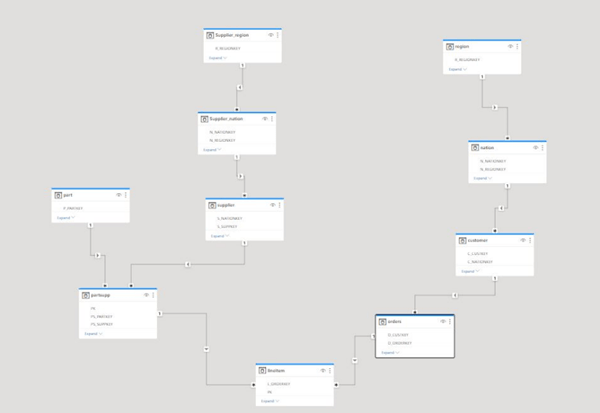
To be clear, Tables, relationship and row level security are a pure “SQL artefact” and can be used by any front-end tool as long as it can connect to SQL Server and has proper access using Azure Active directory, and no Measures can not be defined as a SQL 🙂
Obviously, you can connect using SSMS. (notice the relationship columns)

It is Still Power BI
I presume, if you paid for Power BI service, probably you want still to use Power BI as a Visualisation tool 🙂
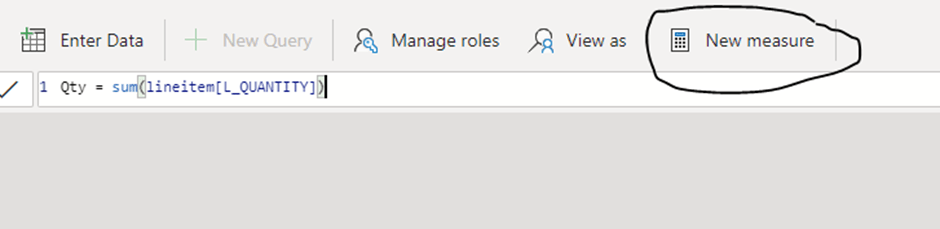
you can define Measures in DAX ( calculated column and tables are not supported, everything must be loaded using PowerQuery)
And here is the Trick Datamart Auto generate a read only Dataset, it is only a logical semantic Model, no data is duplicated, it uses a Direct Query Connection to the SQL Server Datamart.
Auto Generated dataset
I will be honest I did not like it initially, I wanted more control, I want to configure which table to include into the dataset and which one to exclude, Direct Query performance is amazing, but still I want to define some tables as dual Mode, or simply import, and I am not going to be apologetic about it, I like calculated column and calculated table, I used them a lot, and I don’t care if they need some extra size, some pattern are trivial using DAX and very hard ( at least for me) using SQL and PowerQuery.
One day, I changed my Mind , Charles Webb (the PM for Datamart) was very clear in his explanation about the different personas, it is free, and you don’t have to use it in all cases, people with SQL Background and less experience with Power BI will find it amazing, they don’t have to deal with Power BI desktop or extra fancy modelling, people with Power BI experience may prefer to have more control and will extend the Dataset, other advance Developers may want to use Tabular Editor and it is fine.
Flexible Open Architecture

You can have a Datamart that manage everything, or you can keep Dataflow, Datamart, Dataset separated, it is really a nice architecture and provide a lot of flexibility, I think it depends, if you have a Datamart that contains a lot of tables that update based on different schedule it make sense to have dataflow do the ETL first then load the results later using Datamart. ( I think later Dataflow will provide even a more elegant solution)
Anyway, it is flexible and can be tightly coupled if you want to, or you can pick and choose which component to use, and I am sure users will use it in some unexpected way ( I may have loaded some DAX calculated table and expose it to the SQL Endpoint)
One aspect I really like for philosophical reason, even if all the downstream users will end up using Only Power BI reports or Excel, having a SQL Endpoints is extremely important, it is an Enterprise grade solution that can talk to other tools when needed and not a self-service silo.
PBIX Download is annoying
The auto generated dataset cannot be downloaded for a good technical reason, but if you create a report based on it, the report will be download with a pbix that contains a DQ mode to SQL Server, IMHO a better approach is, if you build a thin report from the auto generated dataset, and you download the pbix, it should use only a live connection ( which is the same behaviour if you build a report using the Desktop), but if you download the pbix from Datamart then it should show a Direct Query Mode to SQL Server, it is not a problem per se, but rather unexpected behaviour.
Final thoughts
I think it is an amazing solution that will keep evolving, Microsoft Data team manage to create an exceptional user experience to build a full data stack that anyone can use regardless of his technical background, I remember when I first used PowerPivot in 2015, I knew that it will change the industry (and it did), and I am sure Datamart will do the same.
Initially I wrote a long commentary on how Datamart fit in the “Modern Data Stack”, and how it compares to Other vendors offering, then something occurred to me, Microsoft is just building a useful product that solve hard problems for a very large segment of the market and anything else does not matter, call it “Post Modern Data Stack” if you want.