Digital Strategy in Construction – The Videos

Within the project controls world – I have found the strategic approaches to digital strategy to perhaps be a bit lacking. They key is that nothing exists in isolation. You need a fully comprehensive approach Gaining awareness of what is out there, gaining clear understanding of the current capabilities of your staff and in general, being at the forefront of our technological world is what the future will bring

Specifically in the world of project controls, I have found the strategic approaches to digital strategy to perhaps be a bit lacking.  This was the key impetus for me to put together the presentation last year. For me, digital strategy is not about implementing PRISM or EcoSYS. It isn’t even about upskilling your staff. There are more holistic views that can enable users to operate smarter. Obviously, this goes hand and hand with systems and education. They key is that nothing exists in isolation. You need a fully comprehensive approach that touches everyone on your projects.

The genesis of the ideas were several posts on LinkedIn and a Blog Post on Digital Strategy

I have posted each of these separately, but nice to have them all together in once concise post that I can reference in the future. There is a similar post on Agile in Construction

Digital Strategy – Dealing with Excel Hell

Excel Hell is where we all live and the area of our business that has seldom been touched by digital strategies. Perhaps times we start to think what we can do about it and move to the next step

Digital Strategy – Enter Data Once

The next step is Entering Data Once. This term is tossed around a lot, but the way we view and deal with this is a dogs breakfast. I don’t necessarily understand all the possible solutions, but perhaps the framing of the problem and discussions about what we can do about will stimulate some discussions.

Once we have data stored digitally, we can move onto the next step: Be Visual

Something as simple as a daily report – can be insanely valuable when translated into a digital environment. Enter information once and allow the entire project access to it. Digital forms – using tools such as OpenText allows for your creativity to be the limiting factor in entering data once and using it everywhere. Tools such as NINTEX can also so easily be tailored to fit unique custom needs in your existing sharepoint platforms.

Digital Strategy – Be Visual

The future is all about digital dashboards. If you are not in this space now, you will be in the future. Now that we have our key data stored in a digital format, we can start to move our reporting into the 21st century: BE VISUAL!

Whats in the Future?

I think the sophistication of many of the commercial software packages can in some regards leave my beliefs redundant. Companies like Sablono, Procure and JIRA not to mention a myriad of other providers are implementing many of the concepts I try to follow related to digital strategy. While some of the tools are known in the construction world, I urge people to push the concepts of MASHUP. If you can use something from another field in a creative way inside construction – that is where innovation and disruption come from.

Gaining awareness of what is out there, gaining clear understanding of the current capabilities of your staff and in general, being at the forefront of our technological world is what the future will bring

Thus, perhaps the most important strategy I can recommend

Digital Strategy – Follow all the latest Trends and know all the software capabilities

This is perhaps at the core of my beliefs. Unless you at the forefront, vision alone is not sufficient.

Digital Strategy – IT by itself does not solve your problems – its how you use IT
SharePoint / PowerBI / Primavera P6 Integration – By Darrin Kinney

Which mix of applications will improve your construction progress reports? Understand simple steps, like adding comments to SharePoint and quickly publishing Primavera construction data through Excel, Access, and PowerBI.

I have dreamed about the ability to easily integrate many of my favorite applications. A few technological roadblocks had prevented me from pursuing this, but I am finally in a position to showcase what I view to be a quite seamless integration chain and management process.

Our key objective is to

  1. View our schedule activities
  2. Allow our area specific team to provide commentary on each activity (if we view the activity deviating from our plan or perhaps need to include notes about key interfaces)
  3. Allow our project wide team view our comments
  4. Provide a tool to present schedule and progress aspects of our area

Note that I still view JIRA as providing a tool that immediately makes this post redundant.  Although, in lieu of everyone jumping on JIRA, let’s dive right into an interesting use case of common applications.

Primavera

Primavera exported to Excel

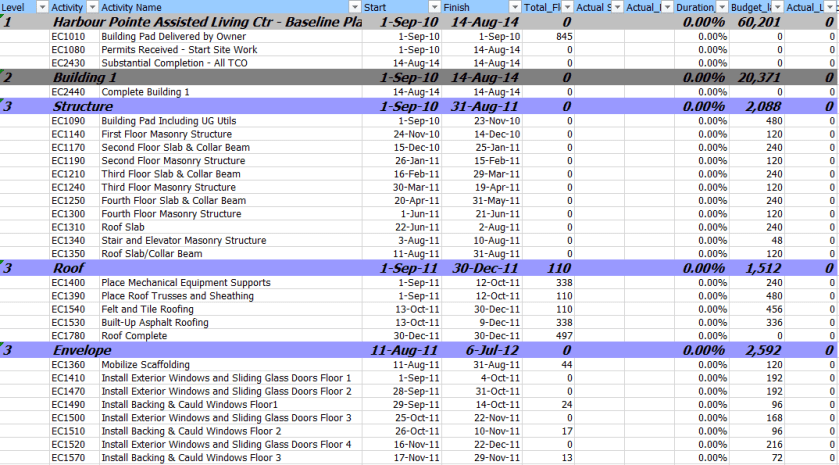
For this example, I am using dummy schedule data. The ideas here are quite universal and can be used with any schedule. Care should be take to ensure proper filtering to avoid ever displaying too many activities.

The key objective here is to be able to export our activities to Excel and then upload the data into a SharePoint list. Tools, such as XER reader, provide the ability to quickly move activities into Excel.

SharePoint

Here, a lot of interesting hacks and strategy come into play.

Digital Strategy – Enter Data Once

SharePoint is a perfect tool for editing data in one location, and to source it in many different ways without having to reenter it.

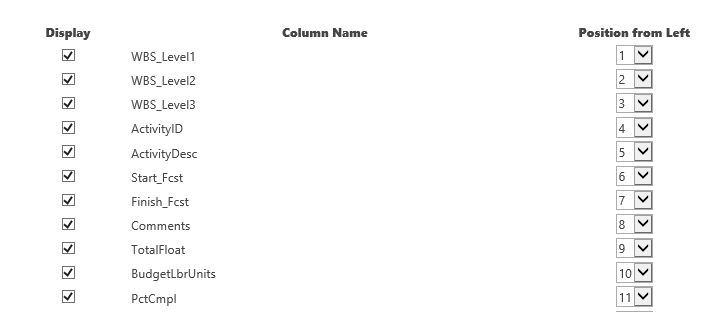
The first thing we need to do is create a list.

so02_sharepointlistsetup

You can insert a few more columns to pull in Plan Dates, or prior updated dates. However, we are only looking at a comments functionality with this list. We can live with a very stripped down data set (and leave PowerBI to capture everything at a later point).

SP03_sharepointList

The above view is what you would see in the edit view on your SharePoint website. This functionality is fast and allows a team to provide a much more concise internal list of comments specific to each activity (or perhaps only key interface activities).

Where the above doesn’t work? It doesn’t work in situations where we might have a chain of comments. SharePoint allows effectively free text fields. We can enter multiple lines of data for each comment and include dates inside the comment for when the comment was made. There are more sophisticated data models that would allow for multiple comments to be actioned on each activity. However, this example is a lightweight solution — using easily available, off-the-shelf technology. From this point, we dive into your standard PowerBI template.

An URL with predefined filter criteria applied to the SharePoint list is simple. However, we need to use this with caution, because we may end up with 1000s of activities in SharePoint and it will be hard to update this in the future.

Microsoft Access

It is possible to directly edit a SharePoint list using MS Access. In this example, we get constant updates from our contractors on dates. Keep in mind, the SharePoint list is not the management tool for the dates or progress (however — looking at the above, it can be!).

To allow for the list to be bulk updated with new dates and progress figures, we can utilize a query in MS Access. I am a firm believer in the ability for MS Access to facilitate moving data between different systems.

PowerBI

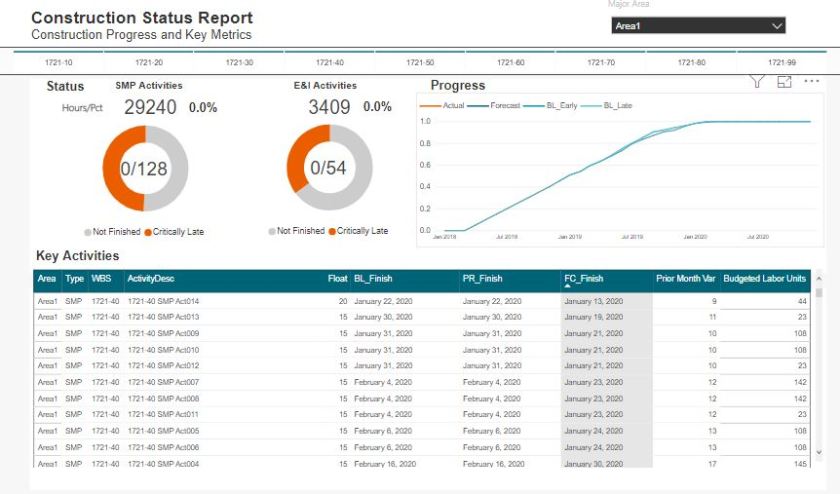
In this example, I will be using an existing template I have previously discussed (follow this link to the Construction Progress Reporting post).

Construction02

Where reports in PowerBI fall over, is that users have a difficult time actually being engaged as managers of the data. We do not have an easy ability to provide context or comments to specific data elements.

Here, we can immediately see that we can interface this dashboard with our SharePoint list. In our PowerBI queries, we can link to the SharePoint list.

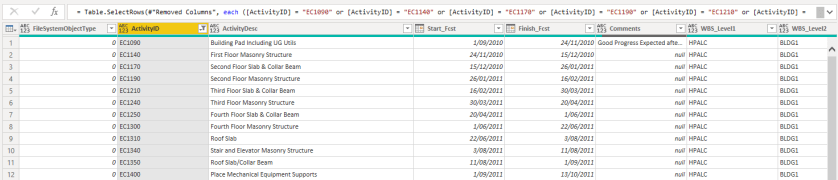
SP04_sharepointPBI

As our schedule data is unique per ScheduleID, and our SharePoint list is unique per ScheduleID, we can link these 2 tables together and pull the comments into our table.

SP05

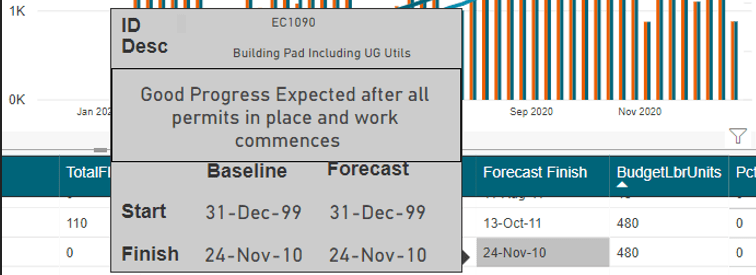
The resulting comment can the efficiently placed on a custom tooltip.

Extensions

As with any comment, it is important to include an indication of criticality. In the above picture, we don’t have an indication if a comment exists, and if a comment does exist we do now know if its important. Therefore, in our SharePoint list, we can use an extension to insert a traffic light in the cell. Then on the PowerBI visual, a traffic light is displayed using a small, colored circle. This would allow for quickly glancing at all the activities and being able to quickly drill into a critical comment.

This is different from looking at Total Float or Variations. Typically on-site, various activities have issues for various reasons that may not have anything to do with float or variances. These may be risk-related issues we are trying to prevent, or perhaps gets others to understand. This approach to comments is exactly what can lend value to a project.

Construction Progress Report – PowerBI – by Darrin Kinney

A quick and easy construction progress and schedule dashboard.

I have previously outlined an approach that can be used for Engineering Progress.

This post is an extension to that which instead of looking at engineering model development, instead looks at construction development. I don’t want to delve too much into the details about exactly how this was built (again see the post above).

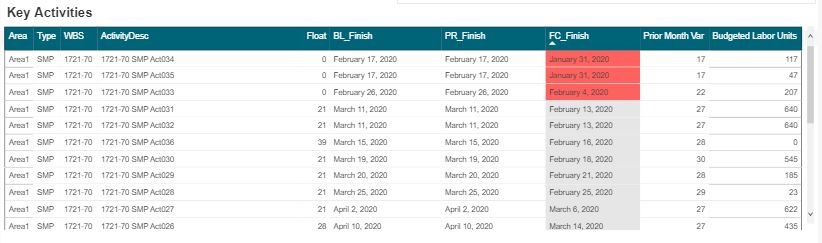
Some big differences is that I have used a resource assignment view. in addition to the date metrics This allows for resources histogram and progress curves to be quickly sorted down to an activity level. This approach also follows a prior post Resource Analysis Dashboard .

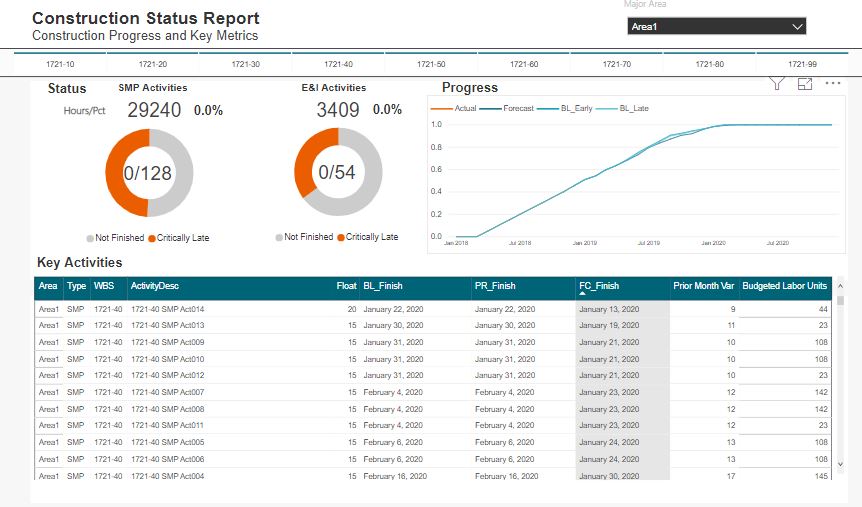
Construction02

The data

Construction01

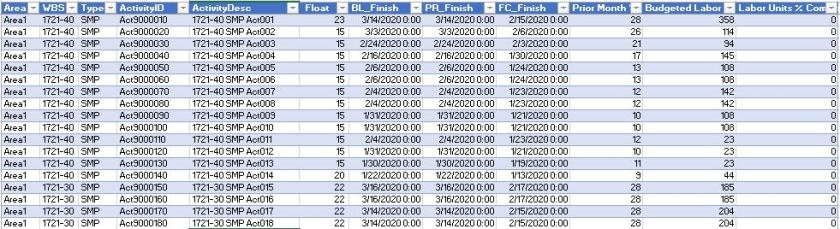
The underlying data is very similar to our engineering progress example. We can use a flat file export direct from P6 with a standard set of columns. As I have mentioned before, you can achieve this in a SQL query as part of a larger data model, although with everything, a delicate balance is needed (balancing database formalism and easy excel solution)

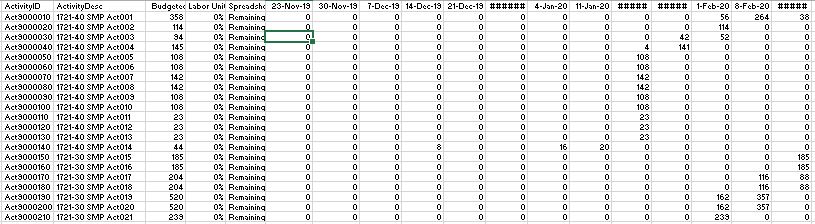
We will also have the resource assignment data

Construction06data.JPG

The WBS Slicer and Area Selection

Construction03_wbs

This design element doesn’t work for project with too many WBS elements. For this example, each major area only has about 10 WBS elements, therefore I could pull this off with no drama. I really prefer this selection as opposed to drop downs where it is often difficult to quickly make  selection.

The Pie and Metrics

Construction04pies

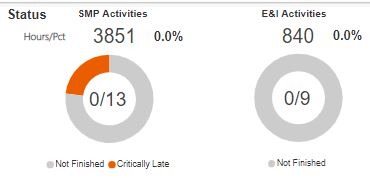
Here we follow much of the look and feel I used with the engineering progress; however instead of just using activity count metrics, I have also inserted hour and percent complete metrics. There is nothing fancy about these.

The Data Table

Construction05table.JPG

I’ll sound like a broken record again, when you have a good design with one aspect of a project, you can likely take that and run with it for many other areas. In a following post I will detail this systems engineering aspect to nearly everything we touch.

Obviously the key inclusion into the table is the budget units and %’s. I still prefer these tables views vs the GANTT views. Having clear visibility into the last month dates, the prior month dates,  and variances is the purpose of this view.

The Future

Again, the extension of this are endless. At this stage, we are starting to see how pre filtered views provide more focused dashboard as compared to a one size fits all. Sitting in an EPCM world, most of the detailed activities and schedules are managed by our contractors. Thus, this construction view is more suited to using an export from a contractor Level 4 schedule.

At some point, we will need to begin to discuss an overarching design where a user can navigate to our various dashboard in a logic way.

Happy data wrangling!

Build asymmetrical Pivot table in PowerBI

I have been asked to produce a simple construction report, we need to show the last 4 weeks of actual progress data and 6 weeks of forecast and to make thing a little bit complex the average installation since the start of the project, nothing special three measures, average to date, install per week and forecast per week

Obviously, it is trivial to be done in Excel using named sets, if you don’t know what’s named set and cube formula is, you are missing the most powerful reporting paradigm in Excel, a good introduction is here, and there are plenty of resources here.

Unfortunately named set is not supported yet in PowerBI, you can vote here,

Just for demonstration purpose, if you try to add those three measures to a matrix visual, PowerBI just repeat them for every time period, obviously that’s not good at all,  the actual installation make sense only in the past and the forecast has to be in the future, there is no option to hide a measure if there is no value in a column and even if it was possible we need to show the average installation independently of the time period, anyway this the report when you add the three measures

and because I already learned a new trick on how to dynamically add measures to a matrix visual in PowerBI,  I was tempted to try and see if it works in this scenario.

 So, let’s see how it can be done using the disconnected table

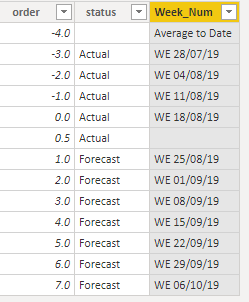
  1. Create a disconnected table with two columns Order and status
  • Add a calculated column,

As  the cut-off date change at least three times a week, the week number change accordingly, we can’t simply hard code the dates, instead let’s add a new calculated column, which will just lookup the week date from a master calendar table based on the order, when the order is -4 it will return “average to date”, I added a dummy 0.5 order just to add an empty space between actual and forecast ( cosmetic is important)

Week_Num =
SWITCH (
    [order],
    -4, “Average to Date”,
    0.5, BLANK (),
    “WE “
        & FORMAT (
            LOOKUPVALUE ( MstDates[dynamic Week End], MstDates[week_number], [order] ),
            “dd/mm/yy”
        )
)

  • Add a new measure that show specific measures (Average,Install or forecast) based on the value of column

dynamic_Pivot =

SWITCH (

    SELECTEDVALUE(pivot[order],BLANK()),

    -4,[Install_qty_average_week],

-3,CALCULATE([Installed_qty],MstDates[week_number]=-3),

-2,CALCULATE([Installed_qty],MstDates[week_number]=-2),

-1,CALCULATE([Installed_qty],MstDates[week_number]=-1),

0,CALCULATE([Installed_qty],MstDates[week_number]=0),

1,CALCULATE([Forecast_Qty],MstDates[week_number]=1),

2,CALCULATE([Forecast_Qty],MstDates[week_number]=2),

3,CALCULATE([Forecast_Qty],MstDates[week_number]=3),

4,CALCULATE([Forecast_Qty],MstDates[week_number]=4),

5,CALCULATE([Forecast_Qty],MstDates[week_number]=5),

6,CALCULATE([Forecast_Qty],MstDates[week_number]=6),

7,CALCULATE([Forecast_Qty],MstDates[week_number]=7))

And voila an asymmetrical matrix visual in all its glory 😊

Edit 3-Sept-2019 : Maxim in the comment made an excellent suggestion to use variable to make the measure more manageable

dynamic_Pivot=
VAR _order =
    SELECTEDVALUE ( pivot[order], BLANK () )
RETURN
    IF (
        _order = -4,
        [Install_qty_average_week],
        IF (
            _order <= 0,
            CALCULATE ( [Installed_qty], MstDates[week_number] = _order ),
            IF ( _order > 0, CALCULATE ( [Forecast_Qty], MstDates[week_number] = _order ) )
        )
    )