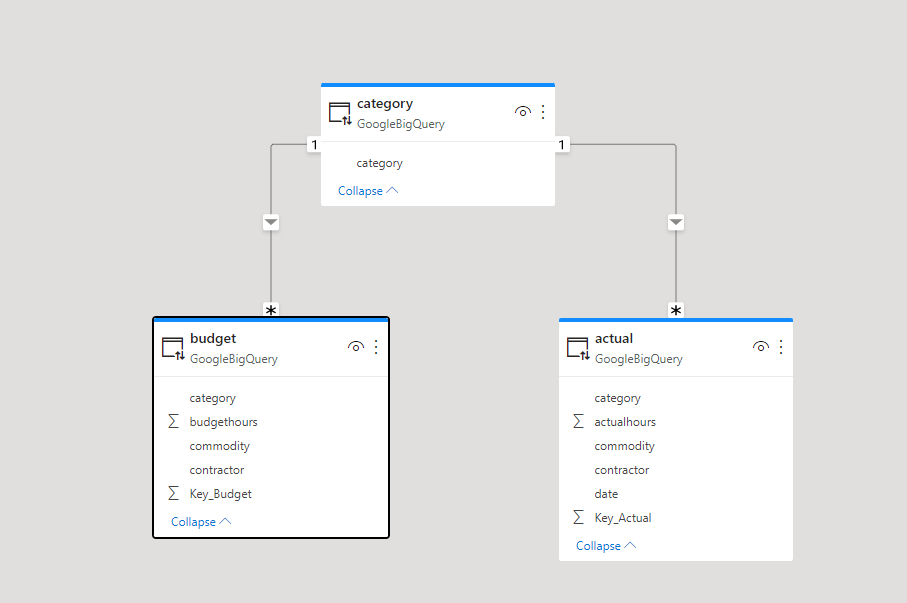
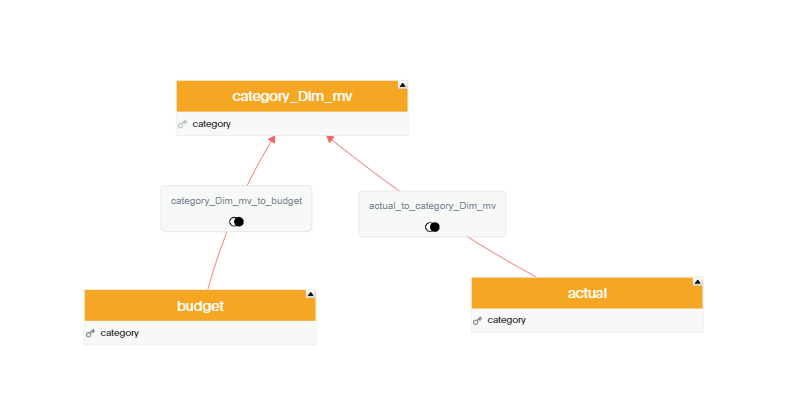
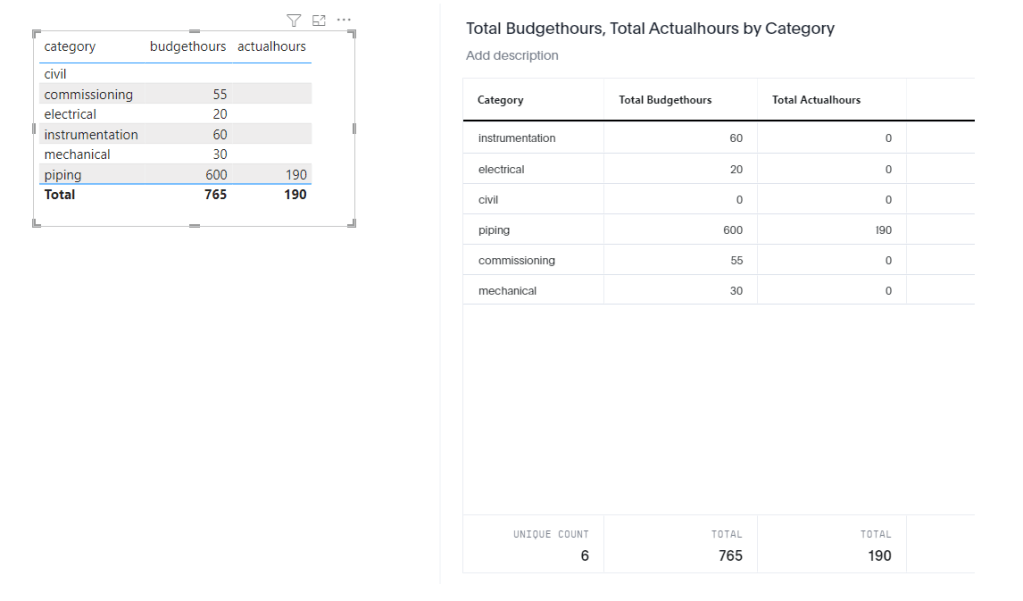
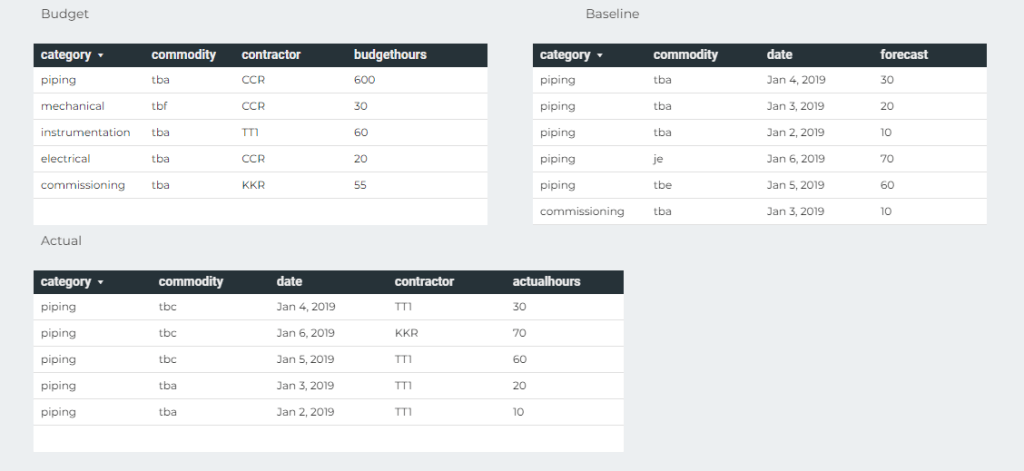
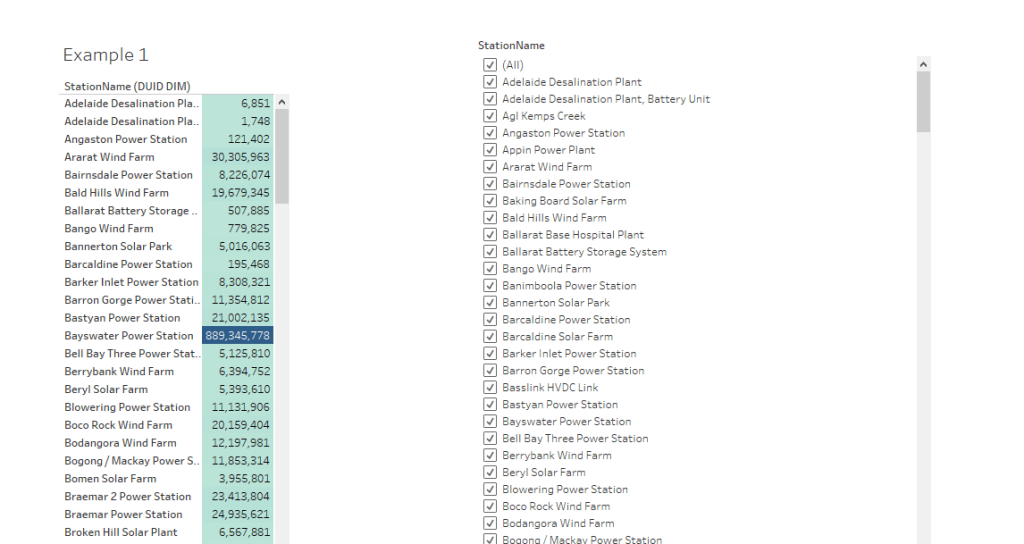
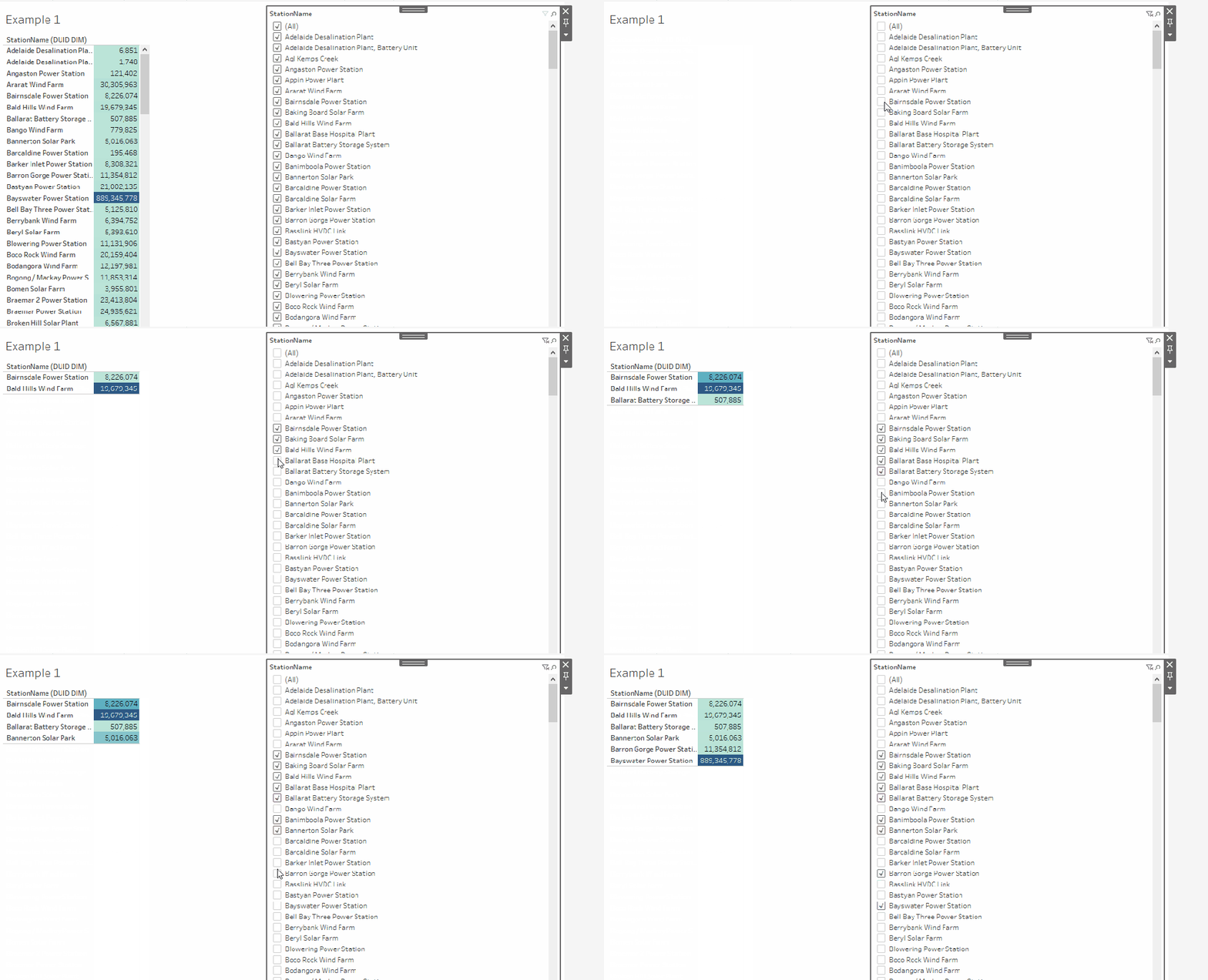
Poor man’s snapshot using PowerBI Dataflow

It is a quick Hack and maybe useful, let’s say you want to keep a snapshot of a previous data, for example you have a dimension table and you want to see how the data has changed between multiple load.

This Scenario was famously hard to do in PowerBI, because when you load a table a into PowerBI Database, by default it will overwrite the existing data, there is an option for incremental refresh, but it assume your data change daily or at least regularly.

The canonical solution for this scenario nowadays is to attach a workspace to an Azure Storage, unfortunately, it is very problematic for a couple of of reasons

– Business users don’t usually have access to Azure Resources.

– As of today, a PowerBI admin need to opt for that Option, which apply for all Workspace Admins, it would have being easier if that option can be granted to only some Workspace Admins.

XMLA End Point

The Idea is very simple.

  • Getting already Loaded Data from a PowerBI using XMLA Endpoint ( See this blog for how to use it).
  • Load the new data using a Dataflow.
  • In the Same Dataflow you can append only the new Data, or any operation you want ( like merging new Data), it is very flexible, it can use any attribute not only Date
  • Just make sure there is a lag between Dataflow refresh and PowerBI Dataset refresh

Dataflow Should be Better

The Obvious Question ? because Dataflow keep snapshots of recent loads, why we need the extra step of attaching an Azure Storage, why not exposing this data using some extra option in the UI.

I think after all this years, it is time for Dataflow to tackle more use cases, can we have an option to append Data instead of overwrite ? or why not an easy to use upsert.

PowerBI made Data Modeling nearly trivial, Hopefully Dataflow can make Enterprise ETL available for everyone.

Optimize BigQuery BI Engine Memory usage by Using Materialized Views

I blog previously how to create a Materialized View in BigQuery, and Obviously I talk a lot about BI Engine, but do they work together ?

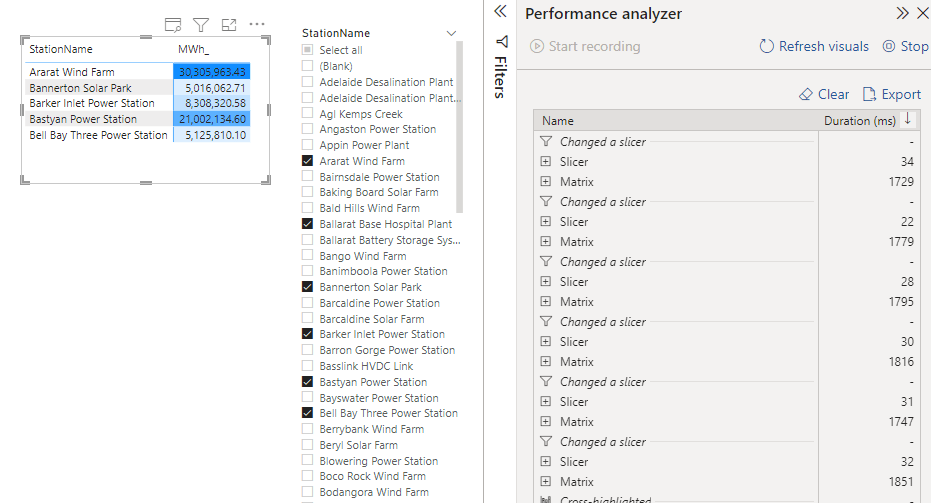
To test it, I built a simple report in PowerBI using live mode ( you can use your favorite BI tool), 1 fact table with 78 Millions records at the minute granularity and a small dimension Table

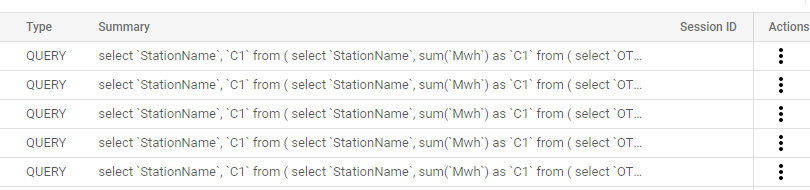
In every Selection PowerBI send a SQL Query which scan 1.79 GB

Then I created a Materialized View , notice I skipped the time dimension

SELECT
  xx.DUID,
  yy.StationName,
  yy.Region,
  yy.FuelSourceDescriptor,
  yy.Technology,
  yy.latitude,
  yy.longitude,
  yy.Tech,
  DAY,
  SUM(Mwh) AS Mwh
FROM
  `xxxxx.UNITARCHIVE` xx
INNER JOIN
  xxxxx.DUID_DIM yy
ON
  xx.DUID=YY.DUID
GROUP BY
  1,
  2,
  3,
  4,
  5,
  6,
  7,
  8,
  9

The Same Query will scan only 10 MB, and take 700 ms

Now let’s add 1 GB of BI Engine Reservation, the duration was reduced from 700 ms to 400 ms

But the nice surprise is this !!! The Memory used is only 2.78 MB

BI Engine was smart enough to load only the Materialized View instead of the Base Table, That’s a better usage of resources and will scale better.

Obviously if you select another column not available in the Materialized View ( like time), BI Engine will load the column Required automatically from the base Table.

PowerBI Hybrid Table, you can have your cake and Eat it too.

Hybrid table is a Clever technical solution to a very fundamental problem in Data Analytics, How to keep Data fresh and at the same time fast, PowerBI , Tableau, Qlik solved this problem by importing data to a local Cache, this solution work for most of the use cases, but as with any solution it has limitation.

  • If the Data Source is too big, you can’t simply keep importing to the local cache.
  • If the Data Source change very frequently, like every couple of minutes or second, importing become just not practical or very hard.

PowerBI Engine team came up with a very simple Idea, you can have both Mode in the same table, Historical data that don’t change is cached and today data is queried live as it changed very quickly, Patrick from Guy in the Cube has a great video , Andy has another Video but specific to Synapse Serverless

This functionality was released in the December 2021 edition of PowerBI , but unfortunately when I test it with BigQuery, it did not work, I reported the issue and I have to say, I was really impressed by the Product team, (Kudos to Christian Wade and Krystian Sakowski ), yesterday they released an updated version and it fixed the issue. (it works with Snowflake, Databricks etc)

Setup

it is literary just an extra box to click compared to the Previous incremental refresh User interface

Yes, Just like that, The Engine will generate table partitions behind the scene, if you want to know why PowerBI is so successful, it is because of stuff like this, take a very hard problem and make it extremely easy for Non Tech people to use.

The Data Model is very simple; one fact table with Data that change every couple of minutes, and a Date dimension in a Mixed mode, ( watch Patrick Video, he explain why)

Premium Only

Yes, it is a premium only feature, and obviously it works with Premium per User, I am not going to complain, someone needs to pay for those R&D cost, but it will be really nice if they release it to the PRO license too, it just feels Odd that a core feature of the Engine is tied to a particular license, we had this situation before with incremental refresh and they did release it even for the free license, I hope the same will happen with Hybrid Table.

Mixed Partitions

I published the report to the service, and used Tabular Editor to see what’s going on behind the scene (make sure you download the latest version of Tabular Editor, works with the free version too)

Image

As expected the Last Partition is Live Mode, and everything else is cached in PowerBI.

How it Works

I used DAX Studio to capture what the engine is doing when you run a Query

Image

PowerBI formula engine send two Queries one to the remote DB in my case BigQuery and the local Storage, you can clearly see the difference in speed

1 Day using DQ : 2 second ( the Query take 400 ms at the end point, But BigQuery has a very substandard ODBC driver)

13 Months worth of Data Cached : 47 ms

The Point is, if you can just import, do it, you will get the best performance and user experience

( At Work we have a sub 5 minute pipeline end to end from the Source DB to PowerBI).

The Devil is in the details

As far as I can tell, Formula Engine keep sending two Queries every time, even when the required data is cached already, obviously the Query from the external DB will return null results, in Theory , it should not be a big deal, Modern DW are fast specially with partitioning pruning.

Unfortunately no, only some Database can return a sub second null result set to PowerBI ( yes the Quality of the Driver is as important as the DB Engine itself)

Take Away

It is a very interesting solution worth testing for specific scenarios, but if you can get away with Importing data only, then it is still the best way, yes Hybrid Table reduce the Workload on the remote Database, but still you need a solid Database, getting a sub second Query from end to end is still a hard problem even for 1 day worth of data ( just test it, don’t forget concurrency )

I heard a different use cases, which I find very intriguing, some users want the other way around, recent Data as Import and historical Data as Direct Query, I guess it is useful if you have a real big fact Table.

A Surprising side effect of PowerBI Hybrid table,( maybe it was planned, who knows) Synapse Serverless in Direct Query mode looks now like a very good candidate to use, scanning one day of data is faster and an order of magnitude cheaper !!!

I still Hope that the Vetipaq Engine team surprise us in a future update and somehow let the Formula engine generate only 1 Query when all Data needed is in the Local cache.

Benchmarking Synapse Serverless using TPC-H-SF10

Edit : February 2023 , Synapse serverless has substantially improved the Query performance for TPCH-SF10, first run which include calculating the statistics take around 2 minutes, but the second run is around 62 second.

In a previous blog, I did a benchmark for a couple of Database Engine, although it was not a rigorous test, pretty much the results were in the expected range, except for Synapse serverless, I got some weird results, and not sure if it is by design or I am doing something very wrong, so I thought it worth showing the steps I took hoping to find what’s exactly going on. The test was done in January 2022.

First Check : Same region

I am using an azure storage in Southeast Asia

My synapse Instance is in the same region

Ok both are in the same region, first best practice.

Loading Data into Azure Data Store

The 8 parquet files are saved in this Google drive, so anyone can download it,

Define Schema

In Synapse, you can directly start querying a file without defining anything, using Openrowset, I thought I can test TPC-H Query 1 as it uses only 1 table, which did not work , some kind of case sensitive issue, when writing this blog I run the same Query and it worked just fine, ( no idea what changed)

1 minute on a second run, hmm not good, let’s try a proper external table , the data_source and File_format were already defined, so need to recreate it again.

CREATE EXTERNAL TABLE lineitem_temp (
	[L_ORDERKEY] bigint,
	[L_PARTKEY] bigint,
	[L_SUPPKEY] bigint,
	[L_LINENUMBER] bigint,
	[L_QUANTITY] float,
	[L_EXTENDEDPRICE] float,
	[L_DISCOUNT] float,
	[L_TAX] float,
	[L_RETURNFLAG] nvarchar(1),
	[L_LINESTATUS] nvarchar(1),
	[L_SHIPINSTRUCT] nvarchar(25),
	[L_SHIPMODE] nvarchar(10),
	[L_COMMENT] nvarchar(44),
	[l_shipdate] datetime2(7),
	[l_commitdate] datetime2(7),
	[l_receiptdate] datetime2(7)
	)
	WITH (
	LOCATION = 'lineitem.parquet',
	DATA_SOURCE = [xxx_core_windows_net],
	FILE_FORMAT = [SynapseParquetFormat]
	)
GO


SELECT count (*) FROM dbo.lineitem_temp
GO

A Proper Table with Data type and all

let’s try again the same Query 1

ok 2 minute for the first run, let’s try another run which will use statistics, it should be faster, 56 second ( btw, you pay for those statistics too)

Not happy with the results I asked Andy ( Our Synapse expert) and he was kind enough to download and test it, he suggested splitting the file give better performance , he got 16 second.

CETAS to the rescue

Create External Table as Select is a very powerful functionality in Serverless, The code is straightforward

CREATE EXTERNAL TABLE lineitem 
	WITH (
	LOCATION = '/lineitem',
	DATA_SOURCE = [xxxx_core_windows_net],
	FILE_FORMAT = [SynapseParquetFormat]
	)
as
SELECT * FROM dbo.lineitem_temp

Synapse will create a new table Lineitem with the same data type and a folder that contain multiple parquet files.

That’s all what you can do, you can’t partition the table, you can’t sort the table, but what’s really annoying you can’t delete the table, you have first to delete the table from the database then delete the folder

but at least it is well documented

Anyway, let’s see the result now

Not bad at all, 10 second and only 587 MB scanned compared to 50 second and 1.2 GB.

Now that I know that CETAS has better performance, I have done the same for remaning 7 tables.

Define all the tables

First Create an external Table to define the type then a CETAS, Synapse has done a great job guessing the type, I know it is parquet after all, but varchart is annoying by default it is 4000, you have to manually adjust the correct length.

TPC-H document contains the exact schema

Running the Test

The 22 Queries are saved here, I had to do some change to the SQL, changing limit to Top and extract year from x to Year (x), Query 15 did not run, I asked the Question on Stackoverflow and Wbob kindly answer it very quickly

The first run, I find some unexpected results

I thought I was doing something terribly wrong, the Query duration seems to increase substantially, after that I start messing around, what I found is, if you run just one Query at the time, or even 4, the results are fine, more than that, and the performance deteriorate quickly.

A Microsoft employee was very helpful and provided this script to Query the Database History

I imported the Query History to PowerBI and here is the results

There is no clear indication in the documentation that there is a very strict concurrency limitation, I tried to run the Script in SSMS and it is the same behavior, that seems to me the Engine is adding the Queries to a queue, there is a bottleneck somewhere.

Synapse serverless show the duration between when the Job was submitted until it is completed, there is no way to know the actual Duration of each Query, so basically the Overall Duration is the duration of the Last Query, in our Case Q22, which is around 3 Minutes.

Takeway

The Good news, the product team made it very clear, Synapse Serverless is not an Interactive Query Engine

Realistically speaking, reading from Azure storage will always be slower compared to a local SSD Storage, so no I am not comparing it to other DWH offering, having said that even for exploring files on azure storage, the performance is very problematic.