Reproducing Primavera Select Columns in PowerBI; aka Dynamically adding measures to a Matrix

Edit: 16 may 2022, the hack is no more required, PowerBI released fields parameter that support this functionality out of the box.

TLDR, The online report is here

Primavera P6 calculated a lot of rich metrics for a schedule, we all know the basics, Start Date and Finish date, but there are all kinds of other values ( Cost, Labor hours, not Labor , Float Duration etc)

The challenge is, different people want to see different measures,  and once you publish your reports, the viewer can not change the visual, Microsoft is working on this feature, but it will take another couple of months to be released.

The trick was suggested by Kasper de Jonge and in a random chat with @DingbatData @_Ivan_Bond , they use it already to solve similar issues, actually it is very easy

Anyway the purpose to reproduce something like this from Primavera

  1. Create a new table that contains all the measures

Instead of copy and past all the measures, I just used DAX studio connected to my PowerBI desktop to generate a list of all the measures, read this link

The Category is to just to make it easy to select which measure to select, the index is to keep the same sort in the slicer, I don’t want to show actual Finish before Actual Start.

2- Create a Master Measure that check if the value is selected.

Using Switch and SelectedValue give the result, I had only to add some condition to format the results of Date to be show as date not Number, you can vote on this idea

Here is a snapshot for the first 4 measures ( currently I have 29 in the models)

Selected_Measure =
SWITCH (
    SELECTEDVALUE ( dummy_meaures[MEASURE_Values], BLANK () ),
    “Task_Count”, [Task_Count],
    “Budget Labor Units”, [Budget Labor Units],
    “Actual Finish”, SWITCH (
        [Actual Finish],
        BLANK (), BLANK (),
        FORMAT ( [Actual Finish], “mm-yy-yy” ),

    “%_Labor_units”, SWITCH (
        [%_Labor_units],
        BLANK (), BLANK (),
        FORMAT ( [%_Labor_units], “0.00%” )
    ))

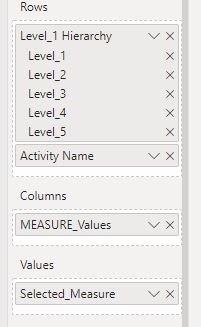
3- Add the column Masure_Value to the column in the Matrix and Seletced_value in the values Area.
4-Voila

5-Bonus

I am using bookmarks to toggle the select Columns Button, I think it is freaking cool,  hopefully in the short term PowerBI add more features so we can build not only dashboard but real application interface.

Major Milestone Tracking – By Darrin Kinney

A key quality of project controls management, is the communication of major milestones. The whole point is to review the changes of all the dates over time.

A key quality of project controls management, is the communication of major milestones. Every lead will have several spreadsheets with all our milestones listed on rows, and columns for the various interpretations (baseline, contract date, prior forecast, current forecast, contractor forecast, etc). So when we talk about dates, the difficulty is that everyone will have a different date in their mind. Continue reading “Major Milestone Tracking – By Darrin Kinney”

Connecting PowerBI to Primavera Database – Part 2 (WBS report)

in the first blog post of this series, we showed how to connect to Primavera SQL server, in this blog we build our first report, we use only the three tables TASK, PROJECT, and PROJWBS

the online report is published here

I will not show the details of every steps, you need to have a basic understanding of PowerQuery and DAX, but i will highlights some aspects of Primavera Database schema that you should be aware of.

Reproduce Project View

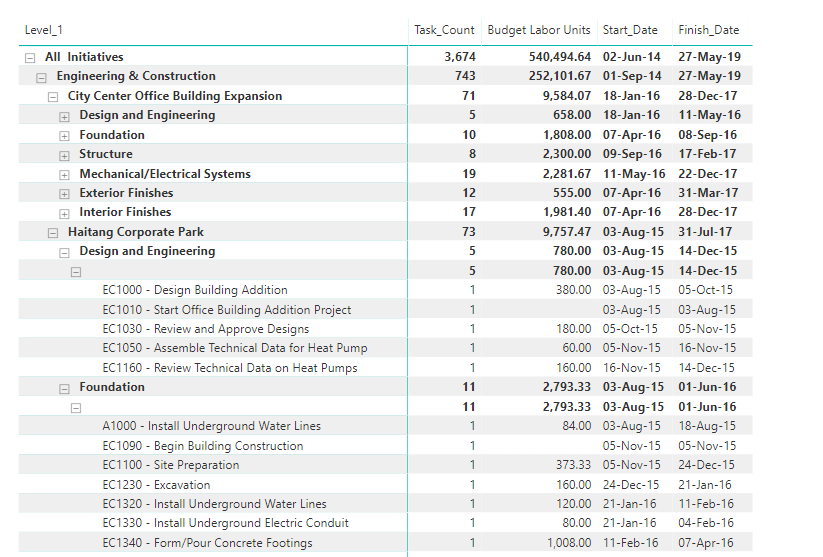
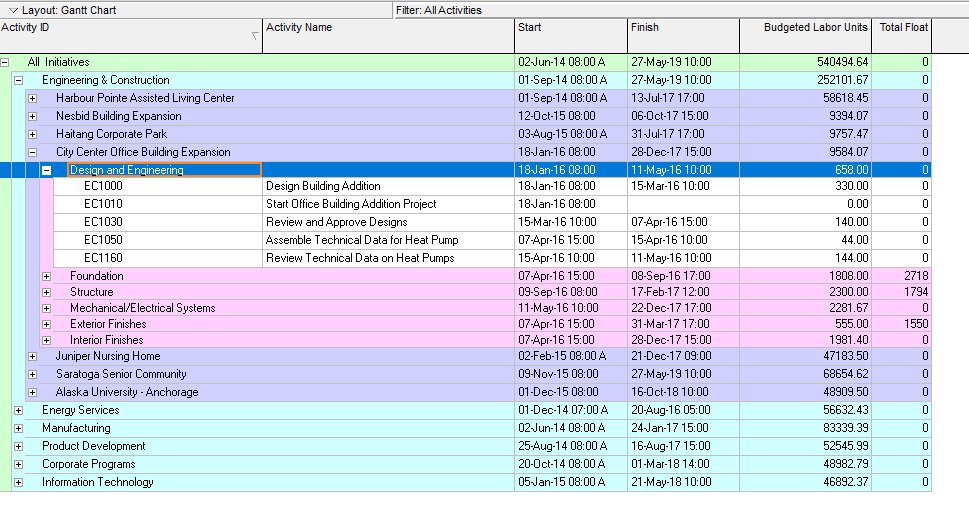
this view show all the projects grouped by WBS and show measures, start date, finish date and budget labor units

and here is the equivalent report in PowerBI

PROJWBS

the table PROJWBS store the EPS/WBS data for all projects, it is represented the database as a parent, child ID, which can’t be used directly by PowerBI, first we need to flatten the data to multiple levels so we can show it in a matrix visual, so basically moved from this format

to this format

you have multiple options either using SQL , DAX or PowerQuery, for Powerquery here is an excellent resource by the Imke Feldmann , for our example I am using DAX , the canonical reference is by Marco Russo

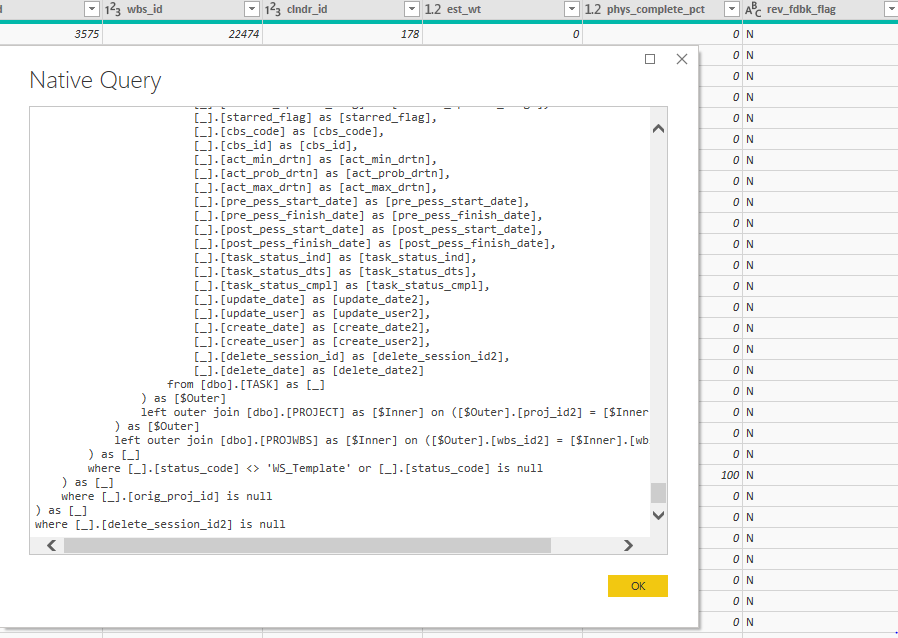
just make sure when you import a table from SQL server to have this filter [delete_session_id] = null , because Primavera don’t directly delete data, but instead have something called soft delete, ie; the items is not shown in the client but it is still in the database and will be deleted later, anyway for PROJWBS remove all the template WBS, (I think they are used by the EPPM web client)

TASK

task is straightforward it save all the tasks of the project, same filter [delete_session_id] = null

PROJECT

we use project table only to filter the baseline out, in Primavera current project and baseline are saved in the database exactly the same way ( that very powerful paradigm ), but for our report we want to show the activities only for the current project, too easy [orig_proj_id] = null and the best part, we don’t have to write any queries, Powerquery simply generate the SQL for the database ( that’s awesome)

Simple Data Model

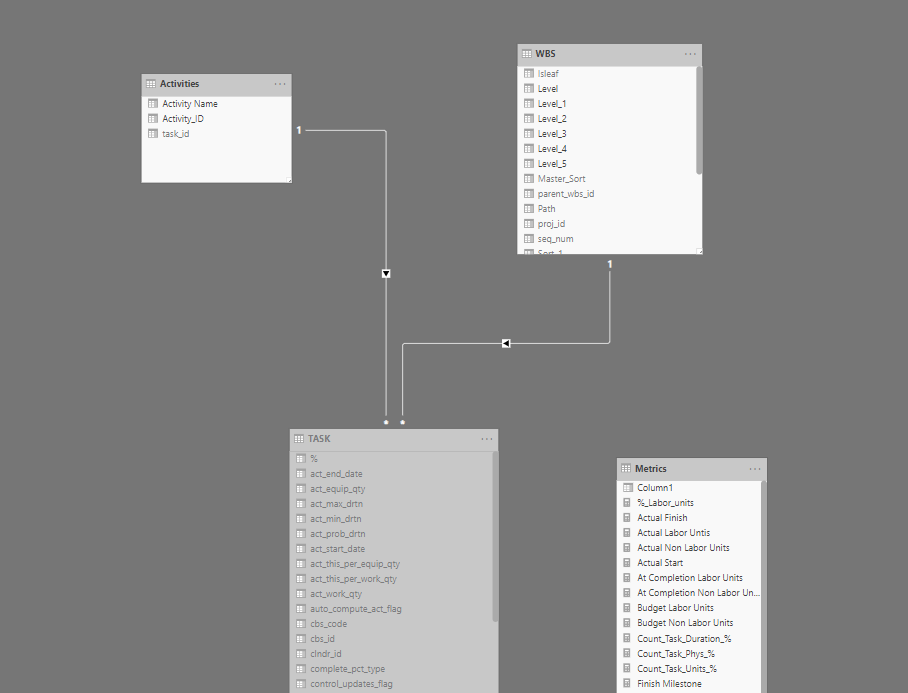
the two tables are connected by the field wbs_id, we added another copy of the table TASK as a dimension table for reporting ( just activity id, and activity name), and we have this simple data model, I like to save measures in a separate dummy tables

as you can see, building a data model is relatively easy, the complexity start when you want to add more measures, for example, total float, you need to connect to the table CALENDAR, if you want cost, you need to connect to other tables, and if you want spread it will become a little trickier ( hint it is not saved in the database)

hopefully by now, instead of asking how to connect to Primavera Database, the interesting question become, in which table the data is saved and how to join two separate tables to get the report you want

if you are still reading, I will appreciate if you can vote on this idea, unfortunately you can’t dis-activate table sorting in PowerBI, in this particular report, the sorting is already defined by the WBS, if the user click on the header, the order will change, they can still reset the order using the measure sort, still very annoying

Connecting PowerBI to Primavera Database, Part 1

I think one of the most asked question when some talk about Primavera and PowerBI, is how to connect to the database, ok, the good news is, the connection itself is easy, the bad news, extracting useful information is a bit of work.

Just to show how it work, I am using a temporary installation in my personal laptop, as obviously I don’t have access to my production database.

I am using a developer edition of SQL Server 2006, and an evaluation copy of EPPM, oracle allow the use the evaluation of most of its software for the first 45 days, you can download a copy from here, you need SSMS too

For the purpose of this blog, we will query the “normal” Primvera tables, for the extended schema, which is a groups of tables and  views design specifically for reporting, but those extra tables are empty per default and you need to configure publishing service ( will discuss it in a future blog), please note I already blogged about how to connect when using Sqlite in the case of standalone P6 professional

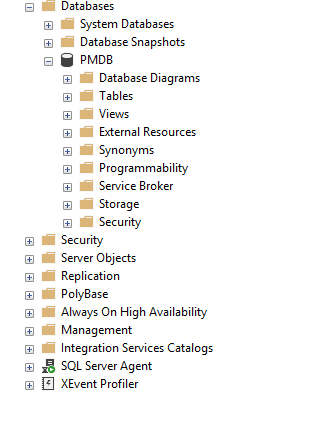
Connect to SQL server using SSMS

When you install Primavera, you get to define 4 user account

  • sa : the database admin account (not the admin for primavera application).
  • Privuser, pubuser : used to connect Primavera app to the database
  • Pxrptuser : user account for reporting

              We will use sa to connect to the database            

When you click on connect you get this

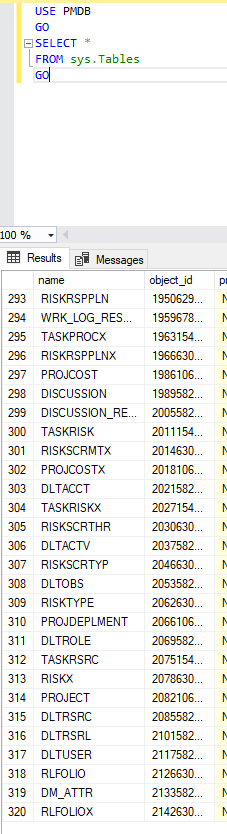
The database itself has 320 tables; you can check that by running this SQL script

USE PMDB

GO

SELECT *

FROM sys.Tables

GO

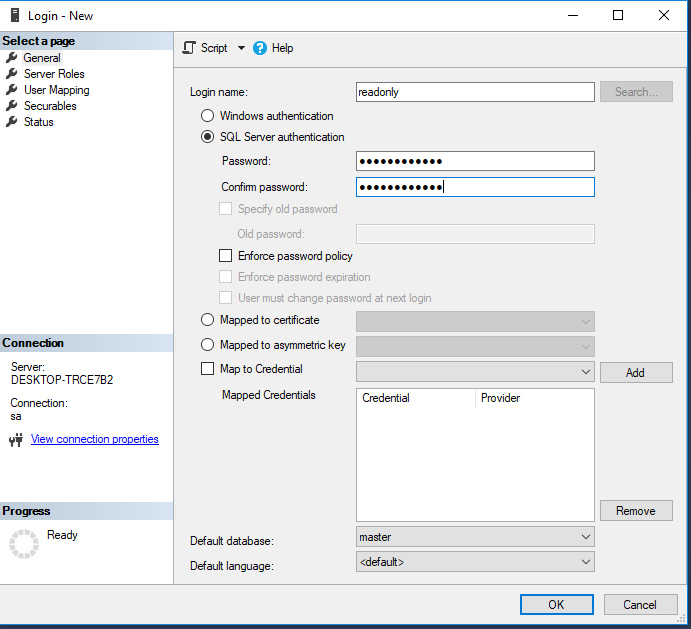
Create a read only user

Connecting using the admin account is just very bad practise, and I don’t want to mess with the existing account, so instead we will create a read only user account

  1. Create a New Login
  • Create password
  • Map the user the PMDB
  • Assign a new role

Instead of having access to the 320 tables, we create a new role (read_only) and we just assign the 3 most important table in the database, you can add later more tables, we granted select only, so no read access

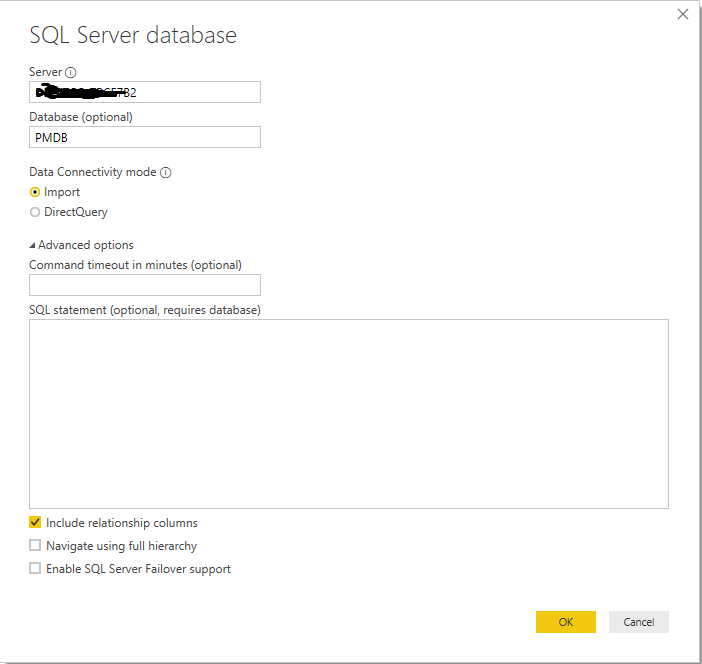
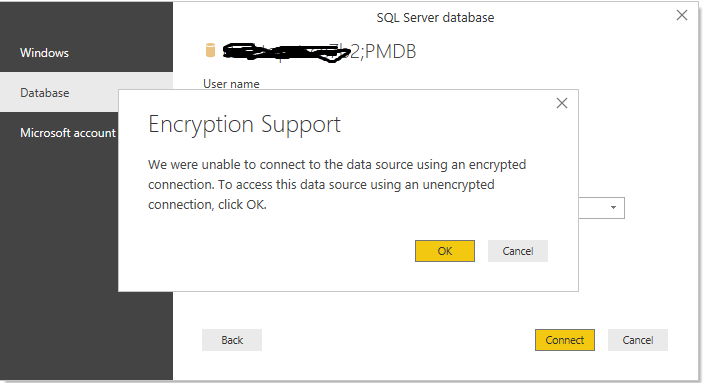
Connect PowerBI to SQL using read only user

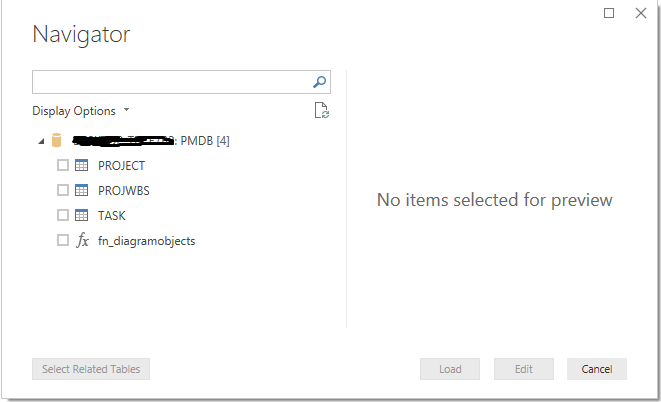
and Voila our Tables are now visible in PowerBI

so the answer to how to connect to Primavera Database from PowerBI is you need a user name, password and the server name, the challenge is how to extract meaningful reports from those tables ?

what’s next

at this stage, you need to get yourself familiar with Primavera Schema, yes it is 320 tables, but the basic one are three, and usually for my reporting I use around 10, I wrote an introduction to Primavera schema 6 years ago, I hope it is still relevant

Part 2 is published here

For security implication please read this