I know it is a niche topic, and in theory, we should not think about it. in import mode, Power BI ingests data and automatically optimizes the format without users knowing anything about it. With Direct Lake, it has become a little more nuanced. The ingestion part is done downstream by other processes that Power BI cannot control. The idea is that if your Parquet files are optimally written using Vorder, you will get the best performance. The reality is a bit more complicated. External writers know nothing about Vorder, and even some internal Fabric Engines do not write it by default.
To show the impact of read performance for Vordered Parquet vs sorted Parquet, I ran some tests. I spent a lot of time ensuring I was not hitting the hot cache, which would defeat the purpose. One thing I learned is to test only one aspect of the system carefully.
Cold Run: Data loaded from OneLake with on-the-fly building of dictionaries, relationships, etc
Warm Run: Data already in memory format.
Hot Run: The system has already scanned the same data before. You can disable this by calling the ClearCache command using XMLA (you cannot use a REST API call).
Prepare the Data
Same model, three dimensions, and one fact table, you can generate the data using this notebook
Deltars: Data prepared using Delta Rust sorted by date, id, then time.
Spark_default: Same sorted data but written by Spark.
Spark_vorder: Manually enabling Vorder (Vorder is off by default for new workspaces).
Note: you can not sort and vorder at the same time, at least in Spark, DWH seems to support it just fine
The data layout is as follows:
I could not make Delta Rust produce larger row groups. Notice that ZSTD gives better compression, although it seems Power BI has to uncompress the data in memory, so it seems it is not a big deal
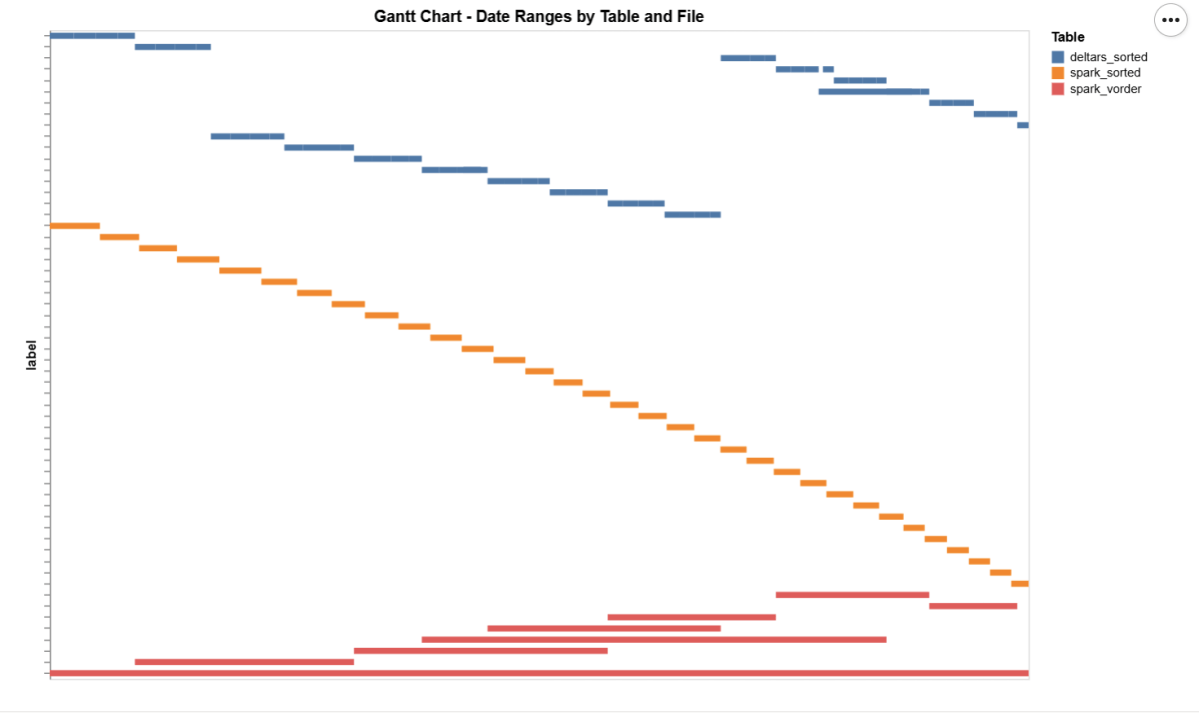
I added a bar chart to show how the data is sorted per date. As expected, Vorder is all over the place, the algorithm determines that this is the best row reordering to achieve the best RLE encoding.
The Queries
The queries are very simple. Initially, I tried more complex queries, but they involved other parts of the system and introduced more variables. I was mainly interested in testing the scan performance of VertiPaq.
def run_test(workspace, model_to_test):
    for i, dataset in enumerate(model_to_test):
        try:
            print(dataset)
            duckrun.connect(f"{ws}/{lh}.Lakehouse/{dataset}").deploy(bim_url)
            run_dax(workspace, dataset, 0, 1)
            time.sleep(300)
            run_dax(workspace, dataset, 1, 5)
            time.sleep(300)
        except Exception as e:
            print(f"Error: {e}")
    return 'done'
Deploy automatically generates a new semantic model. If it already exists, it will call clearvalue and perform a full refresh, ensuring no data is kept in memory. When running DAX, I make sure ClearCache is called.
The first run includes only one query; the second run includes five different queries. I added a 5-minute wait time to create a clearer chart of capacity usage.
Capacity Usage
To be clear, this is not a general statement, but at least in this particular case with this specific dataset, the biggest impact of Vorder seems to appear in the capacity consumption during the cold run. In other words:
Transcoding a vanilla Parquet file consumes more compute than a Vordered Parquet file.
Warm runs appear to be roughly similar.
Impact on Performance
Again, this is based on only a couple of queries, but overall, the sorted data seems slightly faster in warm runs (although more expensive). Still, 120 ms vs 340 ms will not make a big difference. I suspect the queries I ran aligned more closely with the column sorting—that was not intentional.
Takeaway
Just Vorder if you can. Make sure you enable it when starting a new project. ETL, data engineering have only one purpose, make the experience of the end users the best possible way, ETL job that take 30 seconds more is nothing compared to a slower PowerBI reports.
now if you can’t, maybe you are using a shortcut from an external engine, check your powerbi performance if it is not as good as you expect then make a copy, the only thing that matter is the end user experience.
Another lesson is that VertiPaq is not your typical OLAP engine; common database tricks do not apply here. It is a unique engine that operates entirely on compressed data. Better-RLE encoded Parquet will give you better results, yes you may have cases where the sorting align better with your queries pattern, but in the general case, Vorder is always the simplest option.
TL;DR: Incremental framing is like CDC to RAM 🙂 It significantly improves cold-run performance of Direct Lake mode in some scenarios, there is an excellent documentation that explain everything in details
What Is Incremental Framing?
One of the most important improvements to Direct Lake mode in Power BI is incremental framing.
Power BI’s OLAP engine, VertiPaq (probably the most widely deployed OLAP engine, though many outside the Power BI world may not know it) relies heavily on dictionaries. This works well because it is a read-only database. another core trick is its ability to do calculation directly on encoded data. This makes it extremely efficient and embarrassingly fast ( I just like this expression for some reason ).
Direct Lake Breakthrough
Direct Lake’s breakthrough is that dictionary building is fast enough to be done at runtime.
Typical workflow:
A user opens a report.
The report generates DAX queries.
These queries trigger scans against the Delta table.
VertiPaq scans only the required columns.
It builds a global dictionary per column, loads the data from Parquet into memory, and executes queries.
The encoding step happens once at the start, and since BI data doesn’t usually change more that much, this model works well.
The Problem with Continuous Appends
In scenarios where data is appended frequently (e.g., every few minutes), the initial approach does not works very well. Each update requires rebuilding dictionaries and reloading all the data into RAM, effectively paying the cost of a cold run every time ( reading from remote storage will be always slower).
How Incremental Framing Fixes This
Incremental framing solves the problem by:
Incrementally loading new data into RAM.
Encoding only what’s necessary.
Removing obsolete Parquet data when not needed.
This substantially improves cold-run performance. Hot-run performance remains largely unchanged.
Benchmark: Australian Electricity Market
To test this feature, I used my go-to workload: the Australian electricity market, where data is appended every 5 minutes—an ideal test case.
For benchmarking, I adapted an existing tool , Direct Lake load testing( I just changed writing the results to Delta instead of CSV), I used 8 concurrent users, the main fact Table is around 120 M records, the queries reflect a typical user session , this is a real life use case, not some theoretical benchmark.
Results
P99
P99 (the 99th percentile latency, often used to show worst-case performance):
Improvement of 9x–10x, again, your results may varied depending on workload, Parquet layout, and data distribution.
P90
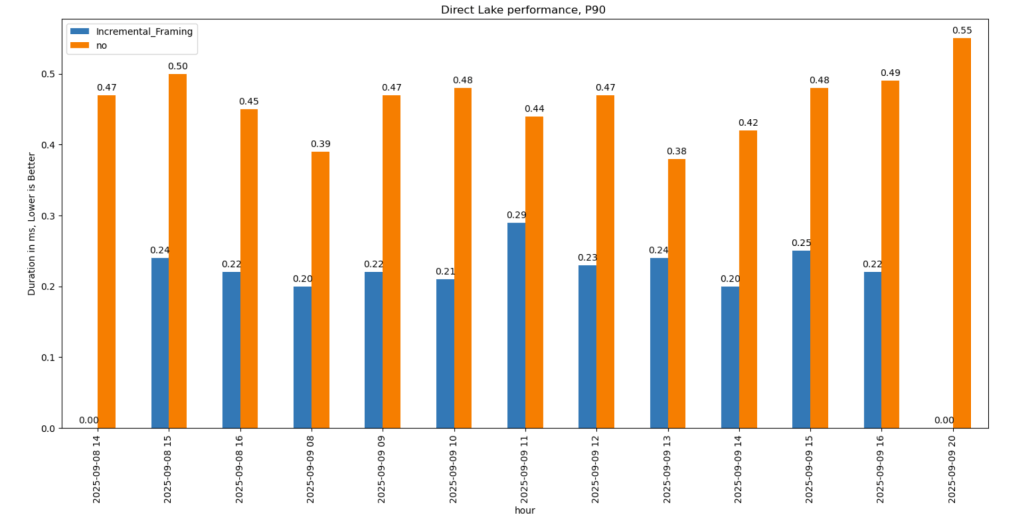
P90 (90th percentile latency):
Less dramatic but still strong.
Improved from 500 ms → 200 ms.
Faster queries also reduce capacity unit usage.
Geomean
just for fun and to show how fast Vertipaq is, let’s see the geomean, alright went from 11 ms to 8 ms, general purpose OLAP engines are cool, but specialized Engines are just at another level !!!
This does not solve Bad Table layout problem
This feature improves support for Delta tables with frequent appends and deletes. However, performance still degrades if you have too many small Parquet row groups.
VertiPaq does not rewrite data layouts—it reads data as-is. To maintain good performance:
Compact your tables regularly.
In my case, I backfill data nightly. The small Parquets added during the day don’t cause major issues, but I still compact every 100 files as a precaution.
Getting different parties in the software industry to agree on a common standard is rare. Most of the time, a dominant player sets the rules. Occasionally, however, collaboration happens organically and multiple teams align on a shared approach. Geometry types in Parquet are a good example of that.
In short: there is now a defined way to store GIS data in Parquet. Both Delta Lake and Apache Iceberg have adopted the standard ( at least the spec). The challenge is that actual implementation across engines and libraries is uneven.
Iceberg: no geometry support yet in Java nor Python, see spec
Delta: it’s unclear if it’s supported in the open source implementation (I need to try sedona and report back), nothing in the spec though ?
DuckDB: recently added support ( you need nightly build or wait for 1.4)
PyArrow: has included support for a few months, just use the latest release
Arrow rust : no support, it means, no delta python support 😦
The important point is that agreeing on a specification does not guarantee broad implementation. and even if there is a standard spec, that does not means the initial implementation will be open source, it is hard to believe we still have this situation in 2025 !!!
Let’s run it in Python Notebook
To test things out, I built a Python notebook that downloads public geospatial data, merges it with population data, writes it to Parquet, and renders a map using GeoPandas, male sure to install the latest version of duckdb, pyarrow and geopandas
At first glance, that may not seem groundbreaking. After all, the same visualization could be done with GeoJSON. The real advantage comes from how geometry types in Parquet store bounding box coordinates. With this metadata, spatial filters can be applied directly during reads, avoiding the need to scan entire datasets.
That capability is what makes the feature truly valuable: efficient filtering and querying at scale, note that currently duckdb does not support pushing those filters, probably you need to wait to early 2026 ( it is hard to believe 2025 is nearly gone)
👉Workaround if your favorite Engine don’t support it .
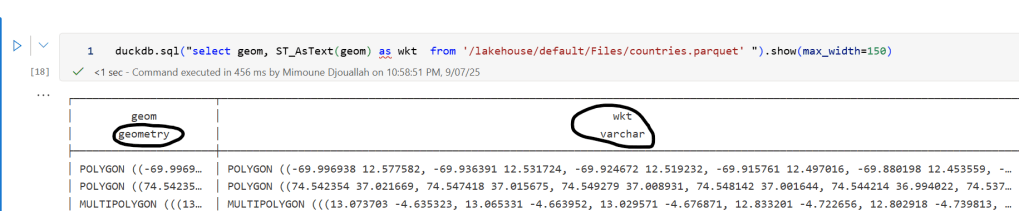
A practical workaround is to read the Parquet file with DuckDB (or any library that supports geometry types) and export the geometry column back as WKT text. This allows Fabric to handle the data, albeit without the benefits of native geometry support, For example PowerBI can read WKT just fine
duckdb.sql("select geom, ST_AsText(geom) as wkt from '/lakehouse/default/Files/countries.parquet' ")
For PowerBI support to wkt, I have written some blogs before, some people may argue that you need a specialized tool for Spatial, Personally I think BI tools are the natural place to display maps data 🙂
TL:DR; Delta_rs does not support Vorder so we need workaround, we notice by changing row groups size and sorting data we improved a direct Lake model from not working at all to returning queries in 100 ms
I was having another look at Fabric F2 (hint: I like it very much; you can watch the video here). I tried to use Power BI in Direct Lake mode, but it did not work well, and I encountered memory errors. My first instinct was to switch it to Fabric DWH in Direct Query mode, and everything started working again.
Obviously, I did complain to the Power BI team that I was not happy with the results, and their answer was to just turn on V-order, which I was not using. I had used Delta_rs to write the Delta table, and the reason I never thought about Parquet optimization was that when I used F64, everything worked just fine since that SKU has more hardware. However, F2 is limited to 3 GB of RAM.
There are many scenarios where Fabric is primarily used for reading data that is produced externally. In such cases, it is important to understand how to optimize those Parquet files for better performance.
Phil Seamark (yes the same guy who built a 3D games using DAX) gave me some very good advice: you can still achieve very good performance even without using V-order. Just sort by date and partition as a first step, and you can go further by splitting columns.
As I got the report working perfectly, even inside F2, I thought it was worth sharing what I learned.
Note: I used the term ‘parquet’ as it is more relevant than specifying the table format, whether it is a Delta table or Iceberg, after all this is where the data is stored, there is no standard for Parquet layout, different Engines will produce different files with massive difference in row group, file size, encoding etc.
Memory Errors
This is not really something you would like to see, but that’s life. F2 is the lowest tier of Fabric, and you will encounter hardware limitations.
When trying to run a query from DAX Studio, you will get the same error:
Rule of Thumb
Split datetime into date and time
It may be a good idea to split the datetime column into two separate columns, date and time. Using a datetime column in a relationship will not give you good performance as it usually has a very high number of distinct values.
Reduce Precision if You Don’t Need It
If you have a number with a lot of decimals, changing the type to decimal(18,4) may give you better compression.
Sorting Data
Find Column Cardinality
First, let’s check the cardinality of all columns in the Delta table. I used DuckDB for this, but you can use any tool—it’s just a personal choice.
First, upgrade DuckDB and configure authentication:
A very simple rule is to sort the columns from low to high cardinality , in this example : time, duid, date, price, mw.
Columns like cutoff don’t matter as they have only one value.
The result isn’t too bad—I went from 753 MB to 643 MB.
However, this assumes that the column has a uniform data distribution, which is rarely the case in real life. In more serious implementations, you need to account for data skewness.
Sort Based on Query Patterns
I built the report, so I know exactly the types of queries. The main columns used for aggregation and filters are date and duid, so that’s exactly what I’m going to use: sort by date, then duid, and then from low to high cardinality.
I think I just got lucky—the size is now 444 MB, which is even better than V-order. Again, this is not a general rule; it just happened that for my particular fact table, with that particular data distribution, this ordering gave me better results.
But more importantly, it’s not just about the Parquet size. Power BI in Direct Lake mode (and import mode) can keep only the columns used by the query into memory at the row group level. If I query only the year 2024, there is a good chance that only the row groups containing that data will be kept into memory. However, for this to work, the data must be sorted. If 2024 data is spread all over the place, there is no way to page out the less used row groups.
edit : to be very clear, Vertipaq needs to see all the data to build a global dictionary, so initially all columns needed for a query has to be fully loaded into Memory.
More Advanced Sorting Heuristics
These are more complex row-reordering algorithms. Instead of simply sorting by columns, they analyze the entire dataset and reorder rows to achieve the best Run-Length Encoding (RLE) compression across all columns simultaneously. I suspect that V-order uses something similar, but this is a more complex topic that I don’t have much to say about.
To make matters more complex, it’s not just about finding a near-optimal solution; the algorithm must also be efficient. Consuming excessive computational resources to determine the best reordering might not be a practical approach.
Reducing column cardinality by splitting decimals into separate columns can also help. For example, instead of storing price = 73.3968, store it in two columns: 73 and 3968.
Indeed, this gave even better results—a size reduction to 365 MB.
To be totally honest, though, while it gave the best compression result, I don’t feel comfortable using it. Let’s just say it’s for aesthetic reasons, and because the data is used not only for Power BI but also for other Fabric engines. Additionally, you pay a cost later when combining those two columns.
Partitioning
Once the sorting is optimized, note that compression occurs at the row group level. Small row groups won’t yield better results.
For this particular example, Delta_rs generates row groups with 2 million rows, even when I changed the options. I might have been doing something wrong. Using Rust as an engine reduced it to 1 million rows. If you’re using Delta_rs, consider using pyarrow instead:
Notice here, I’m not partitioning by column but by file. This ensures uniform row groups, even when data distribution is skewed. For example, if the year 2020 has 30M rows and 2021 has 50M rows, partitioning by year would create two substantially different Parquet files.
Testing Again in Fabric F2
Using F2 capacity, let’s see how the new semantic models behave. Notice that the queries are generated from the Power BI report. I manually used the reports to observe capacity behavior.
Testing Using DAX Studio
To understand how each optimization works, I ran a sample query using DAX Studio. Please note, this is just one query and doesn’t represent the complexity of existing reports, as a single report generates multiple queries using different group-by columns. So, this is not a scientific benchmark—just a rough indicator.
Make sure that PowerBI has no data in memory, you can use the excellent semantic lab for that
!pip install -q semantic-link-labs
import sempy_labs as labs
import sempy.fabric as fabric
def clear(sm):
    labs.refresh_semantic_model(sm, refresh_type='clearValues')
    labs.refresh_semantic_model(sm)
    return "done"
for x in ['sort_partition_split_columns','vorder','sort_partition','no_sort']:
    clear(x)
Cold Run
The cold run is the most expensive query, as VertiPaq loads data from OneLake and builds dictionaries in memory. Only the columns needed are loaded. Pay attention to CPU duration, as it’s a good indicator of capacity unit usage.
Warm Run
All queries read from memory, so they’re very fast, often completing in under 100 milliseconds, SQL endpoint return the data around 2 seconds, yes, it is way slower than vertipaq but virtually it does not consume any interactive compute.
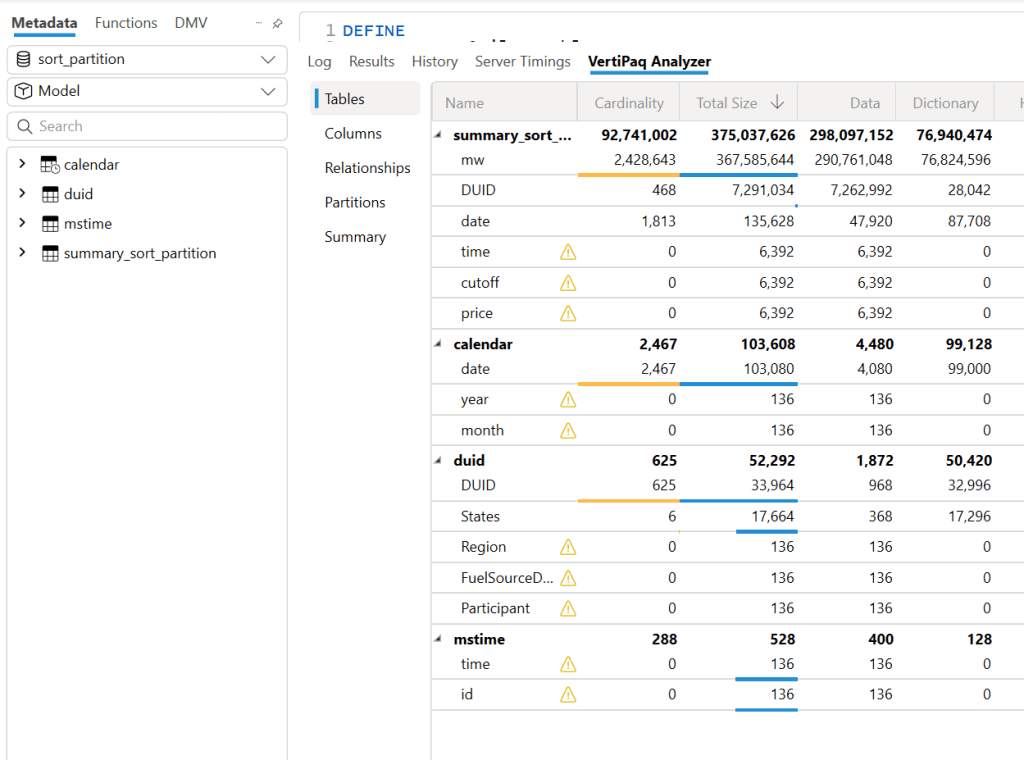
using DAX Studio you can view the column loaded into Memory, any column not needed will not be loaded
and the total data size into Memory
Hot Run
This isn’t a result cache. VertiPaq keeps the result of data scans in a buffer (possibly called datacache). If you run another query that can reuse the same data cache, it will skip an unnecessary scan. Fabric DWH would greatly benefit from having some sort of result cache (and yes, it’s coming).
Takeaways
VertiPaq works well with sorted Parquet files. V-order is one way to achieve that goal, but it is not a strict requirement.
RLE Encoding is more effective with larger row groups, and when the data is sorted
Writing data in Fabric is inexpensive; optimizing for user-facing queries is more important.
Don’t dismiss Direct Query mode in Fabric DWH—it’s becoming good enough for interactive, user-facing queries.
Fabric DWH background consumption of compute unit is an attractive proposition
Power BI will often read Parquet files written by Engines other than Fabric. A simple UI to display whether a Delta Table is optimized would be beneficial.
Fabric DWH appears to handle less optimized Parquet files with greater tolerance












 Small Data And self service