Connect Streamlit to PowerBI service using XMLA end point

Edit : 16 Nov 2022, a new approach is to use DAX REST API, it does not require Premium license and works with any front end tool even on Linux, see example here ( source code in the Link)

https://powerbi.streamlit.app/

Streamlit is a new framework to build data web app using only python, you don’t need any knowledge of javascript/HTML.

Connecting to a PowerBI using Python is well documented , see those excellent tutorials here by David Eldersveld

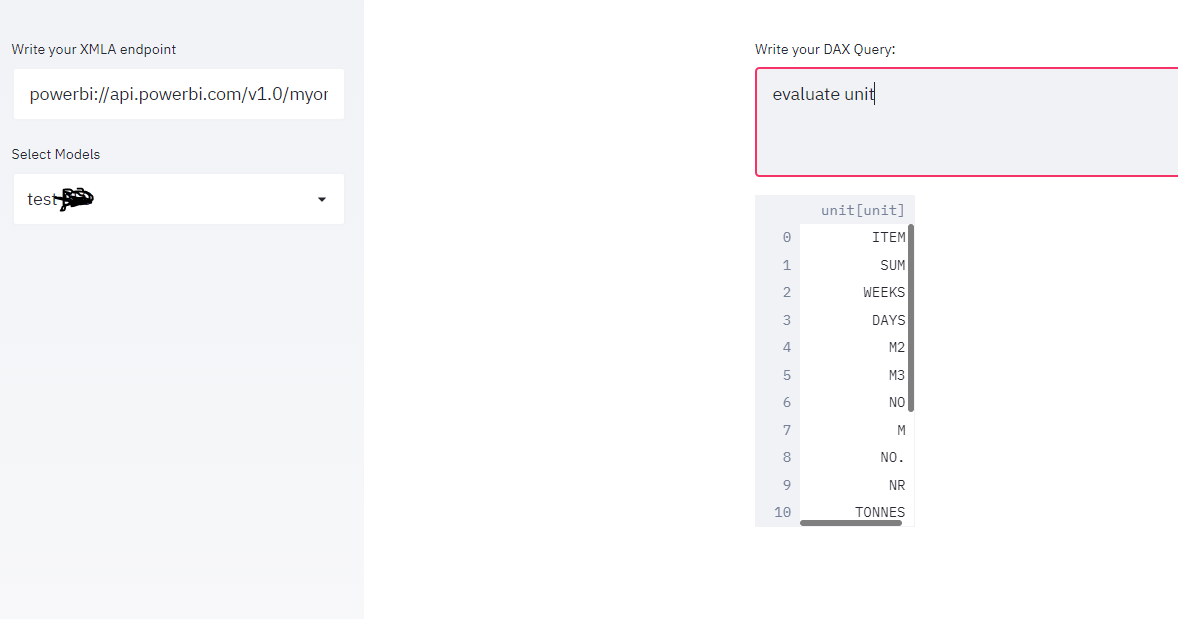
using this code, I managed to build a small app that using an existing XMLA end point, first it will extract the existing models and then you can run arbitrary DAX queries.

please note as of August 2020, XMLA end point is a PowerBI premium only feature

the main connection string and how to export to a df was copied from this Answer in Stackoverflow

import adodbapi as ado
import numpy as np
import pandas as pd
import streamlit as st

def get_df(data):
    ar = np.array(data.ado_results) # turn ado results into a numpy array
    df = pd.DataFrame(ar).transpose() # create a dataframe from the array
    df.columns = data.columnNames.keys() # set column names
    return df
source=st.sidebar.text_input('Write your XMLA endpoint')
if source:
    with ado.connect("Provider=MSOLAP.8; Data Source="+source) as con:
        with con.cursor() as cur:
         cur.execute('select * from $SYSTEM.DBSCHEMA_CATALOGS')
         data = cur.fetchall()
         catalogue = get_df(data)
         catalogue_Select= st.sidebar.selectbox('Select Models', catalogue['catalog_name'])
dax=st.text_area('Write your DAX Query:')
if dax:
    with ado.connect("Provider=MSOLAP.8; Data Source="+source+" ;Initial catalog="+catalogue_Select) as con:
        with con.cursor() as cur:
         cur.execute(dax)
         data = cur.fetchall()
         df = get_df(data) 
         st.write (df)

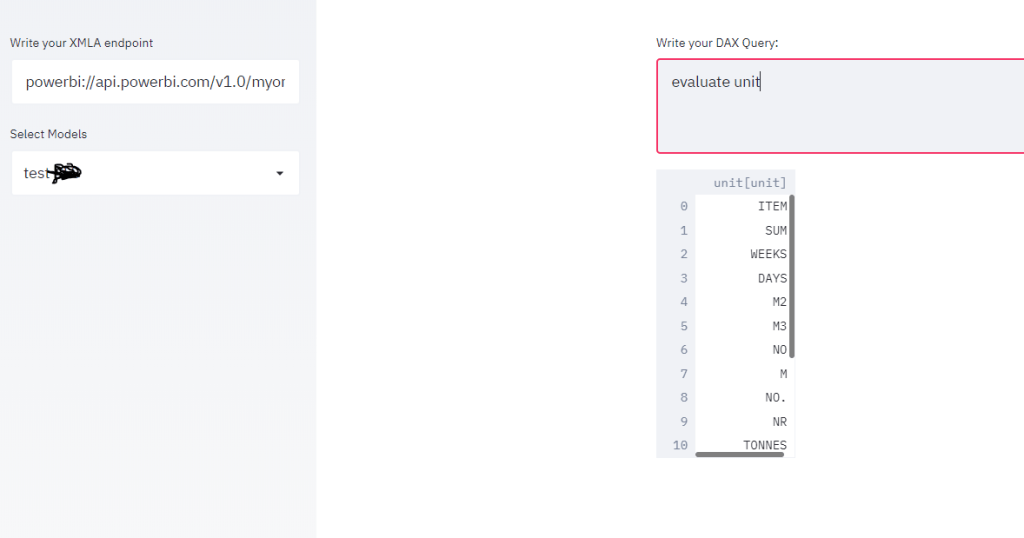
and here is the result

Unfortunately adodbapi required Windows , which make deploying the app a bit harder, yo can try Azure Web app which has a windows runtime, I wish it was as easy as Heroku !!!

The good new Microsoft added recently the support for .Net Core, so hopefully I will Update the blog with a cross platform solution

to run the app on your laptop, just type

streamlit run app.py

it is a proof of concept but I see a lot of use cases, an obvious one is to build web app for visualization not supported by PowerBI like massive dataset maps, or 3 D viz.
How to plot Digital Elevation Model in Data Studio.

TL;DR : a sample dataset with x,y,z,red,green,blue and a custom Viz in Google Data Studio Using Deck.GL point Cloud, see example here

I added a new dataset , so you can test it yourself, you can either load it using BigQuery or use the load file connector in Data studio.

section explain how we got the data, if you are only interested in testing the visual go to section 2.

1-How to get the Data

for some reason it it is extremely painful to get a dataset with x,y,z,r,g,b

luckily a couple of days ago, I was in twitter and saw this tweet by Michael Sumner

it turn out extracting coordinated and elevation is extremely easy using R, all you need is the center location and the dimension of the area you are interested in, and R ceramic will extract x,y,z automatically in a nice dataframe, then I took that data and uploaded it to BigQuery using the package bigrquery then plot using a custom Viz I built using Deck.gl ( see the linked report)

here is a script I used

library(raster)
library(ceramic)
library(bigrquery)
bq_auth("XXXXXXXX.json")
Sys.setenv(MAPBOX_API_KEY = "DDDDDDDDDDDDDDDDDDDDDDDDDDDDDDDDDDDD")
cc <- ceramic::cc_location(cbind(14.428778,40.822973), buffer = c(2000, 2000), zoom = 15)
el <- ceramic::cc_elevation(cc)
el1 <- resample(el, cc, method = "bilinear")

df1 <- as.data.frame(cc,xy=TRUE)
df2 <- as.data.frame(el1,xy=TRUE)
df <- merge(x = df1, y = df2, by = c("x", "y"), all.x = TRUE)

df <-transform(df, lng=x/100000,lat=y/100000,red=layer.1,blue=layer.2,green=layer.3)
df <- df[c("lng", "lat","layer","red","blue","green")]
job <-  insert_upload_job("PROJECT_ID",
                "GIS",
                "VOLCANO",
                df,
                create_disposition = "CREATE_IF_NEEDED",
                write_disposition = "WRITE_TRUNCATE")
wait_for(job)

2-Plot the Data using Point Cloud Viz

the Custom Viz address is

or you can just copy the report and use your own data

all fields are required except tooltips, by default it will show coordinates

I used Mount Tahat as an example, it is a highest Moutain in the south of Algeria, extremely beautiful area

Data Studio limit the number of rows passed to a custom visual to 1 Million, here I made sure it is less than 750K as it is the maximum that can be downloaded from the visual

3-The end Results

Mount Uluru in Australia

Volcano Vesuvius in Italy

Using the new Convexhull function in BigQuery to reduce Geometry complexity

BigQuery recently introduced two new GIS functions, ST_CONVEXHULL and ST_DUMP

Read the announcement here , when I saw the announcement I already thought about this use case.

The Problem

Although showing map in BI software has improved dramatically in the last couple of years, still unless you use Tableau, there is always a hard limit how much data you can show in a map, even if you can show more, it is better to reduce the volume of data just for performance sake, users are so spoiled those day that they complain when their report does not show up in less than 2 second.

Although the example used here is very specified, I am sure it can be extended to other uses cases.

Let’s say you want to show a lot of points  with one colour coded attribute, in a lot of cases, the end user wants only to see the distribution of the attribute not the individual points, see here  

That’s a lot of points ( my real case is 58 Thousand)

Convexhull to the rescue

Convexhull is very handy the input will be group of points and the output will be a closed polygons, I use it a lot in QGIS, but the killer feature here, because it is SQL and the attribute are dynamic, (in my use case they changed daily), you can write a Query that dynamically generate new geometries, either polygons or linestring or even  keep the original points if they can’t be grouped.

Now the trick is we group by status and existing grouping, for example in this dataset.

  1. Check if in one area all the status is the same using count distinct, if in one area it is the same attribute, it will generate a polygons.
  2. if one area has multiple status and hence multiple colours then fine, we jump to the row level and generate line strings.
  3.  If one line string has multiple colors then we jump to points.

I built this SQL View with the help of  Mikhail Berlyant, the source data is here, replace “xxxxx.SolarFarm ” with your table.

WITH
  source AS (
  SELECT
    *,
    ST_GEOGFROMTEXT(CONCAT( "POINT (",x," ", y,")")) AS POINT,
    COUNT(DISTINCT status) OVER (PARTITION BY ROW) AS multiple_status,
    COUNT(DISTINCT status) OVER (PARTITION BY area) AS multiple_status_area
  FROM
    `xxxxxxx.SolarFarm`),
  tt AS (
  SELECT
    id, pole_nr,color,area, ROW,status, POINT,
    CASE
      WHEN multiple_status_area=1 THEN area
      WHEN multiple_status=1 THEN row
    ELSE
    CAST (id AS string)
  END
    AS newgroup
  FROM
    source),
  ff AS (  SELECT newgroup, ST_ASTEXT(ST_CONVEXHULL(ST_UNION_AGG(POINT))) AS WKT
  FROM
    tt
  GROUP BY
    1),
  xx AS (
  SELECT
    tt.newgroup,
    wkt,
    tt.status
  FROM
    tt
  LEFT JOIN
    ff
  ON
    tt.newgroup = ff.newgroup)
SELECT
  newgroup,
  wkt,
  status
FROM
  xx
GROUP BY
  1,
  2,
  3

and here is the result side by side with the original data from 3528 rows to 283 rows, that’s a big improvement,

as of July 2020, Google Data Studio does not support Geometry, and the total number of points is limited to 10K, you can use other custom Visual but currently tiles are blocked.

if you are using PowerBI to view the data, you need to use the excellent Icon Map as it support WKT geometry

Rendering 1.2 Million points in PowerBI using Icon Map

TL;DR, the report is here , pbix here , download Icon Map here

I blog about it really before here, but in a colorful discussion on twitter after they closed this bug report, (Max rows in PowerBI is 30 K), I recalled a bug report about R ggplot, when the authors suggested to use multi points instead of individual points to speed the plotting of the map !!! all I had to do is to check if icon map support it and it did !!!.

WKT format for point is POINT (x,y), all you need to do is to concatenate multiple rows of point in MULTIPOINT format MULTIPOINT ((x y),(x1 y1), etc).

now we need to deal with three thing:

1-The maximum row numbers returned to a visual is 30K.

2-The maximum length of a column in PowerQuery is 32766

3-The Maximum length of DAX function is 2.1 Million

so a calculated column is a no go, I am using this DAX measure to concatenate the text from (x y) to a Multipoint format, again using Chris blog, I got this measure

WKT = var concat =CONCATENATEX(values(openstreetmap[point]),openstreetmap[point],",") var wkt ="MULTIPOINT ("&concat&")"return if (concat =BLANK(),BLANK(),wkt)

using this table that contains all the items tagged as amenity in Openstreet Map, the table contain 17 Million records, got it from BigQuery dataset

remember you don’t want to group all points in 1 row for two reason.

1- Concatenax Max is 2.1 Million

2-it is better still to group by common attribute, at you can color code for example by country or category or both if you want, in this case, I added a third factor in MULTIPOINTS, just a number that change very 30k rows to make sure I will not end up with a multipoints > 2.1 million, Initially It was 100K, but I notice icon map become extremely slow

now in icon Map, you need to assign three fields.

Category : multipoints

Icon URL/WKT/SVG: the measure wkt, this extremely clever and flexible, as it is a measure, that will render using the filter context of category, you may want to be creative and implement drill using different level of details, as the geometry is calculated on the fly.

Circle/line/WKT/Geojson Outline Color : a color in hex format, in my case, coded by country, ( at work for a different use case, I use a measure instead to show change of status per time)

because, the data set is relative big, I use this option in PowerBI

Just to be clear, this only proof of concept, rendering a big dataset will be slow and will eat all your memory, and probably you will get errors in shared workspace, or if you are in a premium workspace, probably you will end up in a trouble, but it is cool, personnaly, I use it to render a 58K points and it is very smoth.

anyway here is the result filtering the tag place of worship 1.1 Million, I tried parking which is 3.2 Million but my laptop crashed !!!, I know it is subjective, but that looks very beautiful for me.

here tag : School and University color by Country

edit : got a nice feedback from Reddit user data_Crucher, just to improve the performance I materialized the results using a calculated table, the drawback is you increase the size of the model, but I guess it is worth it, and I changed the decimal precision for the lat and long to 4 digits just to reduce the size, the pbix is around 600 MB.

again for production scenarios, I think around 100K points should be doable.