Using PowerBI with Azure Synapse Serverless, First Look

Recently I come across a new use case, where I thought Azure Synapse serverless may make sense, if you never heard about it before, here is a very good introduction

TLDR; Interesting new Tool !!!!, will definitely have another serious look when they support cache for the same Queries

Basically a new file arrive daily in an azure storage and needs to be processed and later consumed in PowerBI

The setup is rather easy, here is an example of the user interface, this is not a step by step tutorial, but just my first impression.

I will use AEMO (Australian electricity market Operator) data as an example, the raw data is located here

Load Raw Data

First I load the csv file as it is, I define the columns to be loaded from 1 to 44 , make sure you load only 1 file to experiment then when you are ready you change this line

'https://xxxxxxxx.dfs.core.windows.net/tempdata/PUBLIC_DAILY_201804010000_20180402040501.CSV',
'https://xxxxxxxx.dfs.core.windows.net/tempdata/PUBLIC_DAILY_*.CSV',

Then it will load all files, notice when you use filename(), it will add a column with the files name, very handy

USE [test];
GO

DROP VIEW IF EXISTS aemo;
GO

CREATE VIEW aemo AS
SELECT
result.filename() AS [filename],
     *
FROM
    OPENROWSET(
        BULK 'https://xxxxxxxx.dfs.core.windows.net/tempdata/PUBLIC_DAILY_201804010000_20180402040501.CSV',
        FORMAT = 'CSV',
        PARSER_VERSION='2.0'
    )
    with (
c1   varchar(255),
c2   varchar(255),
c3   varchar(255),
c4   varchar(255),
c5   varchar(255),
c6   varchar(255),
c7   varchar(255),
c8   varchar(255),
c9   varchar(255),
c10   varchar(255),
c11   varchar(255),
c13   varchar(255),
c14   varchar(255),
c15   varchar(255),
c16   varchar(255),
c17   varchar(255),
c18   varchar(255),
c19   varchar(255),
c20   varchar(255),
c21   varchar(255),
c22   varchar(255),
c23   varchar(255),
c24   varchar(255),
c25   varchar(255),
c26   varchar(255),
c27   varchar(255),
c29   varchar(255),
c30   varchar(255),
c31   varchar(255),
c32   varchar(255),
c33   varchar(255),
c34   varchar(255),
c35   varchar(255),
c36   varchar(255),
c37   varchar(255),
c38   varchar(255),
c39   varchar(255),
c40   varchar(255),
c41   varchar(255),
c42   varchar(255),
c43   varchar(255),
c44   varchar(255)
     )
 AS result

The previous Query create a view that read the raw data

Create a View for a Clean Data

As you can imagine , Raw data by itself is not very useful, we will create another view that reference the raw data view and extract a nice table ( in this case the Power generation every 30 minutes)

USE [test];
GO

DROP VIEW IF EXISTS TUNIT;
GO

CREATE VIEW TUNIT AS
select [_].[filename] as [filename],
   convert(Datetime,[_].[c5],120) as [SETTLEMENTDATE],
    [_].[c7] as [DUID],
   cast( [_].[c8] as DECIMAL(18, 4)) as [INITIALMW]
from [dbo].[aemo] as [_]
where (([_].[c2] = 'TUNIT' and [_].[c2] is not null) and ([_].[c4] = '1' and [_].[c4] is not null)) and ([_].[c1] = 'D' and [_].[c1] is not null)

Connecting PowerBI

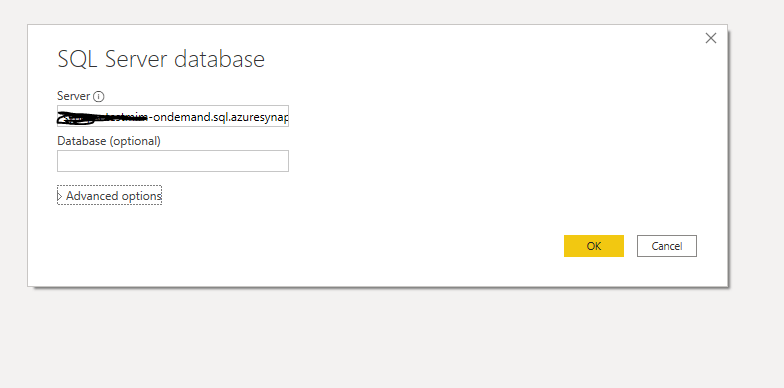
Connecting to azure synapse is extremely easy, PowerBI just see it as a normal SQL server.

here is the M script

let
Source = Sql.Databases("xxxxxxxxxxx-ondemand.sql.azuresynapse.net"),
test = Source{[Name="test"]}[Data],
dbo_GL_Clean = test{[Schema="dbo",Item="TUNIT"]}[Data]
in
dbo_GL_Clean

And the SQL Query generated by PowerQuery ( which Fold)

select [$Table].[filename] as [filename],
[$Table].[SETTLEMENTDATE] as [SETTLEMENTDATE],
[$Table].[DUID] as [DUID],
[$Table].[INITIALMW] as [INITIALMW]
from [dbo].[TUNIT] as [$Table]

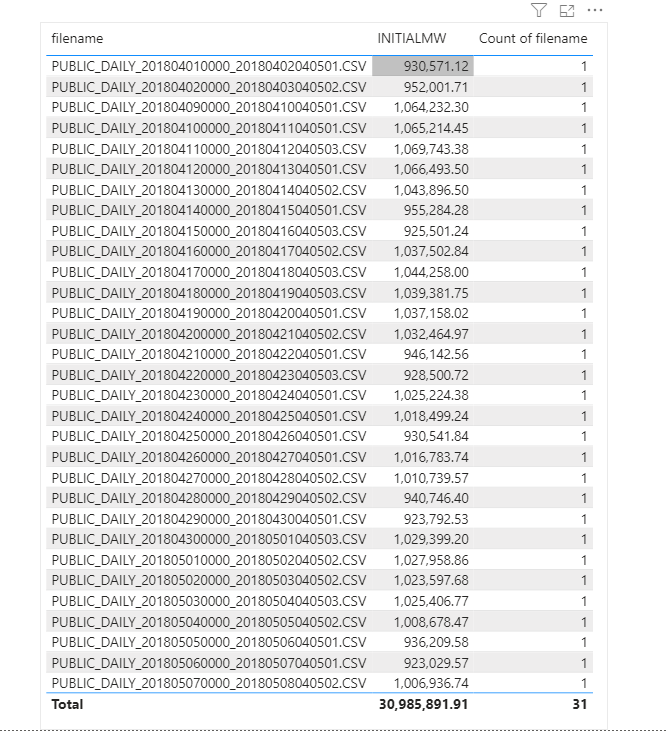
Click refresh and perfect, here is 31 files loaded

Everything went rather smooth, nothing to set up and I have now an Enterprise Grade Data warehouse in Azure, how cool is that !!!

How Much it cost ?

Azure Synapse serverless pricing model is based on how much data is processed

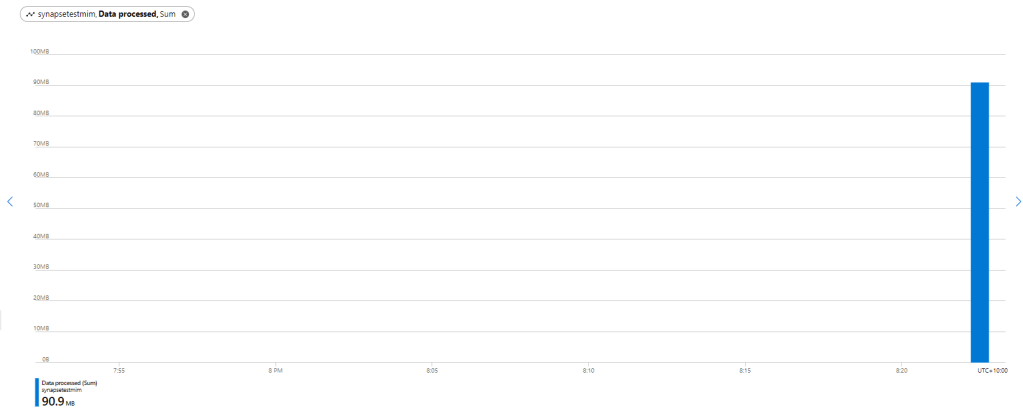
First let’s try with only 1 file ,running Query from the Synapse Workspace, the file is 85 MB, good so far, data processed is 90 MB, file size + some meta Data

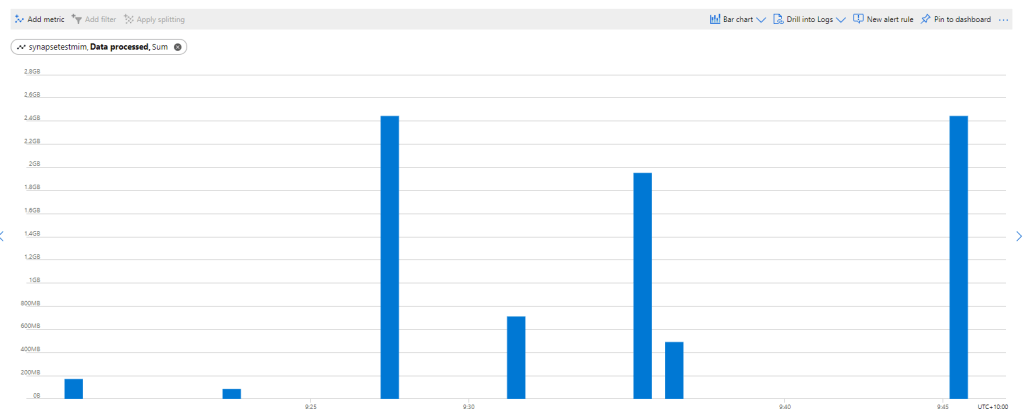
now let’s see using the Queries generated by PowerBI, in theory my files size are 300 MB, I will be paying only for 300 MB, let’s have a look at the Metrics

My first reaction was, there must be a bug , 2.4 GB !!!, I refreshed again and it is the same number !!!

A look at the PowerQuery diagnostic and a clear picture emerges, PowerBI SQL Connectors is famous for being “Chatty”, in this case you would expect PowerQuery to send only 1 Query but in reality it will send multiple Queries , at least 1 of them to check the top 1000 rows to define the fields type.

Keep in mind Azure Synapse Serverless has no cache ( they are working on it), so if you run the same query multiple times even with the same data, it will “scan” the files multiple times, and as there is no data statistic a select 1000 rows will read all files even without order by.

Obviously, I was using import mode, as you can imagine using it with directQuery will generate substantially more queries.

Just to be sure I tried to do refresh on the service.

The same, it is still 2.4 GB, I think it is fair to say, there is no way to control how many time PowerQuery send a SQL Query to Synapse.

Edit 17 October 2020 :

I got a feedback that probably my PowerBI desktop was open when I run the test in the service, turn out it is true, I tried again with The desktop closed and it worked as expected, one refresh generate 1 query

Notice even if the CSV file was compressed, it will not make a difference, Azure synapse bill uncompressed data.

Parquet file would made a difference as only columns used would be charged, but I did not want to used another tool in this example.

Take Away

It is an interesting Technology, the integration with Azure cloud storage is straightforward, the setup is easy,you can do transformation using only SQL, Pay only what you use and Microsoft is investing a lot of resources on it.

But the lack of cache is a show stopper !!

I will definitely check it again when they add the cache and cost control, after all it is still in Preview 🙂

Three years to finish a Dashboard

in 2017, at my previous job, we were using PowerBI Desktop as our reporting solution, but there was a big limitation, we couldn’t use the service, so sharing the reports was either in Excel or pdf.

I remember I did try different solutions (Rstudio, Qlik, SSRS), they were great Products, but you need some kind of server to share the reports. At that time all I wanted is a simple web app where people can click on a slicer and get a fancy charts.

At that time Google made their reporting solution free, I was really excited about Data Studio, a free product, extremely easy to share but unfortunately a bit slow and lacked some basic functionality, I still managed to build something but it was not really good

It is all history now, moved to another job, we have PowerBI service ( and Tableau), but still for some reason, I felt like a missed opportunity, what if Data Studio became a good enough to be used as a free report tool.

If I remember correctly 2017 and 2018, there was no major progress but then they released custom viz, which basically means you can port any javacript library relatively easily , I managed to build a custom viz see example here

and in sept 2019, BI Engine showed up !!

It was really a big Deal, BI Engine is an analytics in-memory Database , and it is fast and they gave away 1 GB for free, it means you can connect your data from BigQuery and pay nothing ( with a fair limit of course), this made this report possible

In May 2020, they finally released Google Map Integration , although with a limit of 10K points, it was not useful for my use cases ( Solar farm needs a lot of point around 40k to 60K)

That was great and all, but still I couldn’t write complex measures easily ( or maybe did not know how), but something changed in August 2020

At last we have Proper support for parameter, that changed everything, now you can write any complex business logic using SQL in BigQuery and visualize the results using Google Data Studio, and you can do a lot of fancy stuff see those examples

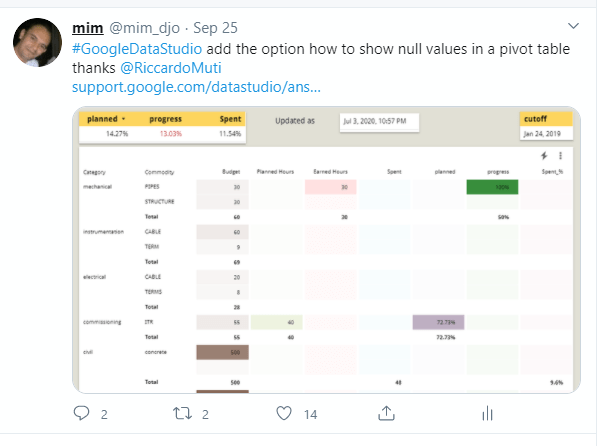
Still there was still a major bug, Pivot table in Data Studio show 0 for null values needless to say, it is extremely annoying although you can build workaround, it was a hack and not sustainable.

That was fixed last week

So yes, it took me three years to finish this report, BI Engine + Parameter + Custom Viz and a bug fix in the Pivot Table to make this report possible

I added a workflow explanation in the report, but basically create a reporting dataset as large flat fact table and show the results in BigQuery with further control by SQL Parameter, if the native visual are not satisfying, you can show pretty much anything using Vega-lite custom viz.

One aspect was impossible to do without Parameter is the dynamic grouping of dates, in the time series, the weekend update dynamically based on the cut off selected.

Please don’t get me wrong, there is still a lot of work to be done, but the foundation of the product is already there, I can see clearly the vision of the product team, hopefully they keep investing but faster this time ( Parameter Action, support for BigQuery geography field, analytics functions, Tiles for Custom Viz ……)

Take away:

– If you need near real time reports

– You want a reporting solution and don’t have a decent budget.

– Used Data Studio in 2017 and dismiss it.

I have a good news for you, BigQuery/Data Studio is a viable option now, and you get 1 TB free for BigQuery and 1 GB compressed in -memory for BI Engine, that’s a lot of free resources, and there is no catch, you can share securely with anyone, again totally free.

Although I am a PowerBI developer and I love it, I think it is very healthy for the industry to have more choices, 2021 will be exciting !!!

Row Level Security Using Parameter in Google Data Studio

saw this on twitter (Thanks Pablo), and I had an idea of using Regex_Match as currently comparing dimension does not work !!!

How RLS Works in Data Studio

Data Studio support RLS using google account ( can work with any email address not only gmail), so when you login using your account, Data Studio get your email adress which is unique to you, then you can use that email to filter rows .

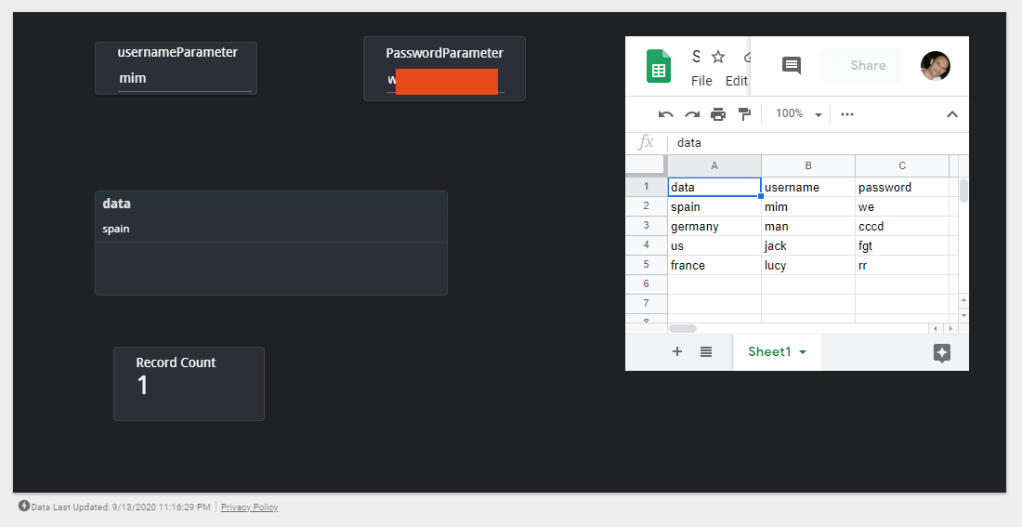
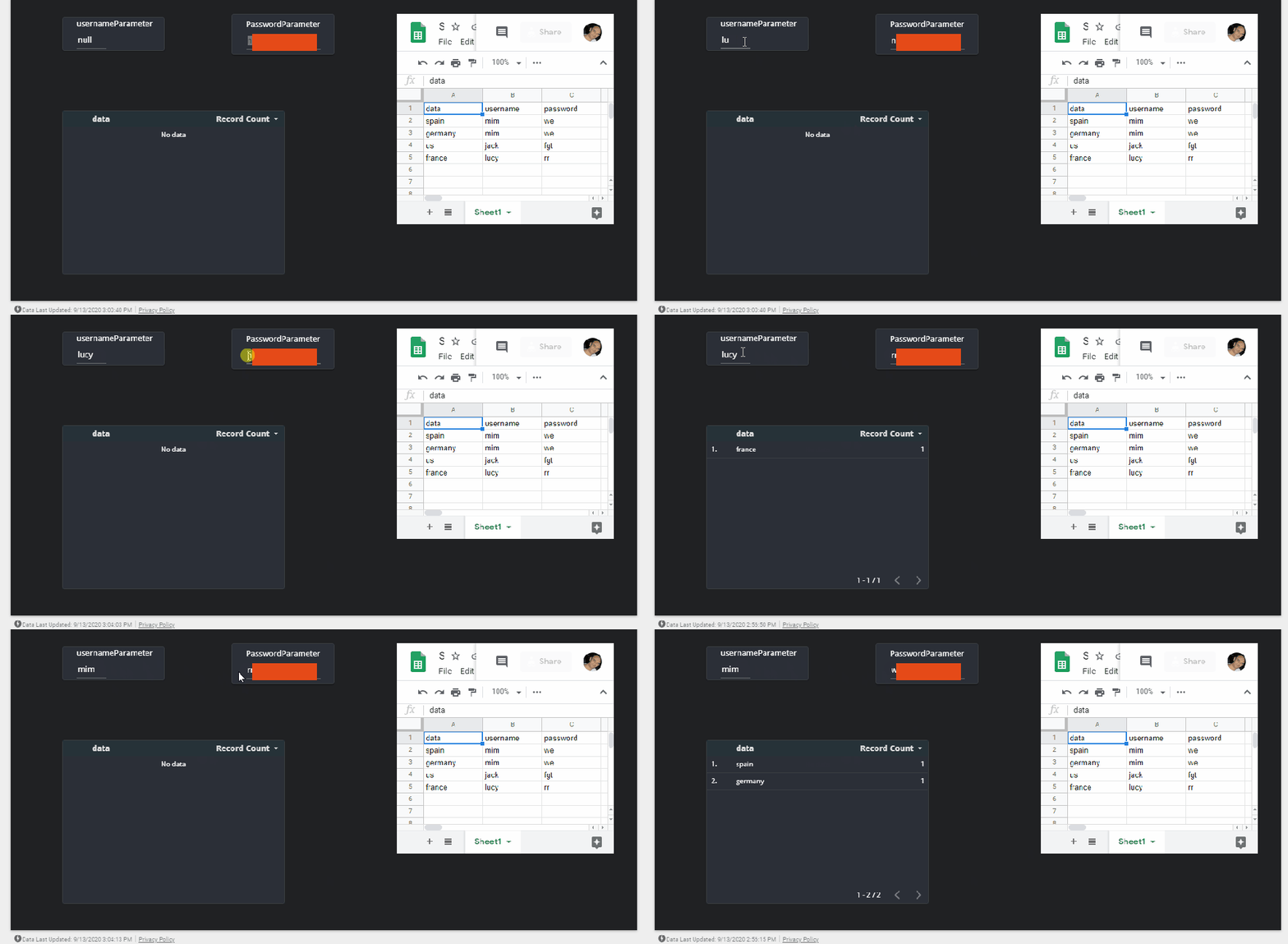
in Some cases, maybe you want to implement security using username/Password, it turn out using parameter, it is trivial to implement, notice we are using Google sheet as a data Source, if you need more control, using SQL Parameter is even more Powerful

Warning : Storing password as plain text is dangerous

now for a very simple scenario, you have data and you want people to have access only to some rows

1- Create two parameters

usernameParameter and PasswordParameter

let’s start with usernameParameter, it has to be any value, and default value null or none etc

do the same for PasswordParameter

2- Create calculated field RLSfilter

basically, if both the values typed in the parameter control match then return 1 else 0

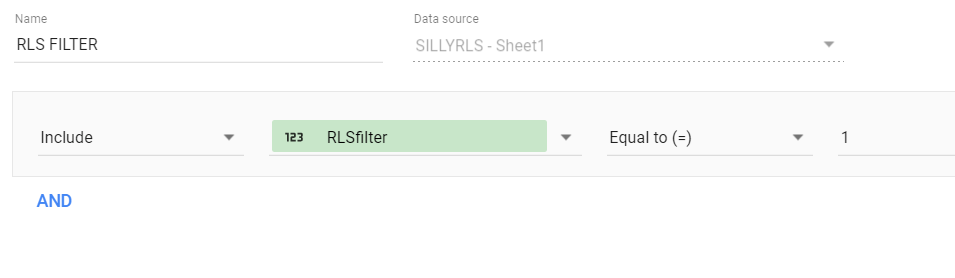
3- Create a Filter using the calculated field RLSfilter

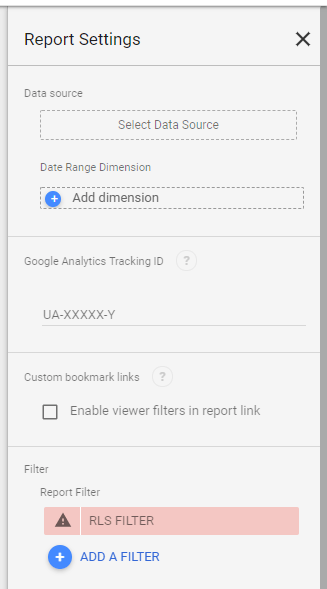
4- Apply the filter to Visual

go to file, report setting, and add the filter, so it will automatically apply to all the visual in your report, or you can apply to every visual where it make sense only ( you may have multiple dataset where it does not apply)

you can add an image on the filter control to hide the password when the user type it.

You can see the report here

Limitation

This RLS apply at the report level, it means report editors can see everything.

if you want the report editors not to have total access, then you need to push down the filter upstream, either using email, or leveraging SQL Parameter in BigQuery

Drill Down to Another Page in Google Data Studio

Edit : 28 November 2020, there is an easy way without using parameter

Drill down to another page is a well known technique in BI software, you have a main page with aggregate data, and you can select one category then drill down to another page with more details and keeping the filter selection.

Data Studio does not support this functionality natively but we can simulated using parameter URL

in this example, we will drill down from Country to cities

1- Create a country parameter

2- add a new Page

the first report will show data at the country level, like this

make sure interaction is one

3- Go to Resource, Manage Report URL Parameter

4- Allow to be modified in report URL

tick the option on, you can edit the parameter to remove ds1.drillcountry to drillcountry

5- Build the URL

that’s the main part of the post, create a new calculated field using this forumula

hyperlink(CONCAT("https://datastudio.google.com/u/0/reporting/4507ce56-1ad7-4e20-9c53-8f02d5a9a4fe/page/wKRfB?params=%7B%22drillcountry%22:%22",Country,"%22%7D"),Country)

the first part is the second tab URL address , drillcountry is the parameter name as written in step 4, country is the field you are filtering on

6- create a Table

add this field in a table visual and limit the result to 1 row

7-Create a second calculated field to filter using parameter

currently you can’t use parameter in visual filter, instead we will use a dummy filter

8-Filter the visual in the second page

and that’s all, unfortunately as of Sept 2020, the URL by default will open a new tab

the report is here