Smart Data Pipeline Design: Check for Delta Table Changes with Minimal Overhead

Scenario

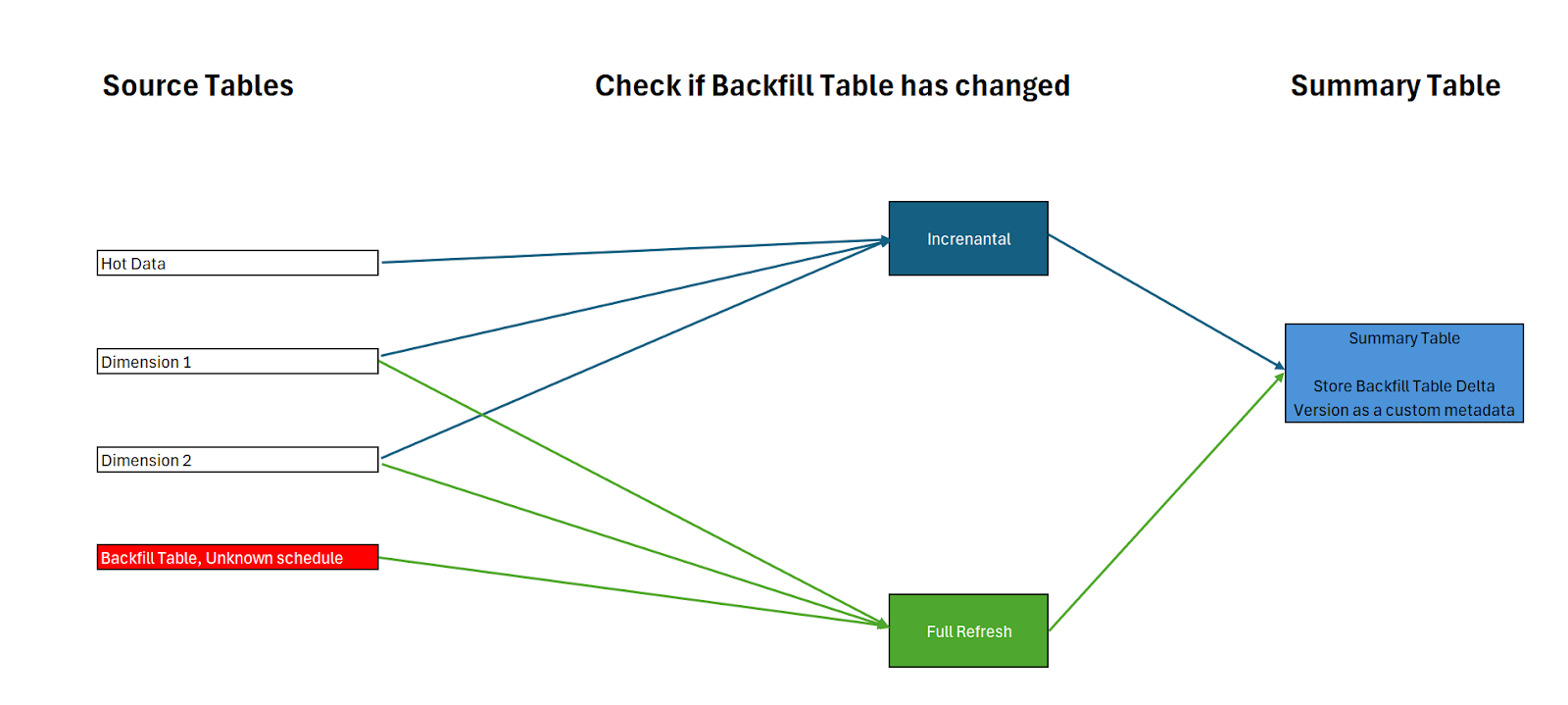
I have a notebook that processes hot data every 5 minutes. Meanwhile, another pipeline processes historical data, and I want to create a summary table that uses the hot data incrementally but refreshes entirely when the historical data changes.

Problem

Checking for changes in historical data every 5 minutes is inefficient, slows down the hot data pipeline, and increases costs. There are many potential solutions for this use case, but one approach I used has been working well.

Solution

Using Delta Table Version

Delta tables provide a variety of functions to access metadata without reading actual data files. For instance, you can retrieve the latest table version, which is highly efficient and typically takes less than a second.

dt = try_get_deltatable(f'/lakehouse/default/Tables/{schema}/scada', storage_options=storage_options)
if dt is None:
    current_version = -1
else:
    current_version = dt.version()

Storing Custom Metadata

You can store arbitrary metadata, such as a Python dictionary, when writing a Delta table. This metadata storage does not modify Parquet files and can contain information like who wrote the table or any custom data. In my case, I store the version of the historical table used in creating my summary table.

write_deltalake(Summary_table_path,
                df,
                mode="overwrite",
                storage_options= storage_options,
                custom_metadata = {'scada':str(current_version)},
                engine='rust')

and here is how this custom metadata is stored

Combining Both Methods

The hot data pipeline incrementally adds data and checks the version of the historical table, storing it in the summary table. If the stored version differs from the latest version, this indicates a change, triggering a full refresh of the summary table.

Example Scenarios

  • When the Historical Table Has Not Changed
  • When a Change is Detected in the Historical Table

Key Takeaway

The Python Delta package is a versatile tool that can solve complex data engineering challenges efficiently.

You can download the two notebooks here

Create Iceberg Table in Azure Storage using PostgreSQL as a catalog

Just sharing a notebook on how to load an iceberg table to ADLSGen2, I built it just for testing iceberg to delta conversion.

Unlike Delta, Iceberg requires a catalog in order to write data, there are a lot of options, from sqlite to full managed service like Snowflake Polaris, unfortunately pyiceberg has a bug when checking if a table exists in Polaris, the issue was fixed but it is not released yet.

SQLite is just local db, and I wanted to read and write those tables using my laptop and Fabric notebook, fortunately PostgreSQL is supported

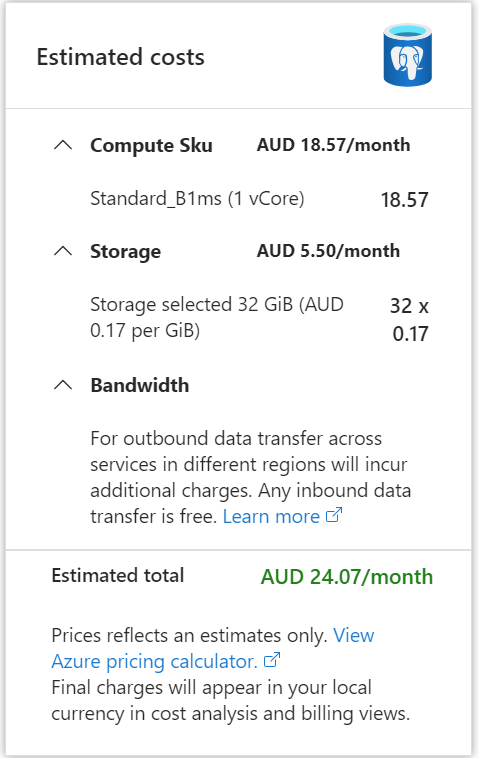
I spinned up a PostgreSQL DB in Azure, I used the cheapest option possible, notice here, iceberg catalog doesn’t store any data, just a pointer to the latest snapshot, the DB is used for consistency guarantee not data storage.

Anyway, 24 AU $/ Month is not too bad. 

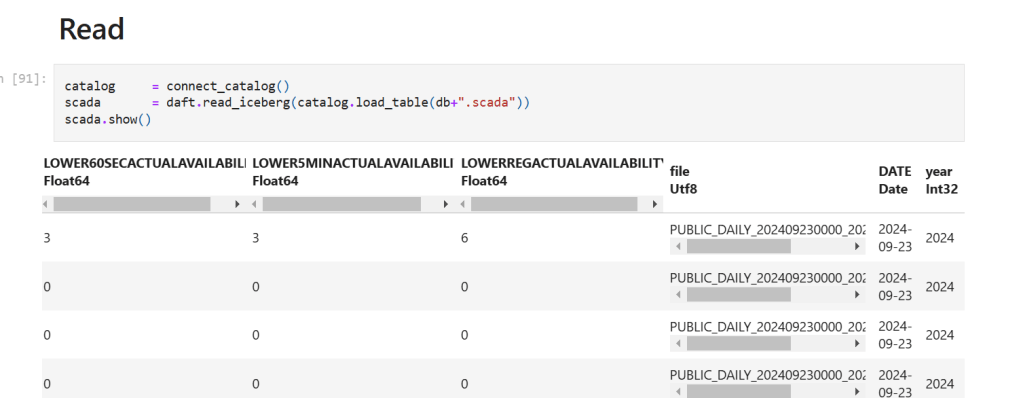
My initial plan was to use Daft for data preparation as it has a good integration with Iceberg catalog, unfortunately as of today, it does not support adding filename as a column in the table destination, so I endup using Duckdb for data preparation and Daft for reading from the catalog.

Daft added support for adding filename when reading from csv, so, it is used both for reading and writing.

The convenience of the catalog

what I really like about the catalog is the ease of use, you just need to initiate the catalog connection once.

def connect_catalog():
      catalog = SqlCatalog(
      "default",
      **{
          "uri"                : postgresql_db,
          "adlfs.account-name" : account_name ,
          "adlfs.account-key"  : AZURE_STORAGE_ACCOUNT_KEY,
          "adlfs.tenant-id"    : azure_storage_tenant_id,
          "py-io-impl"         : "pyiceberg.io.fsspec.FsspecFileIO",
          "legacy-current-snapshot-id": True
      },
                        )
      return catalog 

The writing is just one line of code, you don’t need to configure storage again

For writing , you just use something like this

catalog.create_table_if_not_exists('tbl', schema=df.schema, location=table_location + f'/{db}/{tbl}')
catalog.load_table(f'{db}.{tbl}').append(df)