How PowerBI Composite Model Works

In a previous blog, I showed that dual Mode is really a very good pattern when building PowerBI Model that uses Direct Query, but it in order to work, both Tables needs to be using the same Data Source, you can’t physically join a table from a SQL Server with another Table from Excel, But still PowerBI Engine manage to do that using a clever trick, to explain how it works, I build two Models one using Dual Mode and Another using Composite Model and then we compare the behavior.

Note : Kasper that a great video explaining how everything works behind the scene.

Composite Model

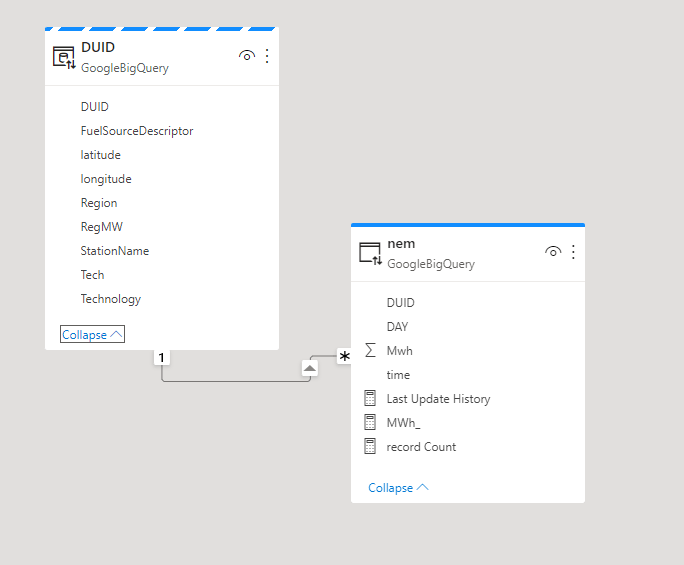
The Diagram give already an indication that the two dimension Tables are imported to the Local cache and that the relationship is a bit different than a “Normal” Relationship, I think the official term is weak relationship.

To Understand how this special Join Works, let’s try a simple Query, show me the total Mwh of coal Production

And here is the SQL Query generated by PowerBI Engine, at first sight it seems very weird !!!!

select `DUID`,
    `C1`
from 
(
    select `DUID`,
        sum(`Mwh`) as `C1`
    from 
    (
        select `DUID`,
            `DAY`,
            `time`,
            `Mwh`
        from `test-187010`.`ReportingDataset`.`UNITARCHIVE`
        where `DUID` in ('APPIN', 'BRAEMAR2', 'BRAEMAR5', 'BW02', 'OAKY2', 'TARONG#1', 'LD03', 'MP1', 'BW01', 'MORANBAH', 'LYA3', 'MP2', 'KPP_1', 'TAHMOOR1', 'TARONG#3', 'LYA2', 'CPP_3', 'BW04', 'TNPS1', 'TARONG#4', 'LYA1', 'BW03', 'OAKYCREK', 'GROSV1', 'TARONG#2', 'LYA4', 'CPP_4', 'GROSV2', 'VP6', 'CALL_B_1', 'WILGAPK', 'GSTONE5', 'VP5', 'LOYYB2', 'CALL_B_2', 'WILGB01', 'GSTONE3', 'STAN-1', 'LOYYB1', 'CALL_A_4', 'DAANDINE', 'GSTONE6', 'YWPS1', 'ER01', 'GERMCRK', 'GSTONE2', 'STAN-2', 'YWPS2', 'ER03', 'MBAHNTH', 'STAN-3', 'YWPS3', 'TERALBA', 'GSTONE4', 'STAN-4', 'YWPS4', 'ER02', 'GSTONE1', 'LD02', 'ER04', 'TOWER', 'BRAEMAR3', 'LD01', 'BRAEMAR6', 'MPP_1', 'GLENNCRK', 'BRAEMAR1', 'LD04', 'BRAEMAR7', 'MPP_2')
    ) as `ITBL`
    group by `DUID`
) as `ITBL`
where not `C1` is null
LIMIT 1000001 OFFSET 0

The Fact table in Direct Query mode contained only DUID, which is the code for the station name ( Coal Power plant, Solar Farm, Winds etc), the remote Source here is BigQuery, which have no idea what Coal means, as it is not a field defined in the table.

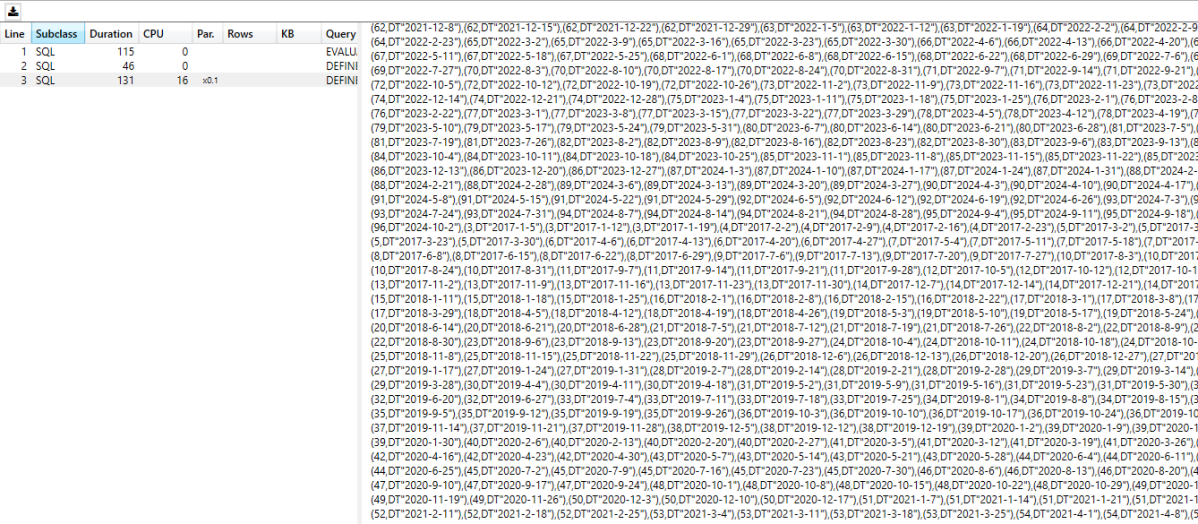
PowerBI Engine is smart enough to know which DUID belong to Coal as it is defined in the Dimension Table, get those items and injects them as a filter in the SQL Query, send the Query to the source system and get back the results

to be honest I did like this approach very much as usage based Database that I used Synapse Serverless and BigQuery, you pay a minimum of 10 MB by table, if you can avoid joins and pass everything as filters you save a bit of money.

Does it scale Though

to test it, I built two exact same visual, one using composite and the other Dual
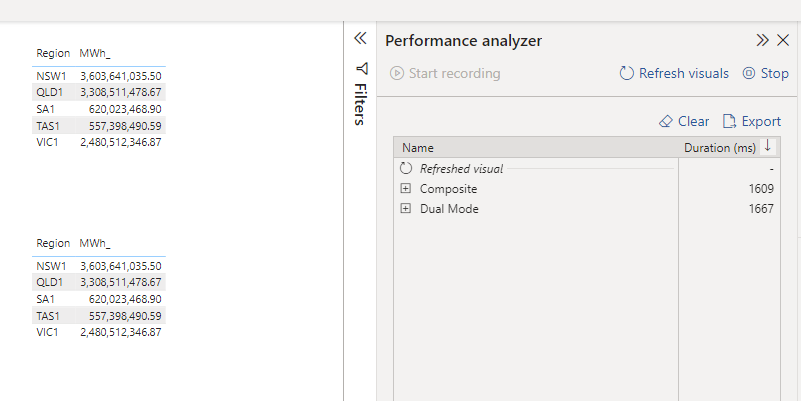
So Far, so good, nearly same performance ( it is hard to believe it is 80 millions rows, and the region is Tokyo )

Now let’s add a date dimension, show me, Mwh per state per year
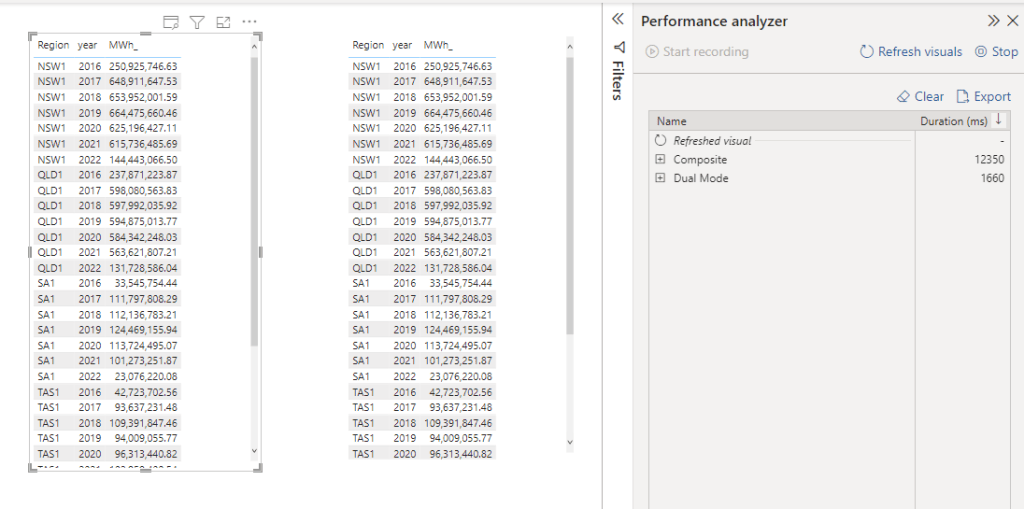
that’s not Good, 12 second is definitely not interactive, my first gut feeling, BigQuery slow down because of all those filters value, let’s check

Composite Model 2.1 sec, notice it did billed only 10 MB ( I am using a materialized View on the base Table )
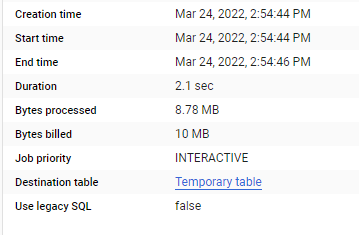
And Now Dual Mode, which make the joins at the source, that’s why I am billed for 30 MB ( Synapse Serverless do the same)
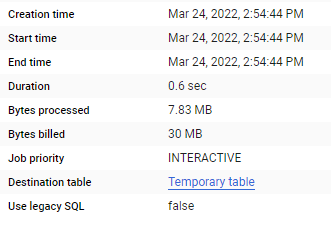
Data Transfer is the bottleneck

ok doing the join is faster, but still it does not explain the big difference observed in PowerBI. now let’s check the result set returned by every Query

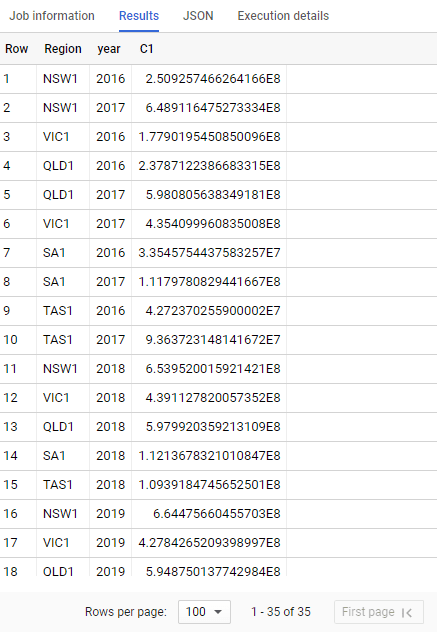
Dual Mode

35 rows, the same level of granularity as the visual
Composite Model

375K rows returned, yes, it is correct, PowerBI in composite mode don’t know anything about Year and Region, it has to get everything by DUID and Day level then group everything locally using the special join.
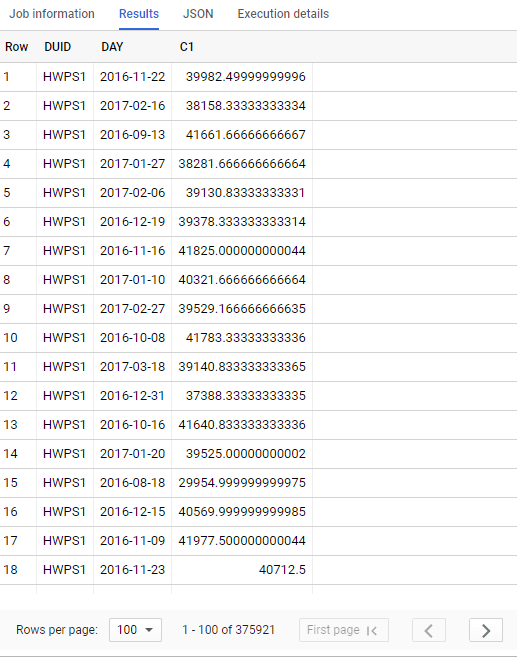
Downloading 370K will be slow and not very efficient for everything involved here, yes I know, you can add dimension year and region to the fact table, in that case we may just use flat table and call it a day. (I am joking you still need a dimension specially f you want to join another Fact)

so is Composite Model Bad ? absolutely not, but there is no free lunch, if you use it with dimensions that generate a small number of row it is fine, otherwise it can be slow, DWH are fast but data transfer is always a problem

How about Direct Query for PowerBI Dataset

it works the same way, two remote PowerBI Dataset are absolutely isolated from one another, PowerBI just see them as a separate Server !!!, and the join works by passing filter values around, Vertipaq is very fast though and all the datasets are located in the same space, I suspect it is less of a problem, But if you are not carefully enough with dimension with high cardinality, it may slow down the experience.

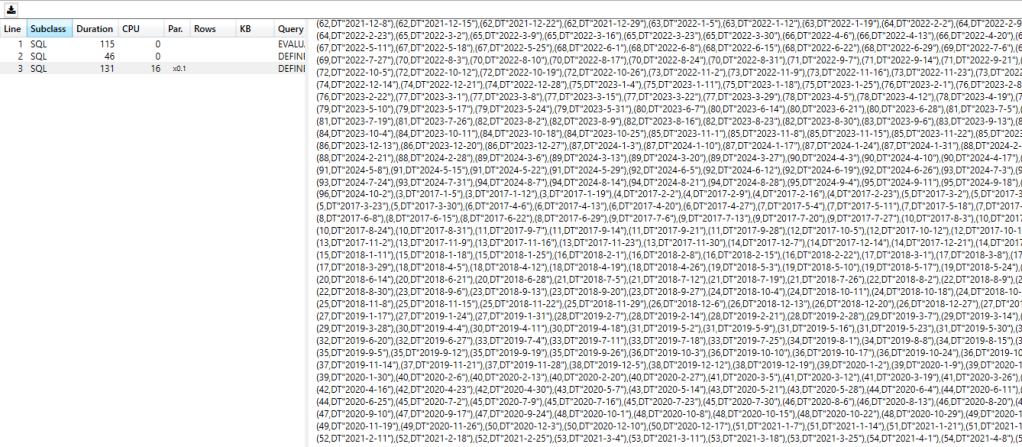
This is an example of a composite Model between two very small tables from two PowerBI Dataset, the DAX Query is passing day filter around, it is still fast, but the more you add, the slower it get.
We don’t use Composite Model at works as currently it needs a build permission for every user, and I did find sometimes rebuilding a model from scratch is much more practical than trying to decipher someone else disconnected table measure shenanigan, I think we currently use it only for special model to show a summary of all KPI from all existing Models grouped at a very high level.

The perfect use case for composite Model is if you have a Mature Enterprise Model and you need only to add a special dimension, like a different hierarchy then it is just perfect, anything else you need to be rather careful , you may end up with spaghetti Models all over the place.

What if ?

But I have to admit, the concept is very tempting and make you wonder, what if somehow we can just join between two arbitrary dataset using a real join, Vertipaq engineers are clever and they can figure it out, what if PowerBI service somehow accept a DAX Query and loaded not the whole Models but just the columns used for the Query , maybe even only the partition needed for the Query, what if in PowerBI service you will have different dataset just for storing data by department, and a lot of lightweight Logical Model in Direct Query mode.

Total separation of Storage, Compute and Semantic Model all using the same tables, can we just imagine how Vertipaq will look like in 2030 ?

Optimize PowerBI Direct Query performance by using Star Schema and Dual Mode.

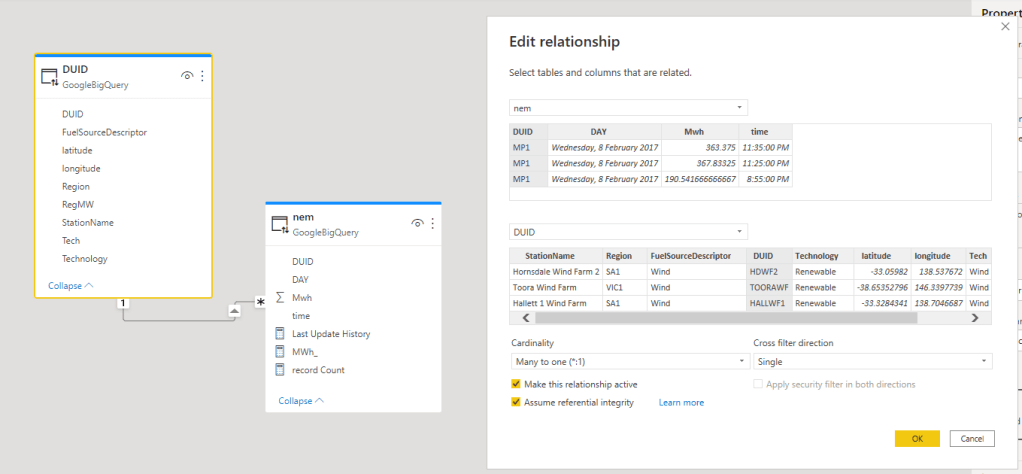
Sometime to understand and appreciate how PowerBI Engine works is by comparing it to other product, when I was playing with thoughtspot, I noticed if you want to show items from a dimension that don’t have any value in the fact Table; you simply Model the relationship as a right join ( or full outer join to get values without a dimension item)

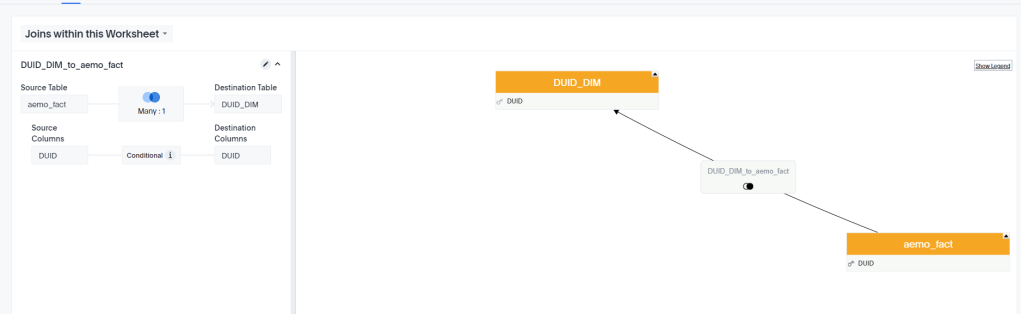
The Semantic Model is a very simple Star Schema with 1 Fact and 1 Dimension.

And here is the Query generated

SELECT 
  `ta_1`.`StationName` AS `ca_1`, 
  IFNULL(sum(`ta_2`.`Mwh`), 0) AS `ca_2`
FROM `testing-bi-engine`.`starschema`.`aemo_fact` AS `ta_2`
  RIGHT OUTER JOIN `testing-bi-engine`.`starschema`.`DUID_DIM` AS `ta_1`
    ON `ta_2`.`DUID` = `ta_1`.`DUID`
GROUP BY `ca_1`
LIMIT 1000

The Only reason, I noticed the right join, the Query was not accelerated by BigQuery BI Engine which is weird as the same Model in PowerBI was working fine !!! ( Btw, right join with small table should Work, I think it is a bug in BigQuery BI Engine, BI engine added support for right and full outer join)

Now I checked the same Model in PowerBI, using both Fact and Dimension as Direct Query

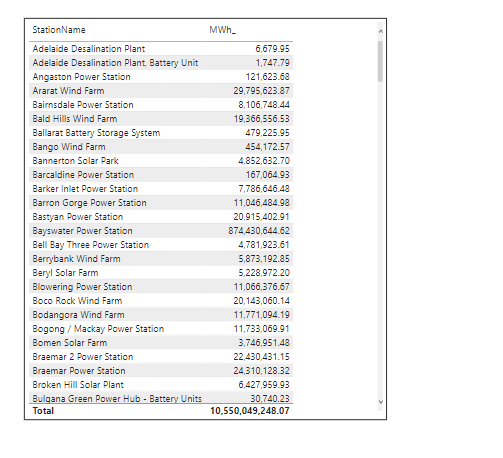
I am using only one visual using a Station Name from the dimension table and measure (Mwh) from the Fact Table

As expected because I am using “assume referential integrity” , the SQL Query generated will be an inner Join, one SQL Query is enough to get the data required.

select `StationName`,
    `C1`
from 
(
    select `StationName`,
        sum(`Mwh`) as `C1`
    from 
    (
        select `OTBL`.`Mwh`,
            `ITBL`.`StationName`
        from `test-187010`.`ReportingDataset`.`UNITARCHIVE` as `OTBL`
        inner join `test-187010`.`ReportingDataset`.`DUID_DIM` as `ITBL` on (`OTBL`.`DUID` = `ITBL`.`DUID`)
    ) as `ITBL`
    group by `StationName`
) as `ITBL`
where not `C1` is null
LIMIT 1000001 OFFSET 0

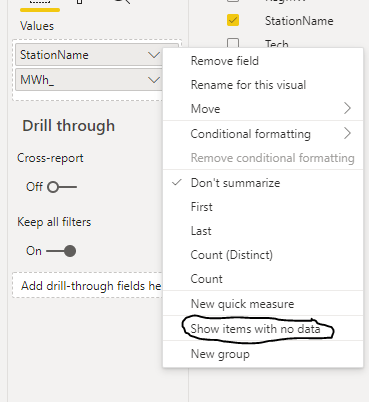
Show Items with no data

Now let’s add this option, Show items with no data ( Station Name that have null value in the Fact)

To get the required Data, you would expect a right join ? or maybe a left join from dimension to fact, I am glad that PowerBI Engine is not using either options, as Both are not optimized for BigQuery BI Engine, as a matter of Fact PowerBI Engine use only left join and inner join.

BI Engine is designed for a Big Fact table and smaller Dimension Tables ( 5 Millions as of this writing) my understanding it is a good practice for performance to have the small table at the left join side( this apply to other distributed Query Engine too like Synapse), anyway the Queries generated by PowerBI are fully accelerated and that’s a great news.

Using DAX Studio, I can see that PowerBI has generated two SQL Queries

one inner join to get the measures by dimension from the fact, and another Query to get all the items from the dimension Table, Then The Formula Engine join the results.

Ok why Should I care about Dual Mode ?

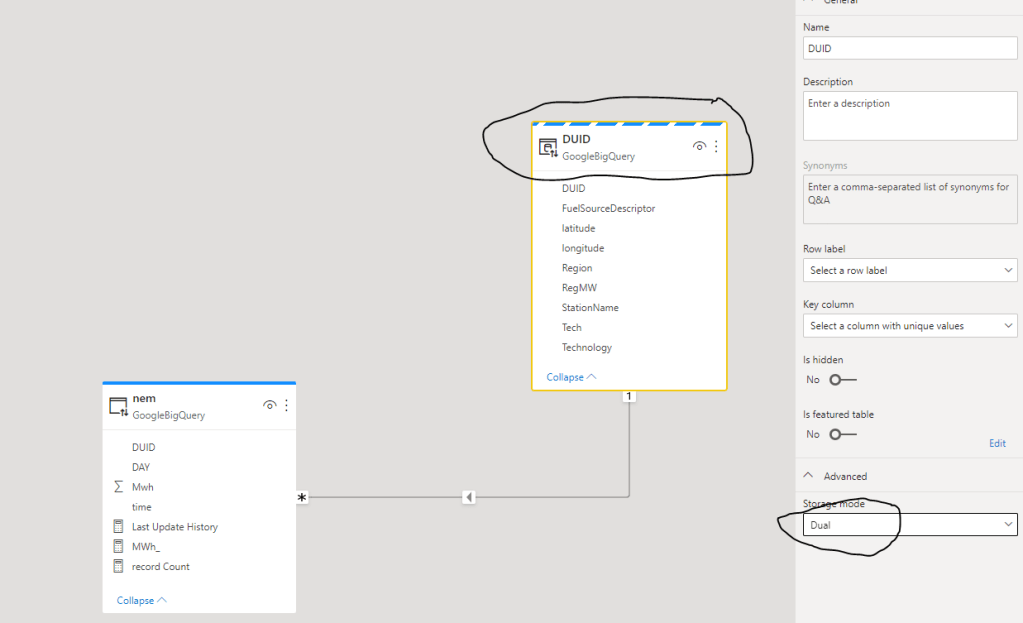
The answer is simply performance, let’s change the dimension Table to dual Mode

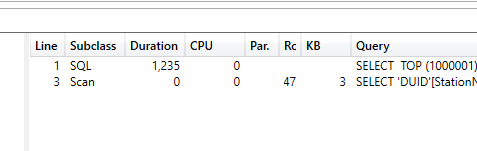
Now Let’s run the report again and see the Query generated using DAX Studio, yes it is still 2 Queries, but now the second Query is hitting the local cache (notice the word scan ) and the duration is basically 0 ms, so we saved nearly 2 seconds

It is all about the Slicer

Now let’s add a slicer to the the report, Both tables in Direct Query Mode

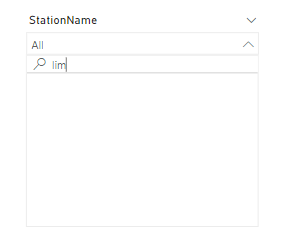
First issue , it is case sensitive, if you search “lim” you get nothing

The Second Problem, every search and selection trigger a new Query , Based on my own experience, a user can wait for a report a couple of second to get results, but if the slicer is not instantaneous, they will thinks something is not working

When I change the Dimension to Dual Mode, the search is instantaneous and not case sensitive, and the report will send only 1 query to get the results back

What’s the catch !!!

Dual Mode means the Table has to be refreshed to get the latest Data, if your dimension table change very frequently ( like a couple of second ), then you will get the same limitation of data import, but I think usually this is not the case, in the previous example the dimension change once a couple of months.

Take Away

If you have a Direct Query scenario, dual Mode for dimension Table is a very simple and efficient optimization and require literally one click.

Both PowerBI and the source Database have a concurrency limits (in Direct Query Mode) and the best optimization is not to generate the SQL Query in the first place, it may be not a big deal for one user, but for a hundred of users, it start to make a substantial difference, and obviously dual Mode assume a star Schema as a Data Model.

Another aspect which I think is not stressed enough in the discussion about DWH Modelling, The BI tools does Matter, Modeling is not done in vacuum, the reporting tables for PowerBI are not necessarily the same for Other BI tools.

PowerBI Custom Chart Ranges

My go to progress dashboard calculates a lot of progress % metrics and graphs. However for larger projects, its often difficult to zoom into the graph. This is exactly why slicers exist

Slicers are not my specialty, actually, PowerBI is not my specialty. So it was with a little frustration in trying to add a slicer to a page to find the slicer altering all my data.

Set The Stage

My go to progress dashboard calculates a lot of progress % metrics and graphs. However for larger projects, its often difficult to zoom into the graph. This is exactly why slicers exist. I am sure there are other nice graph tools that allow for custom date ranges, but again, this is so not my specialty.

What didn’t work

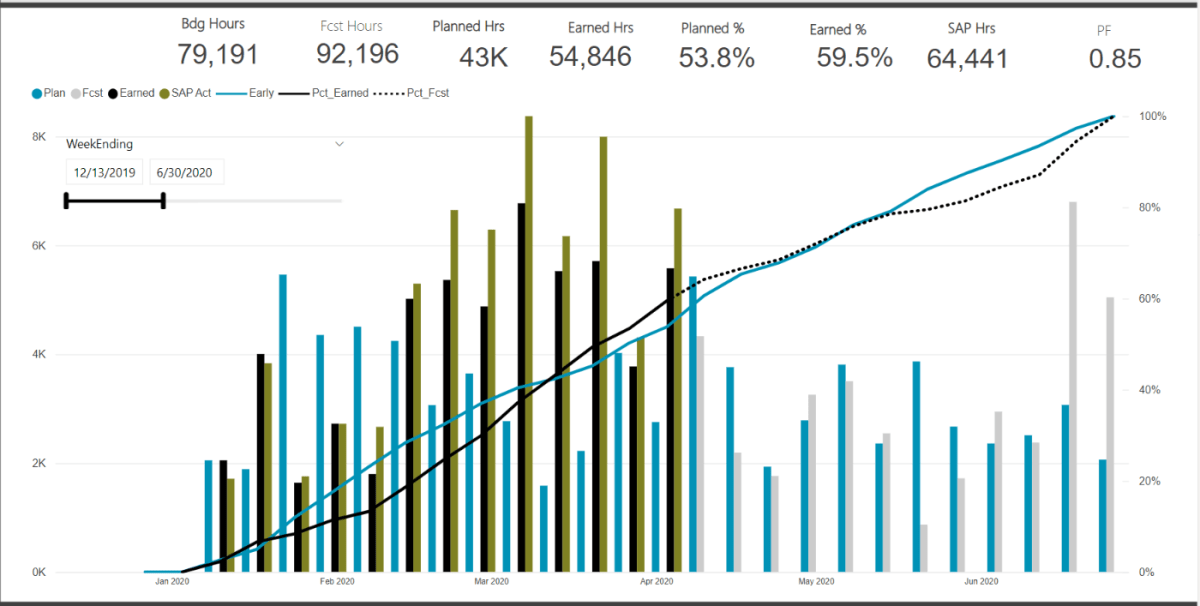
I simply added a slicer on my “weekending” field. However, in doing so, all my measures are now calculating based on the filtered date range. This is likely an issue with my measures, but alas, I wanted something to just adjust the graph axis and not effect anything else

Below we can see that my measure are calculating a progress set from 0-100%. Thus when the date ranges were adjusted, the entire dashboard is now just wrong. My budgets and %’s are also not correct on the cards (which are also based on all the slicers).

The Solution – Create a Duplicate DIM_Date Table

The problem was caused because the slicer was based on the live master dimension table that was linked to my data. Just like I want my graph to adjust based on the adjusted the WBS dimension tables, if I insert a slicer linked in anyway to my FACT table, I am in a world of hurt

Thus, just create a duplicate DIM_Date table. Here I created a new table: DIM_Date_GraphRangeSlicer

I insert a formula into the chart X-Axis range to select the min and max dates from this new GraphRange table. I then setup a slicer that filters the range for this new table, not the master DIM_Date.

With these new ranges, linked to the dummy date range, I can now much better refine just the X-Axis display of the graph without impacting any of the measures used to calculate the % progress.

The Result

Putting it all together, we can now customize the X-Axis range without altering the measures or cards that are calculating key metrics off the full (or filtered based on the WBS slicers) data.

Optimize BigQuery BI Engine Memory usage by Using Materialized Views

I blog previously how to create a Materialized View in BigQuery, and Obviously I talk a lot about BI Engine, but do they work together ?

To test it, I built a simple report in PowerBI using live mode ( you can use your favorite BI tool), 1 fact table with 78 Millions records at the minute granularity and a small dimension Table

In every Selection PowerBI send a SQL Query which scan 1.79 GB

Then I created a Materialized View , notice I skipped the time dimension

SELECT
  xx.DUID,
  yy.StationName,
  yy.Region,
  yy.FuelSourceDescriptor,
  yy.Technology,
  yy.latitude,
  yy.longitude,
  yy.Tech,
  DAY,
  SUM(Mwh) AS Mwh
FROM
  `xxxxx.UNITARCHIVE` xx
INNER JOIN
  xxxxx.DUID_DIM yy
ON
  xx.DUID=YY.DUID
GROUP BY
  1,
  2,
  3,
  4,
  5,
  6,
  7,
  8,
  9

The Same Query will scan only 10 MB, and take 700 ms

Now let’s add 1 GB of BI Engine Reservation, the duration was reduced from 700 ms to 400 ms

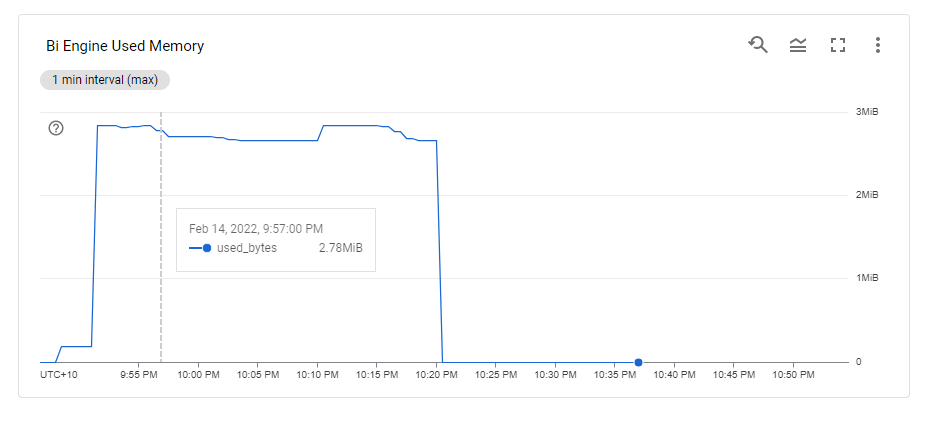
But the nice surprise is this !!! The Memory used is only 2.78 MB

BI Engine was smart enough to load only the Materialized View instead of the Base Table, That’s a better usage of resources and will scale better.

Obviously if you select another column not available in the Materialized View ( like time), BI Engine will load the column Required automatically from the base Table.