I was always intrigued by the Push dataset in PowerBI but it did had a big showstopper, you can’t mix it with other tables, which made is of little use for me, until Dec 2020, where it become possible to use it in a composite Model, see this excellent introduction
To see how it works, I tried it with this dataset, the Power Generation in Australia every 5 minutes.
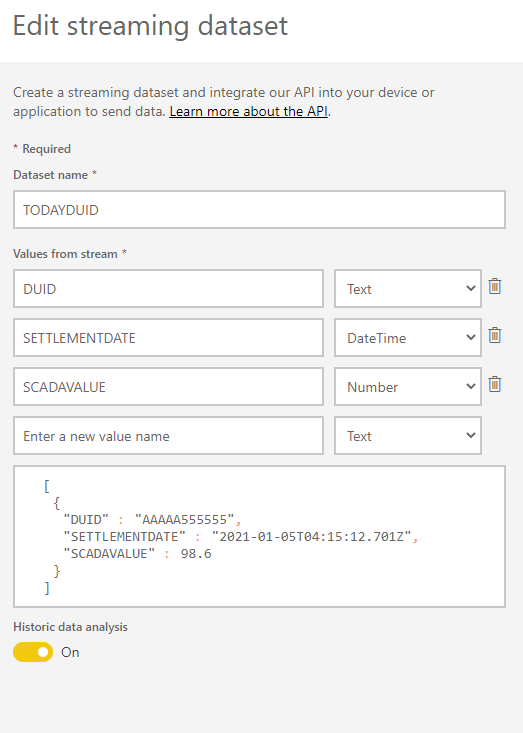
1- Create Dataset in PowerBI service
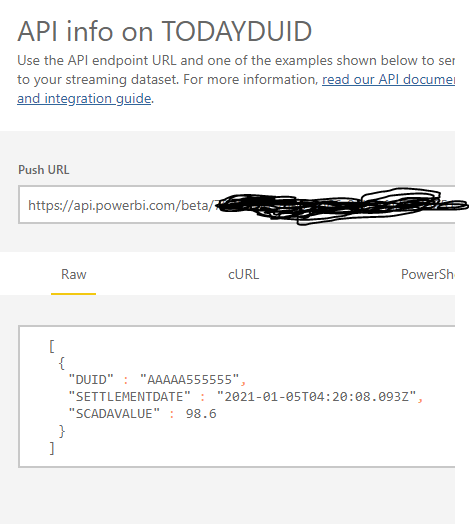
2- Get the URL
3- Use some tool to start streaming data
You need some tool to start pushing data into that Table, for example you can use Easymorph, Personally I have an existing python script that download the data and push it to a DB, I had to add only a couple of line of codes to make it push to PowerBI dataset directly, I copied the code from this function
Please make sure the datetime format is correct, otherwise it will not work.
###### post to PowerBI

            df['SETTLEMENTDATE'] = [datetime.strftime(item, "%Y-%m-%dT%H:%M:%SZ") for item in df['SETTLEMENTDATE']]

            REST_API_URL = "https://api.powerbi.com/beta/XXXXXXXXXXXXXXXXXXXXXX"
            body = bytes(df.to_json(orient='records'), encoding='utf-8')
            req = urllib2.Request(REST_API_URL, body)
            response = urllib2.urlopen(req)
            print("PowerBI: HTTP {0} {1}\n".format(response.getcode(), response.read()))
            ################################################
4- Build a Composite Model in PowerBI Desktop
DirectQuery to the Push dataset and a dimension Table as Import, we need the dimension table to know the fuel source of every generator ( wind, Coal etc), The Dimension Table change very rarely, less than 20 new rows per year !!!!
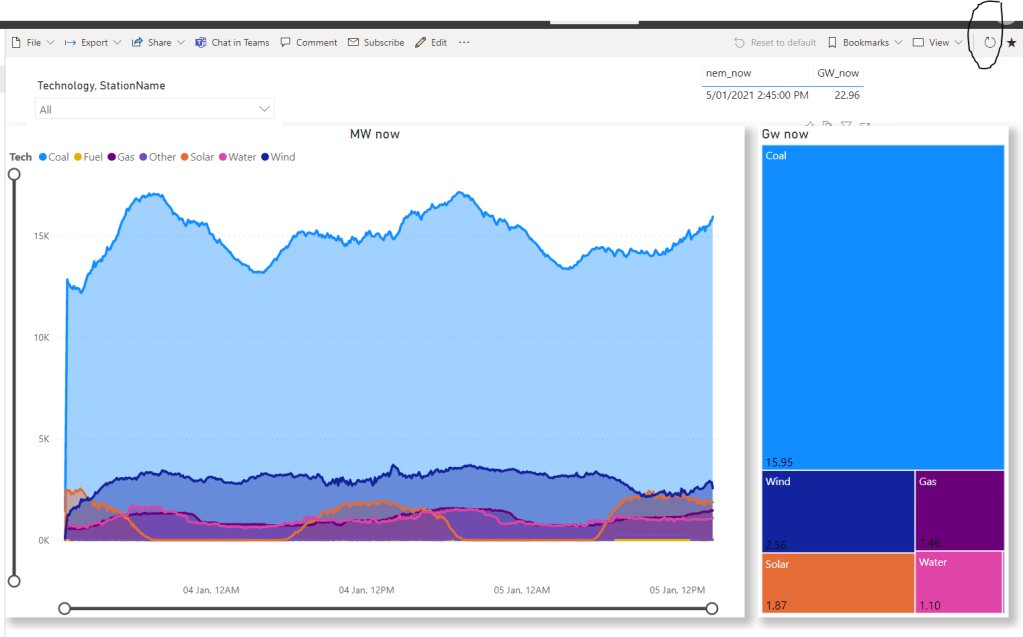
And here is the report
Maybe not a big deal for a lot of users, but Export to web does not work currently with composite Model as of 5-Jan-2021
5- Refresh the Page
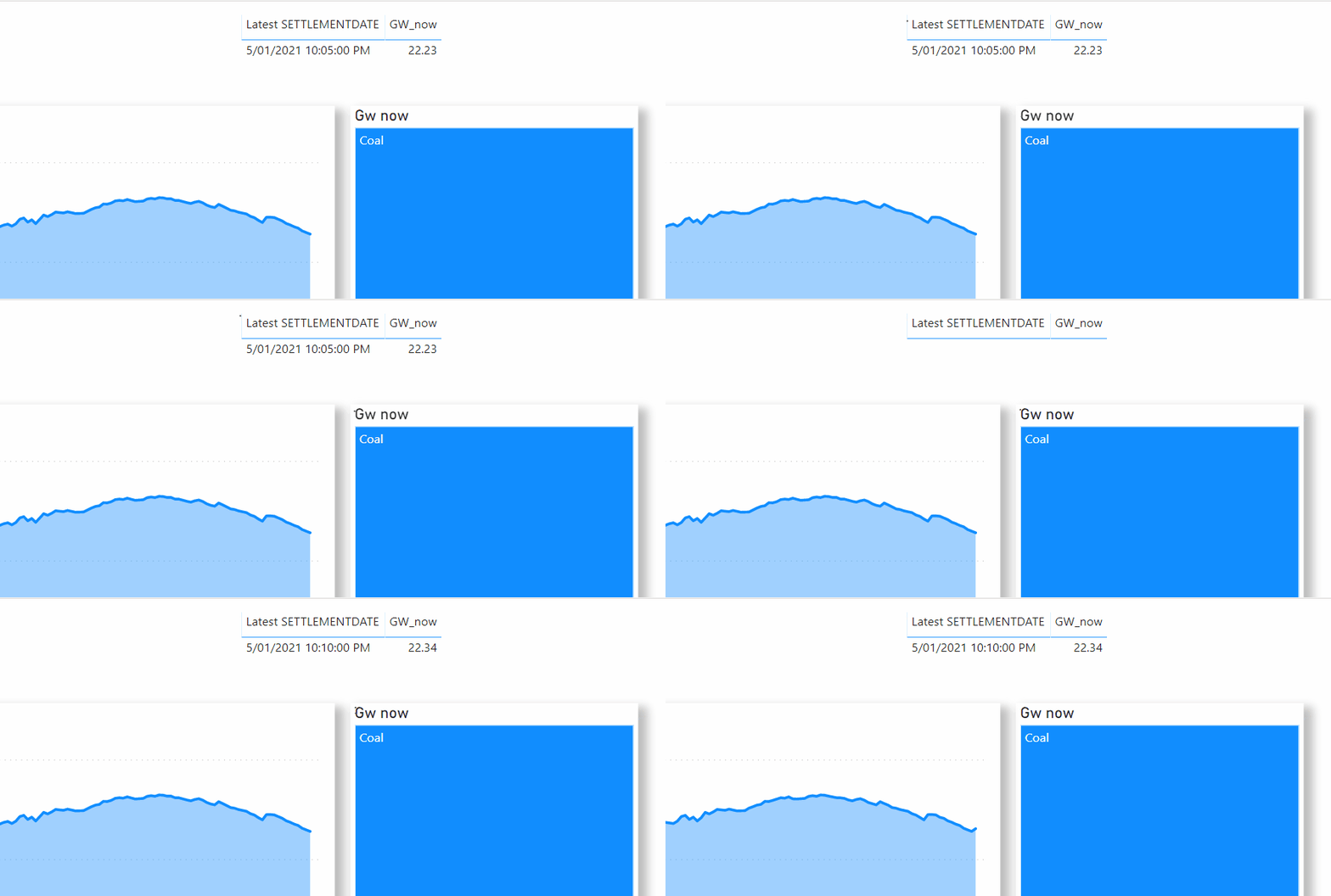
Please notice, even if the data source refresh, you still needs to click refresh to get the Latest data on the visuals, when I try to add Automatic page refresh I get this error, I am using a pro license not PPU !!!!
Edit : Fred Kaffenberger suggested a very clever workaround by using a hidden Play Axis custom viz to force the refresh, and indeed it works very well !!!
Take away
To be very clear, Pushing a 5 minutes dataset is not something new , but it was a a relatively complex task, with the new composite model it become nearly trivial, and that’s the magic of PowerBI.
in Dec 2020, PowerBI introduced a fundamental change to the architecture of the Product, now when you connect to an existing model you can enhanced it by adding your own data.
Personally I find this functionality extremely useful, for example, I had access to an Enterprise Data Model that contains Oracle Primavera Data, but it was not very useful alone, that data make sense for my use case only when I combined it with other sources, now it is possible.
To make this functionality possible the Product team add the option to connect to an Existing PowerBI Dataset using DirectQuery, it is not SQL but DAX instead, I think you should read this first, if you haven’t already.
In this blog, I am experimenting with a new scenario just by curiosity, not sure if useful at all, but fun !!!! In PowerBI by default when you refresh a dataset, all the tables will refresh, the only way to control that is using XMLA endpoint, which involve some coding and require a premium license (PPU works too).
The idea is simple, let’s say you have a model with 4 tables, and only 1 Table needs to be refreshed frequently.
– Create a new Model that contain only 1 Table, setup schedule refresh to how often you want to see the data updated
– Delete that Table from the existing model, and connect to it from the new Model using DirectQuery
The Table that refresh frequently can be even a Realtime dataset
Testing
Again, don’t read too much into it, it just to give you an indication, The Data is Power Generation every 5 minutes, it make sense only to update the data for the current Day, all previous data does not change, The visual will show the data for today and yesterday.
1- All Tables are imported
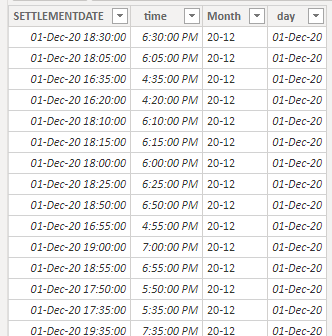
notice Settlementdate is a datetime field, the data is imported using incremental refresh.
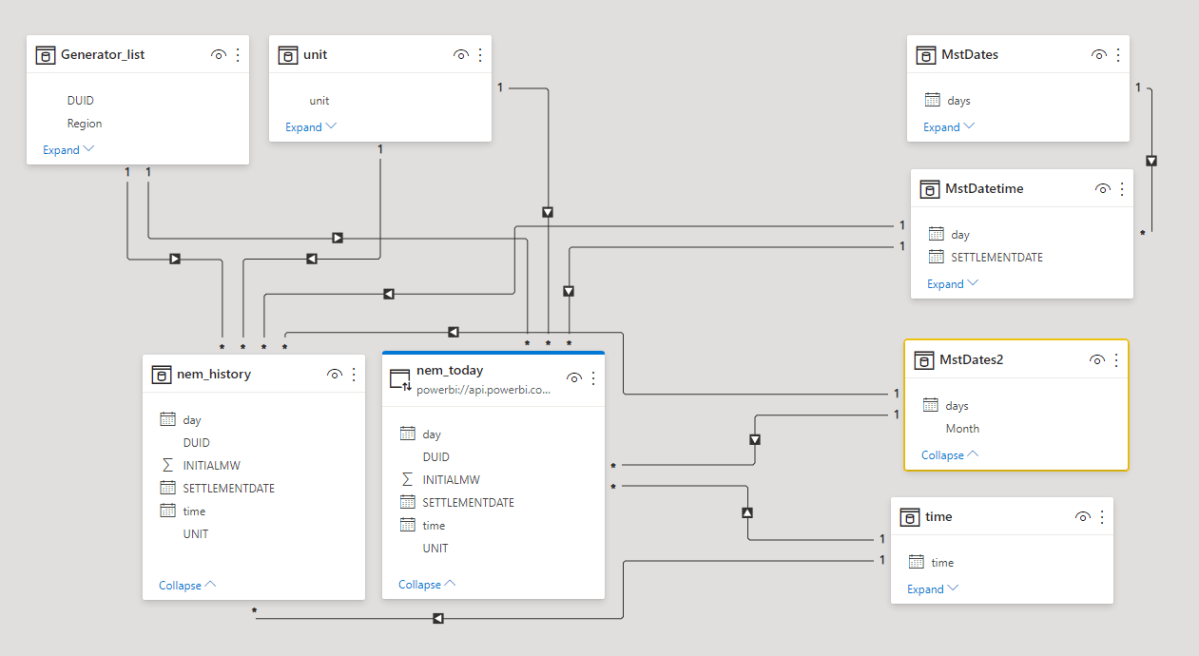
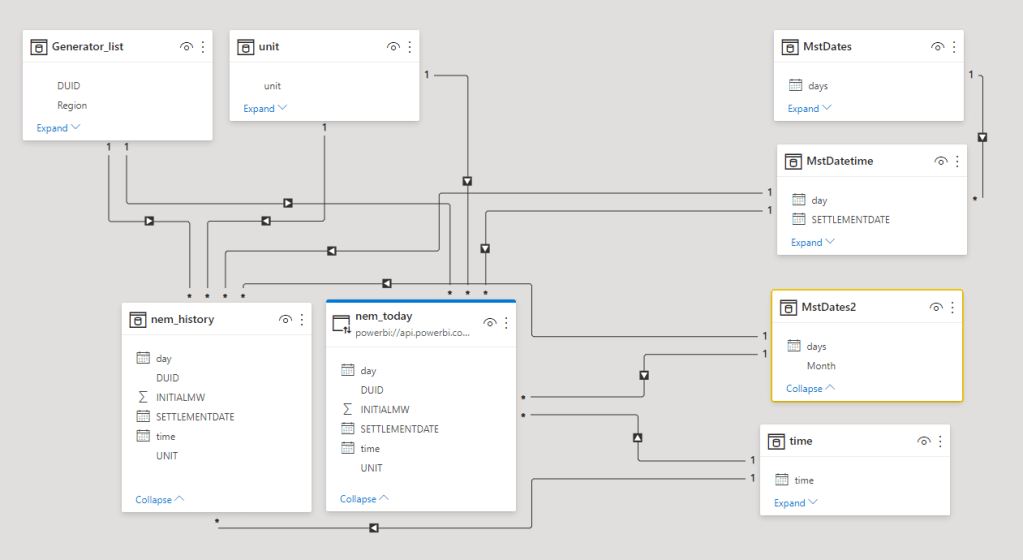
and here is the Model
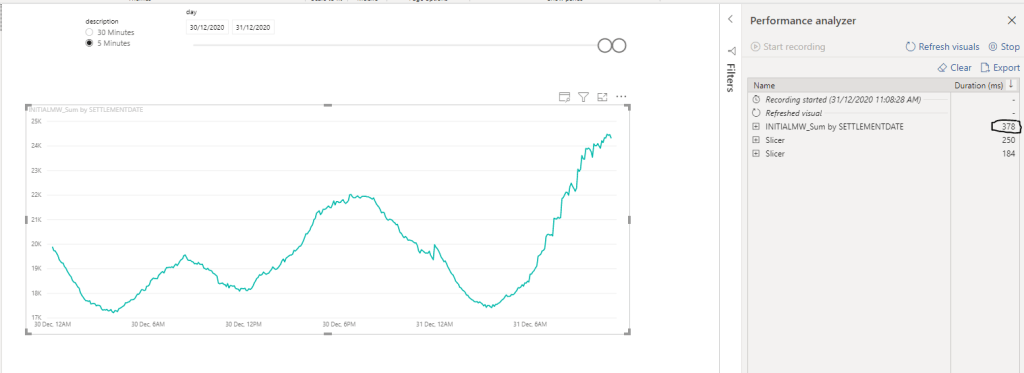
here is the result, 378 ms
2-History Imported, Today Data DirectQuery
when you do DirectQuery mode, the performance will depend on the modelling used, here the measure Mw will sum the values from the History Table and Today Table.
if we use settlementdate as an X axis, the results will return in 80 Seconds
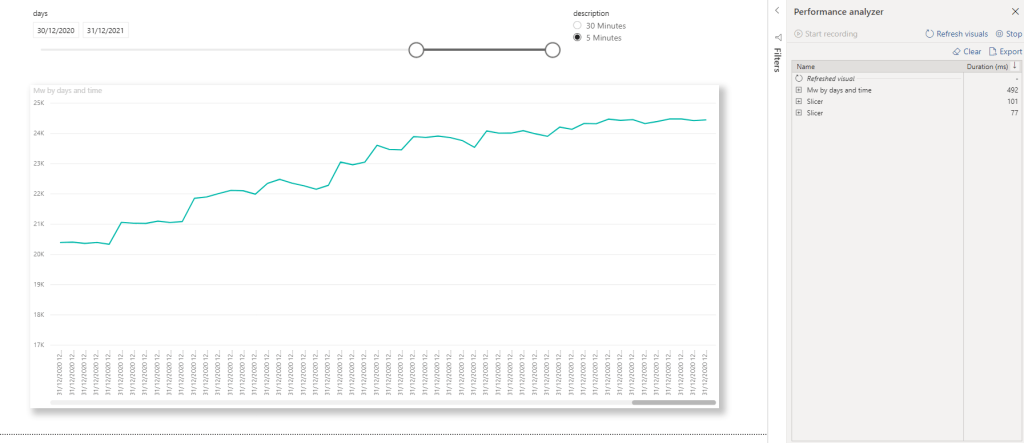
Now using two Dimension Date and time instead of Settlementdate, the Performance is nearly the same as import 492 ms
I can’t find a way to make date and time as a continuous axis in the Visual
I noticed if you use the DirectQuery Table without using dimensions from other models, the performance is extremely fast.
Take Away
I am not going to pretend I am an expert in DAX optimization, and Probably I am doing one or two things wrong, and as always it depends on a lot of factors 🙂 but as a rule of thumb:
DirectQuery on Dataset does not like Dimension with High cardinality
Import Model will be always more performant and tolerant to bad modelling
Data Modelling is very important, now it become even more critical
PowerBI Import mode is so fast and Powerful that even bad written DAX and poor Data Modelling will Just works, DirectQuery Mode on PowerBI Dataset will open all kind of new scenarios that was not possible before, but you have to be more careful about your modelling.
Google cloud has bought recently Dataform and made it available for free, although I play it with it before, Now I thought it is a good time to use it more seriously, this is not a review but my own experience as a data analyst who is more comfortable with Microsoft self-service data tools and does not use SQL in day to day work.
I have an existing data pipeline in BigQuery, the data is loaded using python and there are schedule Queries using python and BigQuery native scheduler, although the whole thing worked very well for the last 15 months, I would not say working with multiple views and table was a pleasant experience, to be honest, Because I was afraid to break something, I have not touch it much, everything change since I start using Dataform to manage it
What Dataform did ( and I imagine dbt too) is to implement some very simple functionalities that make the whole work flow extremely easy to manage, so you write your SQL code in Dataform, Dependencies between Tables are auto generated , and when you click run, it will build those Tables and views in BigQuery
I think showing a general overview of what I did, hopefully give you a sense of the Big picture
1- Define your Source Tables
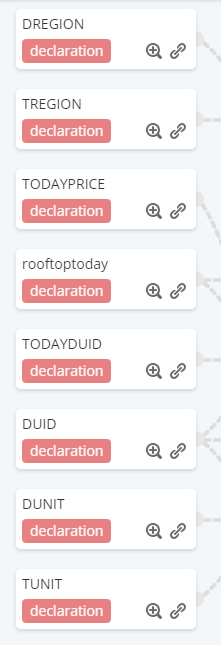
Here is the representation in Dataform
for Example The Table “DREGION”, you write this code
This format is called SQLX, as you can see it is still SQL but they added some new functionalities, in the config, you define if it is a table or a view, in which dataset it will be located and tag ( will be useful later for schedule refresh)
Now, repeated this for all your tables and you get this beautiful dependency tree
3- Schedule Queries
And that’s that where the magic is, when you schedule a Query, you have an option to schedule all dependant tables, for example, I setup a daily refresh for the Table “UNITARCHIVE” , the two Tables “archive_view” and “revenue” will be run in Sequence without me writing any extra code
The Dataform project is published here github, it is really nice to see the history of all the changes made so easy with the integration of version controls
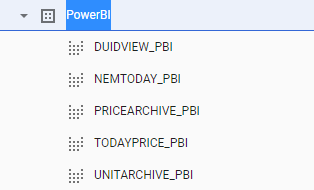
4- Here is the final Views in BigQuery
I think it is a good practise to always expose only Views to PowerBI, as you can change the logic later without breaking the connection to PowerBI
5-Connect PowerBI to BigQuery
PowerBI Connect to BigQuery using incremental refresh to reduce the time required to update, it is pretty trivial to setup.
Although the data changes every 5 minutes, I am using PowerBI PRO license which is limited to 8 refresh/Day, if Premium per user turn out to have a reasonable price, I will upgrade 🙂
hopefully in 2021 we will have the option to serve PowerBI using BI Engine, as Currently using DirectQuery from BigQuery can be expensive very Quickly if you have a lot of usage, Obviously if you are on a flat rate, it is not a problem.
to clarify, BigQuery is very cost effective, actually the current pipeline cost me less than 2 $/Month, you have just to be careful with PowerBI and use only import mode, PowerBI is very chatty when used in live mode, it simply generate two much SQL Queries.
6-Semantic Model in PowerBI
Dataform Data model are not meant to replace a semantic model, all Dataform do is taking raw tables and generating reporting tables that can be consumed by a BI tool (to clarify, BigQuery is generating the views and tables, Dataform just manage the SQL code, and schedule refresh, but the compute is done by the DB).
For a simple scenario, some flat tables is all you need (in Fact I am using Google Data Studio too for this example), but anything slightly complex , you need a semantic model on top of it, here I am using PowerBI to host the semantic model.
I would have loved to test Looker semantic model, But currently you need to call a sales department to schedule a demo which I am not really interested in doing.
7- Final Reports
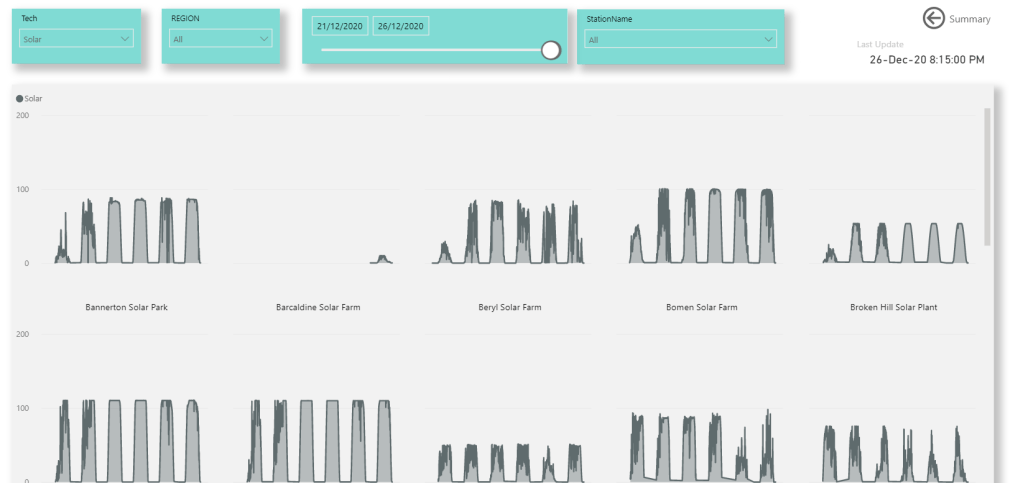
Here is the final reports, as the data is public I am using publish to web
what I really like about the dependency tree, it gives visual clues to redundant logic, it gave me the confidence to simplify my workflow and when I delete or change a table names, automatically it raise an errors that a dependency will be out of sync
I keep reading about how ELT will be the next big thing, and to be honest I never bought the concept, but with Dataform, I can see myself writing very complex workflow using SQL.
I have blogged already how to drill down to another page using Parameter, today, I find another approach, it is extremely easy, and a bit embarrassed why I have not thought about before !!!
I will be using administrative division of Algeria as an example, see the report here, please notice the pattern is not only for maps, personally I use drill down to another page extensively with finance reports, for example drilling down by Project, vendor, user etc
1- Create a map at the region Level
2- Add a new empty tab
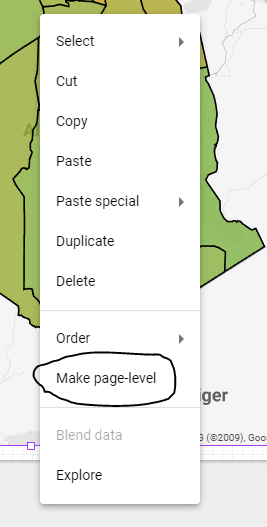
3- Make the Map at the report level
4-make sure apply filter is on
5- in the second tab , hide the map either using send to back or add a big rectangle
6- add a new map at the city level
7- add a new button to navigate between page 1 and 2
basically when you create a report level map, the selection from page 1 get synchronized to page 2 , then the hidden map in page 2 will filter the map at the city level.










 Small Data And self service