My go to progress dashboard calculates a lot of progress % metrics and graphs. However for larger projects, its often difficult to zoom into the graph. This is exactly why slicers exist
Slicers are not my specialty, actually, PowerBI is not my specialty. So it was with a little frustration in trying to add a slicer to a page to find the slicer altering all my data.
Set The Stage
My go to progress dashboard calculates a lot of progress % metrics and graphs. However for larger projects, its often difficult to zoom into the graph. This is exactly why slicers exist. I am sure there are other nice graph tools that allow for custom date ranges, but again, this is so not my specialty.
What didn’t work
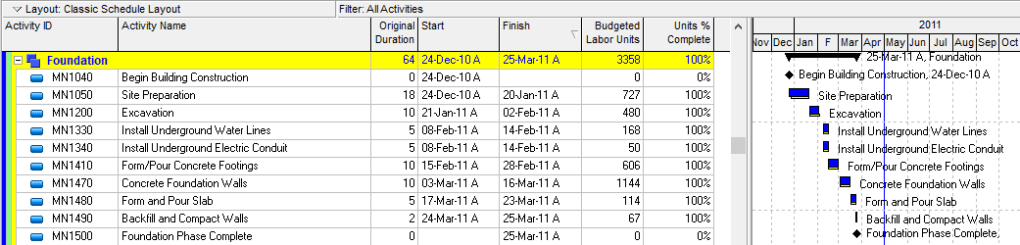
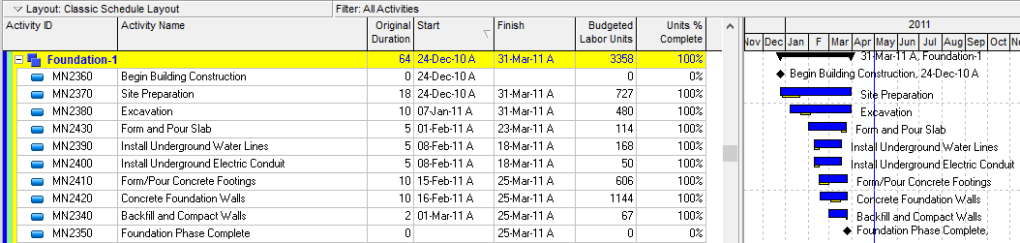
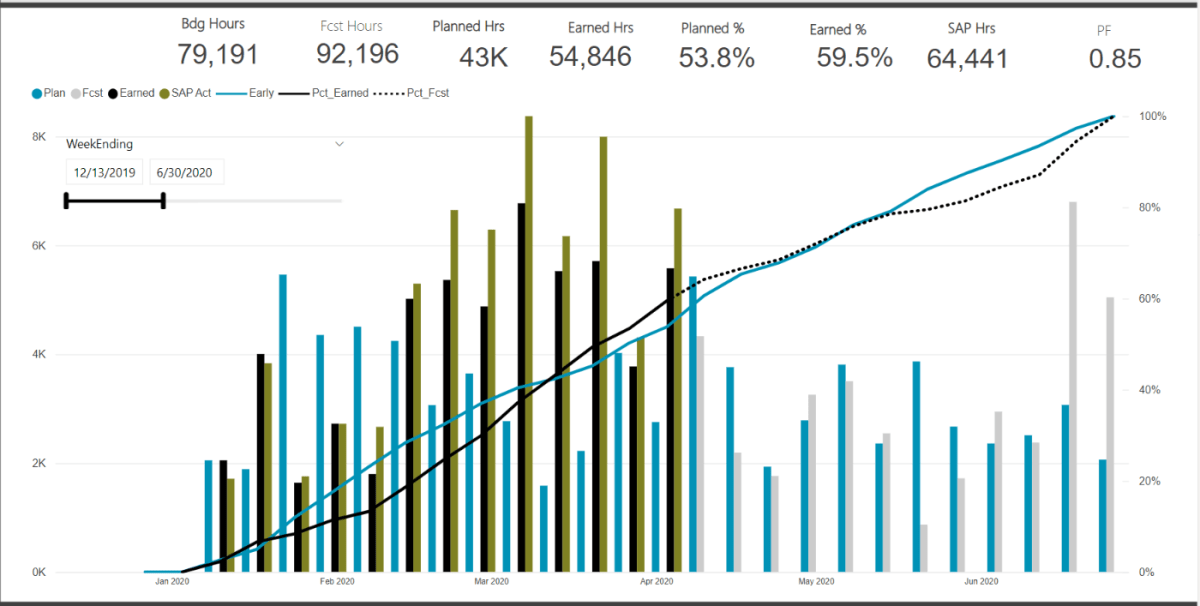
I simply added a slicer on my “weekending” field. However, in doing so, all my measures are now calculating based on the filtered date range. This is likely an issue with my measures, but alas, I wanted something to just adjust the graph axis and not effect anything else
Below we can see that my measure are calculating a progress set from 0-100%. Thus when the date ranges were adjusted, the entire dashboard is now just wrong. My budgets and %’s are also not correct on the cards (which are also based on all the slicers).
The Solution – Create a Duplicate DIM_Date Table
The problem was caused because the slicer was based on the live master dimension table that was linked to my data. Just like I want my graph to adjust based on the adjusted the WBS dimension tables, if I insert a slicer linked in anyway to my FACT table, I am in a world of hurt
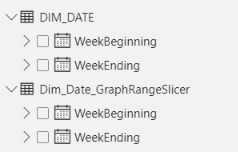
Thus, just create a duplicate DIM_Date table. Here I created a new table: DIM_Date_GraphRangeSlicer
I insert a formula into the chart X-Axis range to select the min and max dates from this new GraphRange table. I then setup a slicer that filters the range for this new table, not the master DIM_Date.
With these new ranges, linked to the dummy date range, I can now much better refine just the X-Axis display of the graph without impacting any of the measures used to calculate the % progress.
The Result
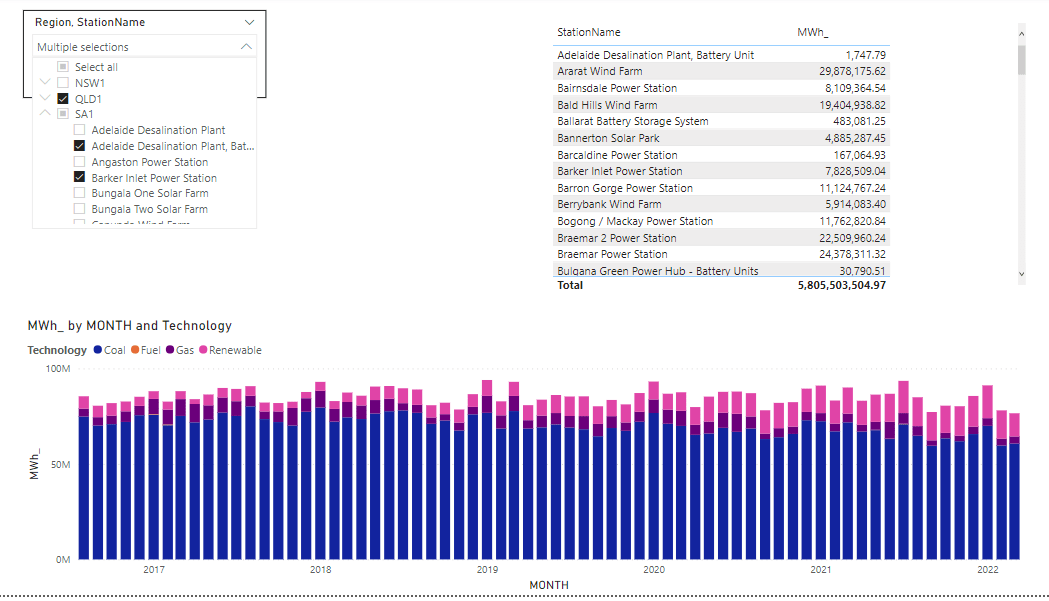
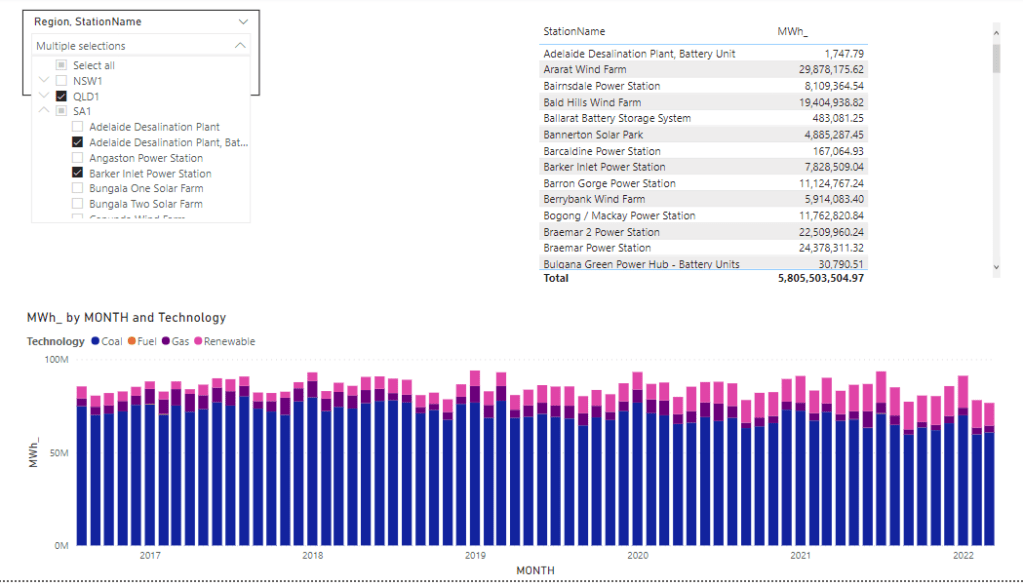
Putting it all together, we can now customize the X-Axis range without altering the measures or cards that are calculating key metrics off the full (or filtered based on the WBS slicers) data.
One of the biggest critiques/limitations in using P6 data is the lack of time phased resource assignment data. The only effective way to pull time phased resource assignment data into PowerBI (or even excel ) is to copy-paste from P6 into Excel. This is what I have recommended in the past and still what I would recommend for anyone moving forward. However, that does not mean that PowerBI can’t produce time phased data using a start date, end date, and profile. What follows is a simply guide on how I have tackled the problem (and the limitations I have run into)
Note: In all likelihood this problem has already been solved my many people in many different ways. I do not want to suggest this is “the way” to solve this. More so, I want to simply raise awareness of at least my approach and welcome comments and feedback on how to really solve the problem
Part 1 The Problem
P6 data does not contain time phased distributions. Instead, the backend (and inside XER) data only contains information about the activity, the resource, and the profile applied. So, our problem is to try to extract these data elements and generate a time phased distribution of the resource according to the profile and activity start and end dates.
Typical Activity Level DataHere we have our Resource Details (including our “curv_id)Resource Profile Data
I’ve taken a few liberties with the data above to try to focus on the:
Key Problem: how to allocate the resources assigned to an activity according to a resource profile?
I’ve seen this done in excel a lot although, i’ve never been comfortable with the excel solutions. Typically we count the weeks and distribute the hours equally to all the weeks. I know more complex files exist that allow for spreads using profiles. So to add to the problem isn’t nessessarily to simply spread per the profile, but to perform the operation inside PowerBI (or perhaps more to the point, inside Power Query).
At this point, I’d again love to call upon anyone who has a nice solution to include links about how you tackled this as what follows is just my initial stab at this.
Part 2: Getting the data into PowerBI
Firstly, although the data above is from a P6 XER file, I wanted to make this a bit more general. Therefore, I have created a toy model approach. Thus, here is what my source data looks like
Resource Profile Data:
Excel Profiles
We can run this through PowerQuery and convert it to a usable table. Note in the above I have created a PeriodCum field. This will be used to calculate an end date for each of the 10 periods required.
tbl_profiles
Activity and Resource Data:
In this example, I am combining the Activity and Resource data into just 1 table. Obviously if you were doing this formally, you would need to build a scheme to link the Resource Assignment data into the Activity level data
Excel Data
And running the above through Power Query we end up with something as seen below. Note I have added a calculation for the duration (in cal day) and have converted the date formats to numbers. This make the subsequent steps a little easier
Note: a critical hard step (for me at least) came duration this stage. Because we are breaking the duration into 10 periods and will ultimately be allocating a qnty per day to each each, if we have a fraction of a day (example a duration of 15 days), my method bombed. This caused an overlap of qnty allocation on the day of the overlap. As such, I have rounded the duration to the closest 10s.
tbl_activities
Part 3: Time Phasing (where the magic happens)
The first step of generating the time phasing is to now split the activities into the 10 periods per the resource allocation. We do this by first merging tbl_activies with tbl_profiles using the ProfileDesc field. After expanding the result, we will end up with 10 records for each activity (corresponding to each of the 10 periods).
We will now want to calculate a start and finish date unique for each of the 10 periods. In the profile table is a PeriodCum field that we can use to multiply by the duration and then add that to the start date to get a finish for each period. The result table will now look something like this. Note, at this step, its good to now use the profile allocation for each period and multiple that by the hours_total field. This will give us a hours per each period. The last step will be the divide that by the period duration to calculate what will now be an hours per day for that period.
Lastly, we now want to perform 1 additional expansion to get the DAYS for each period. Here is the code I have used. This is a nice little bit of code that can generate a sequential list from a start to an end (we are using days, but its works for any beginning to end sequence)
= Table.AddColumn(#”Changed Type2″, “Custom”, each { Number.From([PeriodStart])..Number.From([PeriodFinish]) })
resulting resource allocation table with profiles applied
In our resulting table (see above), we can clearly see that the hours per day adjusts for each period based on the profile.
Part 4: Putting It All Together
We have our activity data, we have our time phased resource data, the last step is to generate a DIM_Date table that can be used to bin the days to either weeks or months (or quarters or years or any custom grouping defined inside the DIM_Date table)
I don’t want to get to into the DIM_Date table, effectively all we need is each day assigned to a Month-Yr for the purpose of generating a nice little graph below, which is ultimately what we are after.
Conclusion
Again, I do not recommend using this approach. Instead I am more interested in how others have decided to approach this. Personally, as I noted at the beginning, my recommendation is to use a copy-paste from the P6 Resource Assignment tab. Although, this time phasing approach can be used for other (non P6) applications. But alas, I believe there are much smarter ways to achieve the spread using the DIM_Date table and perhaps custom functions. In my research for my method, I ideally wanted a “working day” spread as opposed to the calendar day spread. There are some awesome custom functions that can provide an integer for the number of working days between 2 dates. However, even when taking that approach, I ran into additional complications in getting everything to work.
TL;DR, you can incremental refresh PowerBI using Parquet files stored in an Azure Storage without using any Database in the middle, you can download sample pbix here
I am using this blog post by Gilbert Quevauvilliers which is based on a technique from Rafael Mendonça, Please read it first
Maybe read this, it is using Synapse Serverless , but has a section where you can Partition your data using Python to Parquet
1-Add a new Table, Parquet
make sure it is not loaded, here is the M code
let
Source = AzureStorage.DataLake("https://xxxxxx.core.windows.net/parquet"),
#"Removed Other Columns" = Table.SelectColumns(Source,{"Content", "Folder Path"}),
#"Inserted Text Between Delimiters" = Table.AddColumn(#"Removed Other Columns", "Text Between Delimiters", each Text.BetweenDelimiters([Folder Path], "D", "/", 1, 0), type text),
#"Renamed Columns" = Table.RenameColumns(#"Inserted Text Between Delimiters",{{"Text Between Delimiters", "Date"}}),
#"Changed Type" = Table.TransformColumnTypes(#"Renamed Columns",{{"Date", type datetime}}),
#"Removed Columns" = Table.RemoveColumns(#"Changed Type",{"Folder Path"})
in
#"Removed Columns"
here is the result
3-Merge using Inner Join
to read the parquet file content we use this function , notice we used inner join in the previous step to avoid reading null Content, which generate errors when you refresh in the service
Parquet.Document([Content])
and here is the final table
we configure incremental refresh to refresh the Last 2 days
4- Testing in PowerBI Service
as you can see the second refresh is way faster then the First one
here is the partition Table
now let’s check the transaction history from Azure storage, I refreshed again just to be sure
The second refresh read substantially less data as only two files are read
I Think with PowerBI desktop supporting Parquet, we will see more exciting scenarios, I can’t wait for Dataflow to support export to Parquet !!!!
if you are still reading, I appreciate a vote on this idea, Having an option in Dataflow to export to a dynamic file name
Recently I come across a new use case, where I thought Azure Synapse serverless may make sense, if you never heard about it before, here is a very good introduction
TLDR; Interesting new Tool !!!!, will definitely have another serious look when they support cache for the same Queries
Basically a new file arrive daily in an azure storage and needs to be processed and later consumed in PowerBI
The setup is rather easy, here is an example of the user interface, this is not a step by step tutorial, but just my first impression.
I will use AEMO (Australian electricity market Operator) data as an example, the raw data is located here
Load Raw Data
First I load the csv file as it is, I define the columns to be loaded from 1 to 44 , make sure you load only 1 file to experiment then when you are ready you change this line
Then it will load all files, notice when you use filename(), it will add a column with the files name, very handy
USE [test];
GO
DROP VIEW IF EXISTS aemo;
GO
CREATE VIEW aemo AS
SELECT
result.filename() AS [filename],
*
FROM
OPENROWSET(
BULK 'https://xxxxxxxx.dfs.core.windows.net/tempdata/PUBLIC_DAILY_201804010000_20180402040501.CSV',
FORMAT = 'CSV',
PARSER_VERSION='2.0'
)
with (
c1 varchar(255),
c2 varchar(255),
c3 varchar(255),
c4 varchar(255),
c5 varchar(255),
c6 varchar(255),
c7 varchar(255),
c8 varchar(255),
c9 varchar(255),
c10 varchar(255),
c11 varchar(255),
c13 varchar(255),
c14 varchar(255),
c15 varchar(255),
c16 varchar(255),
c17 varchar(255),
c18 varchar(255),
c19 varchar(255),
c20 varchar(255),
c21 varchar(255),
c22 varchar(255),
c23 varchar(255),
c24 varchar(255),
c25 varchar(255),
c26 varchar(255),
c27 varchar(255),
c29 varchar(255),
c30 varchar(255),
c31 varchar(255),
c32 varchar(255),
c33 varchar(255),
c34 varchar(255),
c35 varchar(255),
c36 varchar(255),
c37 varchar(255),
c38 varchar(255),
c39 varchar(255),
c40 varchar(255),
c41 varchar(255),
c42 varchar(255),
c43 varchar(255),
c44 varchar(255)
)
AS result
The previous Query create a view that read the raw data
Create a View for a Clean Data
As you can imagine , Raw data by itself is not very useful, we will create another view that reference the raw data view and extract a nice table ( in this case the Power generation every 30 minutes)
USE [test];
GO
DROP VIEW IF EXISTS TUNIT;
GO
CREATE VIEW TUNIT AS
select [_].[filename] as [filename],
convert(Datetime,[_].[c5],120) as [SETTLEMENTDATE],
[_].[c7] as [DUID],
cast( [_].[c8] as DECIMAL(18, 4)) as [INITIALMW]
from [dbo].[aemo] as [_]
where (([_].[c2] = 'TUNIT' and [_].[c2] is not null) and ([_].[c4] = '1' and [_].[c4] is not null)) and ([_].[c1] = 'D' and [_].[c1] is not null)
Connecting PowerBI
Connecting to azure synapse is extremely easy, PowerBI just see it as a normal SQL server.
here is the M script
let
Source = Sql.Databases("xxxxxxxxxxx-ondemand.sql.azuresynapse.net"),
test = Source{[Name="test"]}[Data],
dbo_GL_Clean = test{[Schema="dbo",Item="TUNIT"]}[Data]
in
dbo_GL_Clean
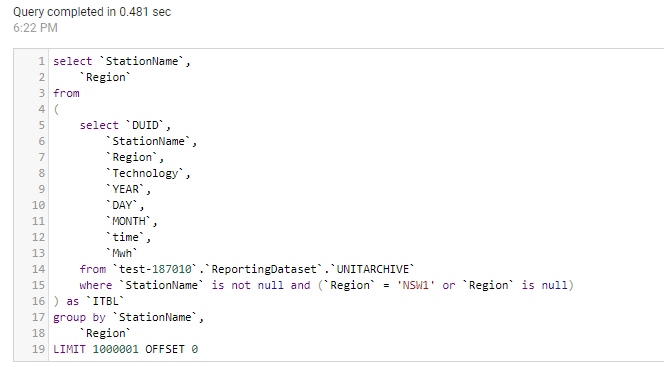
And the SQL Query generated by PowerQuery ( which Fold)
select [$Table].[filename] as [filename],
[$Table].[SETTLEMENTDATE] as [SETTLEMENTDATE],
[$Table].[DUID] as [DUID],
[$Table].[INITIALMW] as [INITIALMW]
from [dbo].[TUNIT] as [$Table]
Click refresh and perfect, here is 31 files loaded
Everything went rather smooth, nothing to set up and I have now an Enterprise Grade Data warehouse in Azure, how cool is that !!!
How Much it cost ?
Azure Synapse serverless pricing model is based on how much data is processed
First let’s try with only 1 file ,running Query from the Synapse Workspace, the file is 85 MB, good so far, data processed is 90 MB, file size + some meta Data
now let’s see using the Queries generated by PowerBI, in theory my files size are 300 MB, I will be paying only for 300 MB, let’s have a look at the Metrics
My first reaction was, there must be a bug , 2.4 GB !!!, I refreshed again and it is the same number !!!
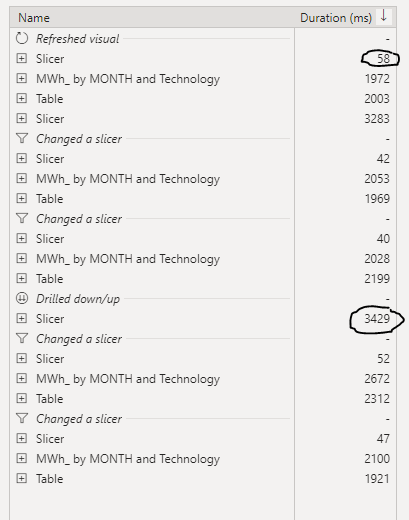
A look at the PowerQuery diagnostic and a clear picture emerges, PowerBI SQL Connectors is famous for being “Chatty”, in this case you would expect PowerQuery to send only 1 Query but in reality it will send multiple Queries , at least 1 of them to check the top 1000 rows to define the fields type.
Keep in mind Azure Synapse Serverless has no cache ( they are working on it), so if you run the same query multiple times even with the same data, it will “scan” the files multiple times, and as there is no data statistic a select 1000 rows will read all files even without order by.
Obviously, I was using import mode, as you can imagine using it with directQuery will generate substantially more queries.
Just to be sure I tried to do refresh on the service.
The same, it is still 2.4 GB, I think it is fair to say, there is no way to control how many time PowerQuery send a SQL Query to Synapse.
Edit 17 October 2020 :
I got a feedback that probably my PowerBI desktop was open when I run the test in the service, turn out it is true, I tried again with The desktop closed and it worked as expected, one refresh generate 1 query
Notice even if the CSV file was compressed, it will not make a difference, Azure synapse bill uncompressed data.
Parquet file would made a difference as only columns used would be charged, but I did not want to used another tool in this example.
Take Away
It is an interesting Technology, the integration with Azure cloud storage is straightforward, the setup is easy,you can do transformation using only SQL, Pay only what you use and Microsoft is investing a lot of resources on it.
But the lack of cache is a show stopper !!
I will definitely check it again when they add the cache and cost control, after all it is still in Preview 🙂