TPC-DS 100GB with Only 2 Cores and 16 GB of RAM

As the year comes to a close, I decided to explore a fun yet somewhat impractical challenge: Can DuckDB run the TPC-DS benchmark using just 2 cores and 16 GB of RAM? The answer is yes, but with a caveat—it’s slow. Despite the limitations, it works!

Notice; I am using lakehouse mounted storage, for a background on the different access mode, you can read the previous blog

Data Generation Challenges

Initially, I encountered an out-of-memory error while generating the dataset. Upgrading to the development release of DuckDB resolved this issue. However, the development release currently lacks support for reading Delta tables, as Delta functionality is provided as an extension available only in the stable release.

Here are some workarounds:

  1. Increase the available RAM.
  2. Use the development release to generate the data, then switch back to version 1.1.3 for querying.
  3. Wait for the upcoming version 1.2, which should resolve this limitation.

The data is stored as Delta tables in OneLake, it was exported as a parquet files by duckdb and converted to delta table using delta_rs (the conversion was very quick as it is a metadata only operation)

Query Performance

Running all 99 TPC-DS queries worked without errors, albeit very slowly( again using only 2 cores ).

I also experimented with different configurations:

4, 8, and 16 cores: Predictably, performance improved as more cores were utilized.

For comparison, I ran the same test on my laptop, which has 8 cores and reads my from local SSD storage, The Data was generated using the same notebook.

Results

Python notebook compute consumption is straightforward, 2 cores = 1 CUs, the cheapest option is the one that consume less capacity units, assuming speed of execution is not a priority.

  • Cheapest configuration: 8 cores offered a good balance between cost and performance.
  • Fastest configuration: 16 cores delivered the best performance.

Interestingly, the performance of a Fabric notebook with 8 cores reading from OneLake was comparable to my laptop with 8 cores and an SSD. This suggests that OneLake’s throughput is competitive with local SSDs.

Honestly, It’s About the Experience

At the end of the day, it’s not just about the numbers. There’s a certain joy in using a Python notebook—it just feels right. DuckDB paired with Python creates an intuitive, seamless experience that makes analytical work enjoyable. It’s simply a very good product.

Conclusion

While this experiment may not have practical applications, it highlights DuckDB’s robustness and adaptability. Running TPC-DS with such limited resources showcases its potential for lightweight analytical workloads.

You can download the notebook for this experiment here:

Reading Delta table in Fabric Python notebook without attaching a lakehouse. 

This is just a code snippet on how to read a delta table using pure Python (no Spark) without attaching a lakehouse.

First in spark notebook you need to install those two package ( this step will be unnecessary with pure Python notebook)

%pip install deltalake
!pip install duckdb

Then get the abfss path of the table, it can be anywhere, even in different workspace.

from deltalake import DeltaTable
import duckdb
access_token = notebookutils.credentials.getToken('storage')
storage_options=     {"bearer_token": access_token, "use_fabric_endpoint": "true"}
TAXI = DeltaTable('abfss://xxx@onelake.dfs.fabric.microsoft.com/NY.Lakehouse/Tables/ny/taxi',storage_options = storage_options).to_pyarrow_dataset()

For this example the table is not small ( 1.3 billion rows) , having filter pushdown is a must for a good user experience, for smaller data it does not matter.

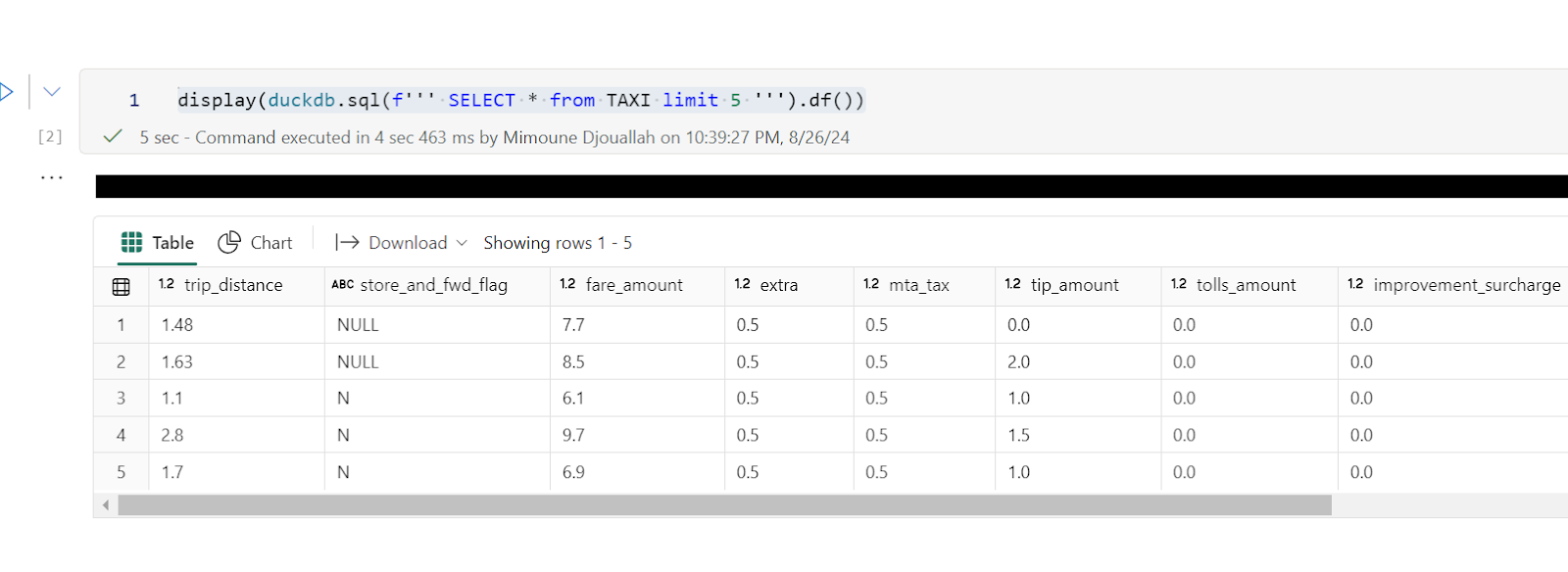
let’s show 5 rows, the limit is pushed to the source, we don’t need to scan 20 GB just to see some rows.

display(duckdb.sql(f''' SELECT * from TAXI limit 5 ''').df())

Note : you can use any Engine that understand arrow dataset , personally I prefer duckdb but it is a personal taste

Now let’s filter the data only for this year, again, filter pruning works, what I really like ; although the table is not partitioned somehow the scan is leveraging the stats in the delta table log

data = duckdb.sql(f''' SELECT date ,  ROUND (SUM (fare_amount),0) as TotalFares , ROUND (AVG (fare_amount),0) as AVGFares
             FROM TAXI where year = 2024 GROUP BY ALL ''').df()
display(data)

Not everything is perfect yet 😦

max (column) , count(*) unfortunately does not use the delta log and trigger a whole table scan.

let’s show some interactive chart

I have the aggregated data already, using the excellent library Altair, I can easily plot an interactive chart

import altair as alt
brush = alt.selection_interval()
details = alt.Chart(data).mark_bar().encode(alt.X('date:T'),  alt.Y('TotalFares:Q'), tooltip=[alt.Tooltip('date:T',format='%Y-%m-%d %H'),'TotalFares:Q']
).properties( width=1400,  height=400 ).add_params( brush)

summary = alt.Chart(data).mark_square().encode( alt.X('date:T'), alt.Y('AVGFares:Q'), tooltip=['AVGFares:Q'] ).properties(  width=1400,  height=400).transform_filter( brush)
details & summary

honestly, I did not know how much covid had impacted the Taxi industry 😦

You can use Other Engines too

as I said it is not specific to duckdb, for example using Polars

import polars as pl
access_token = notebookutils.credentials.getToken('storage')
storage_options=     {"bearer_token": access_token, "use_fabric_endpoint": "true"}
scada = pl.scan_delta('abfss://xxx@onelake.dfs.fabric.microsoft.com/NY.Lakehouse/Tables/ny/taxi', storage_options=storage_options)
x = scada.limit(10).collect()

and Daft

import daft
from daft.io import IOConfig, AzureConfig
io_config = IOConfig(azure=AzureConfig(storage_account="onelake",endpoint_url="https://onelake.blob.fabric.microsoft.com",bearer_token=access_token))
df = daft.read_deltalake('abfss://xxx@onelake.dfs.fabric.microsoft.com/NY.Lakehouse/Tables/ny/taxi', io_config=io_config)
df

How to attach Onelake Lakehouse to DuckDB

Update 26-Oct-2024 : using DuckDB 1.1.2, you don’t need to to mount a lakehouse to the notebooks and add support for reading Onelake Lakehouse outside of Fabric . currently it is read only, for writing you need Delta_rs

it is a very simple Python script how you can attach a Lakehouse to DuckDB in a Fabric notebook (you can use the same logic for Polars,Daft etc)

it is read only and will create views based on your existing Delta tables, it assumes you are using schemas, but you can edit it for simpler use cases, or if you have a lot of tables, maybe it is more practical just to attach one specific schema.

import duckdb
from glob import glob
def attach_lakehouse(base_path): 
    list_tables = glob(f"{base_path}*/*/", recursive=True)
    sql_schema = set()
    sql_statements = set()
    for table_path in list_tables:
        parts = table_path.strip("/").split("/")
        schema = parts[-2]
        table = parts[-1]
        sql_schema.add(f"CREATE SCHEMA IF NOT EXISTS {schema};")
        sql_statements.add(f"CREATE OR REPLACE VIEW {schema}.{table} AS SELECT * FROM delta_scan('{table_path}');")
    duckdb.sql(" ".join(sql_schema))
    duckdb.sql(" ".join(sql_statements))
    display(duckdb.sql("SHOW ALL TABLES").df())
attach_lakehouse('/lakehouse/default/Tables/')

and here is an example

now you can read and joins any tables even from different schemas

Notice Delta support in DuckDB is not very performant at this stage, compared to pure Parquet, but I suspect we will see a massive improvement in the next version 1.1

Quickly view Delta Table stats

With the recent release of Deltalake  Python,we can write to Fabric Onelake using a local Path, using this new functionality, I updated a notebook I had built previously to show quick stats for all the tables in a particular lakehouse, it is using pure Python, so not only it works in Fabric but offline too in your  local machine.

You can download the notebook here

All you have to do is to import the notebook and attach the lakehouse you want to analyze.

You can use append to keep the history.

It is using two packages

Delta Lake Python to get the delta stats

DuckDB to get the Parquet stats ( number of row groups)

And a SQL Query to combine the results from the two previous packages 🙂 

The notebook is very simple and show only the major metrics for a Table, total rows, number of files, number of row groups and average row per row group, and if V-Order is applied

If you want more details, you can use the excellent delta analyser  

Why you should care about Table stats

Fabric Direct Lake mode has some guardrails as of today for example, the maximum number of row groups in a table for F SKU  less than F64 is 1000, which is reasonably a very big number but if you do frequent small insert without Table maintenance you may end up quickly generate a lot of files ( and row groups), so it is important to be aware of the table layout,  especially when using Lakehouse, DWH do support automatic Table maintenance though.

Parting Thoughts 

Hopefully in the near future, Lakehouse will expose the basic information about Tables in the UI, in the meantime, you can use code as a workaround.