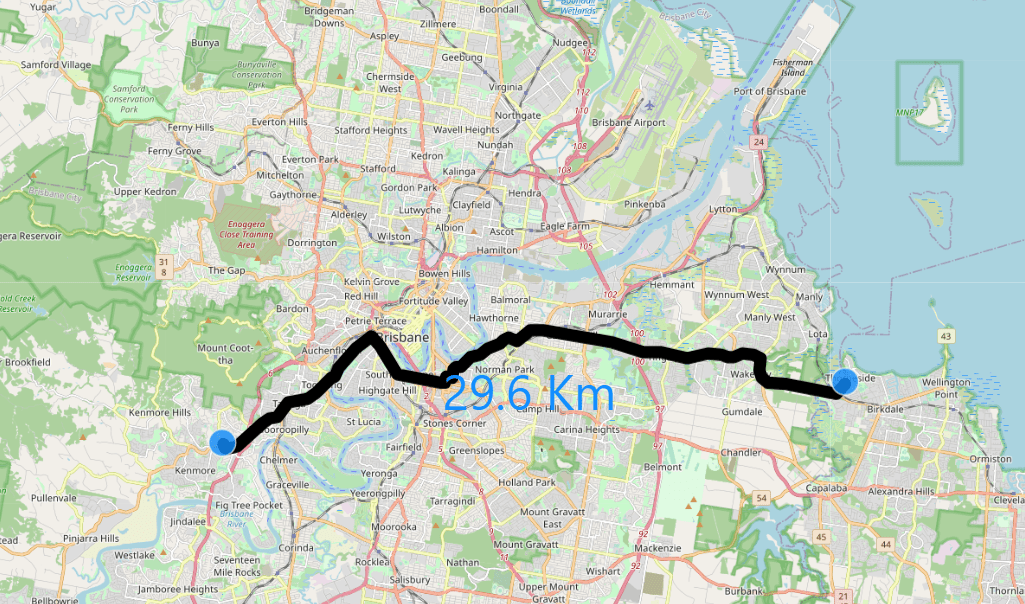
Calculate the shortest Path in a network in PowerBI

This blog is just another use case where we can leverage M parameter to perform calculation that can not be done in PowerBI, see example here for clustering and Area calculation

To be clear, it is always possible to precalculate outside PowerBI and just import the results, but in the current case, it can be tricky, let’s say you have 1000 points and you want to check the distance between two points using an existing route network, you will need to calculate 1000 X 1000 combination, instead the idea here, you select two points then M Parameter will send the selection to a Database using Direct Query to do the calculation and get the result back.

For this example I am using BigQuery, but you can use any Database that support M Parameter (Snowflake, Azure ADX etc)

Import all the bus stop location in a particular Area

Because of Covid situation, the Openstreetmap dataset is free to Query, here is the SQL Query, I am just using Brisbane as a reference

CREATE OR REPLACE TABLE
  test-187010.gis_free.Brisbane_Bus_Stop AS
SELECT
  ST_CENTROID(geometry) AS center_location,
  tags.key,
  tags.value
FROM
  `bigquery-public-data.geo_openstreetmap.planet_features`,
  UNNEST(all_tags) tags
WHERE
  key = 'highway'
  AND value='bus_stop'
  AND ST_INTERSECTS(geometry,
    -- Selecing Brisbane area
    ST_GEOGFROMtext("POLYGON((152.9432678222656 -27.33776203832722,153.2563781738281 -27.33776203832722,153.2563781738281 -27.594864493271448,152.9432678222656 -27.594864493271448,152.9432678222656 -27.33776203832722))"))

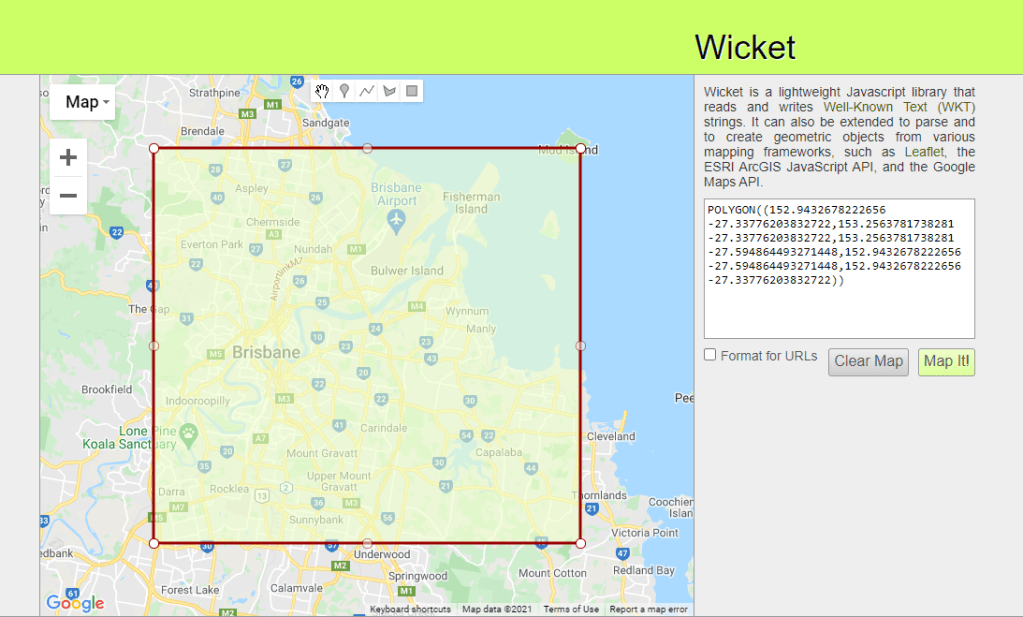
you can use this handy website to generate a polygon from a map
Import Road network

The same we will use a subset of Openstreetmap dataset , first we select Key= Highway and to improve performance we only the main values ( primary, secondary road etc)

CREATE OR REPLACE TABLE
  `test-187010.gis_free.brisbane_Road_Network`
CLUSTER BY
  geometry AS
SELECT
  geometry,
  tags.key,
  tags.value
FROM
  `bigquery-public-data.geo_openstreetmap.planet_ways`,
  UNNEST(all_tags) tags
WHERE
  key = 'highway'
  AND value IN ("motorway",
    "motorway_link",
    "primary",
    "primary_link",
    "secondary",
    "secondary_link",
    "tertiary",
    "tertiary_linkt",
    "runktrunk_link")
  AND ST_INTERSECTS(geometry,
    --Select you Area Here:
    ST_GEOGFROMtext("POLYGON((152.9432678222656 -27.33776203832722,153.2563781738281 -27.33776203832722,153.2563781738281 -27.594864493271448,152.9432678222656 -27.594864493271448,152.9432678222656 -27.33776203832722))"))

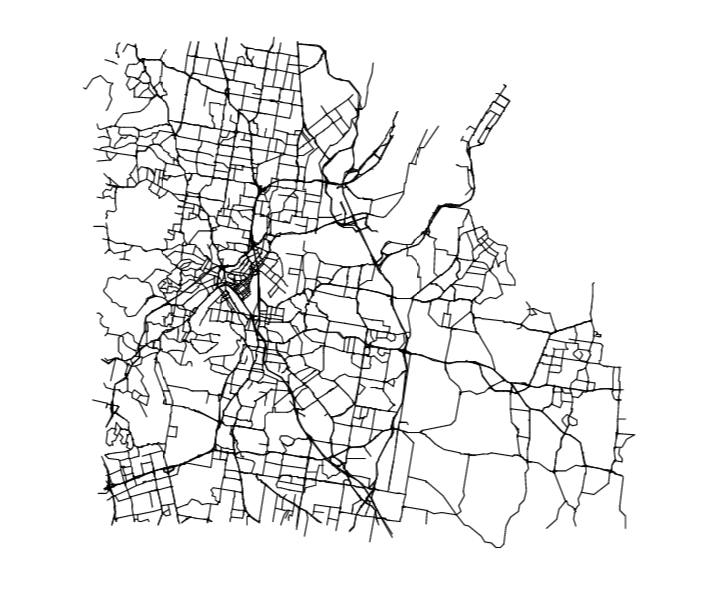
jut to get an idea he is how the road network looks
Time for calculation

Unfortunately as of this writing BigQuery GIS does not support the function to find the shortest path between two points in a network, luckily I find this user defined function written in Javascript, the good news it works as expected but javascript will always be slower compared to a native SQL function, anyway here is the SQL Query

WITH
  initial_parameter AS (
  SELECT
    *
  FROM
    UNNEST(['POINT(153.023194 -27.563979)','POINT(152.979212 -27.49549)'] ) AS element ),
  mynetwork AS (
  SELECT
    ARRAY_AGG(geometry) roads
  FROM
    `test-187010.gis_free.brisbane_Road_Network_cluster` ),
  calculation AS(
  SELECT
    `libjs4us.routing.geojson_path_finder`(roads,
      st_geogfromtext(a.element),
      st_geogfromtext(b.element)) AS tt
  FROM
    mynetwork,
    initial_parameter a,
    initial_parameter b
  WHERE
    a.element>b.element
  LIMIT
    100)
SELECT
  ST_ASTEXT (tt.path) AS GEO,
  tt.weight AS len
FROM
  calculation

And here’s the result, a linestring and the length in Km, the Query took 7 second, to be honest I have no idea about the calculation complexity, so not sure if it is fast or not 🙂

PowerBI M Parameter

After we make sure the Query works with two fixed points, now we need just to make it interactive, so the user can select any two points, and that exactly what M parameter do

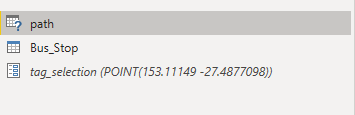
The Table path is using Direct Query

The Table Bus_Stop is import mode, which is used to as the Parameter filter

The Parameter is Tag_Selection , for a very detailed explanation, Please read this blog first
and here is the M Query

let
TagsList = 
    if 
    //check to see if the parameter is a list
      Type.Is(
        Value.Type(tag_selection), 
        List.Type
      ) then 
        //if it is a list
        let
          //add single quotes around each value in the list
          AddSingleQuotes = List.Transform(
              tag_selection, 
              each "'" & _ & "'"
            ),
          //then turn it into a comma-delimited list
          DelimitedList = "[" & Text.Combine(
              AddSingleQuotes, 
              ","
            ) &"]"
          
        in
          DelimitedList
    else 
      //if the parameter isn't a list
      //just add single quotes around the parameter value
      "['" & tag_selection & "']",
    Source = 
    Value.NativeQuery(GoogleBigQuery.Database([BillingProject="testing-bi-engine"]){[Name="test-187010"]}[Data],
     "WITH
  initial_parameter AS (
  SELECT
    *
  FROM
    UNNEST("& TagsList &" ) AS element ),
  mynetwork AS (
  SELECT
    ARRAY_AGG(geometry) roads   FROM   `test-187010.gis_free.brisbane_Road_Network_cluster` ),
  calculation AS(
  SELECT
    `libjs4us.routing.geojson_path_finder`(roads, st_geogfromtext(a.element), st_geogfromtext(b.element)) AS tt
  FROM
    mynetwork,    initial_parameter a,    initial_parameter b
  WHERE
    a.element>b.element
  LIMIT
    100)
SELECT
  1 AS DUMMY,  CASE     WHEN ARRAY_LENGTH("& TagsList &") =2 THEN ST_ASTEXT (tt.path)  ELSE  NULL END  AS GEO,
  CASE    WHEN ARRAY_LENGTH("& TagsList &") =2 THEN tt.weight  ELSE  0 END   AS len
FROM  calculation"
       , null, [EnableFolding=true])
   
    in
       Source

Notice I added this condition ARRAY_LENGTH(“& TagsList &”) =2 then 0, just to reduce the calculation when the user select only 1 point, Currently in PowerBI, there is no way to have Query reduction option for cross filtering

Icon Map

Icon map is the only visual that can render WKT geometry in PowerBI, this previous blog explain how we simulate multi layer interaction

Performance
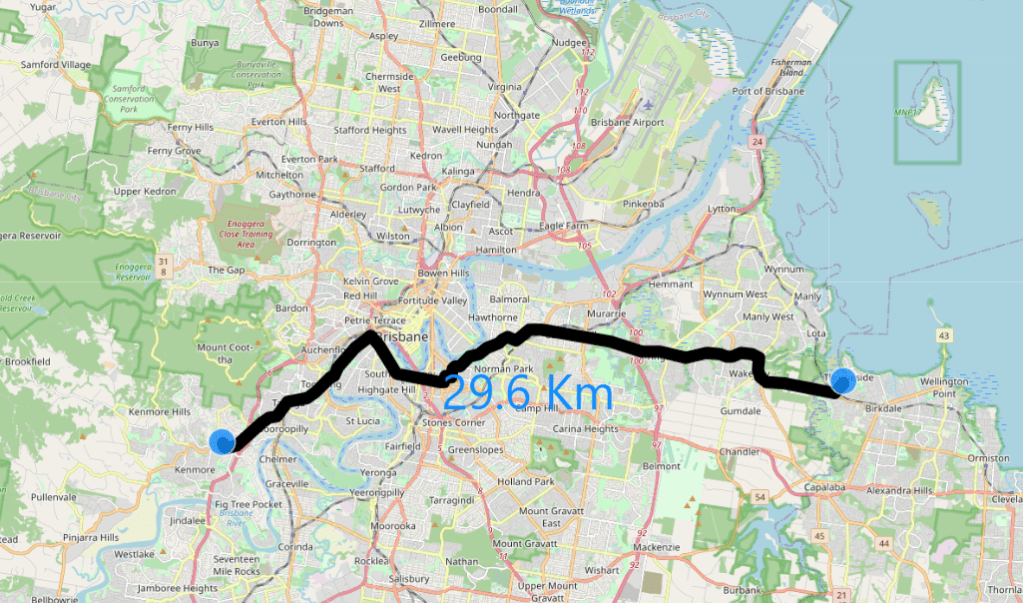
The Performance unfortunately it is a bit disappointing, around 20 second, javascript UDF is slow and PowerBI is very chatty , which is a nice way to say, PowerBI send a lot of SQL Queries,everytime I select two points, PowerBI send 4 Queries
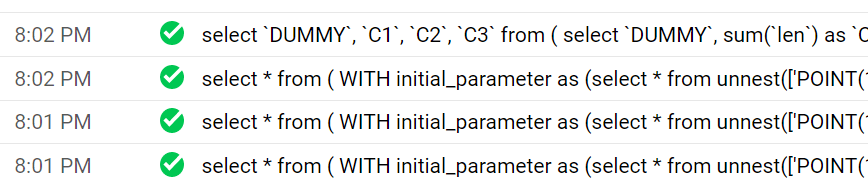
The first Query is when I select the first point, hopefully one day we will have an option to action cross filtering only after we finish the selection

Query 2 and 3 are identical and are used to check the field type of the Table, I wonder why PowerQuery is sending the same Query twice

Query 4 is the real Query that bring the result

you can download the pbix here

Edit : Carto which is the same company that released the javascript function is now offering a native SQL functions which should be substantially faster, I have not used it as it is commercial, but if you have a massive network, maybe it is worth it, just to be clear I have no affiliation with them.

Edit : added the same report but now using Tableau
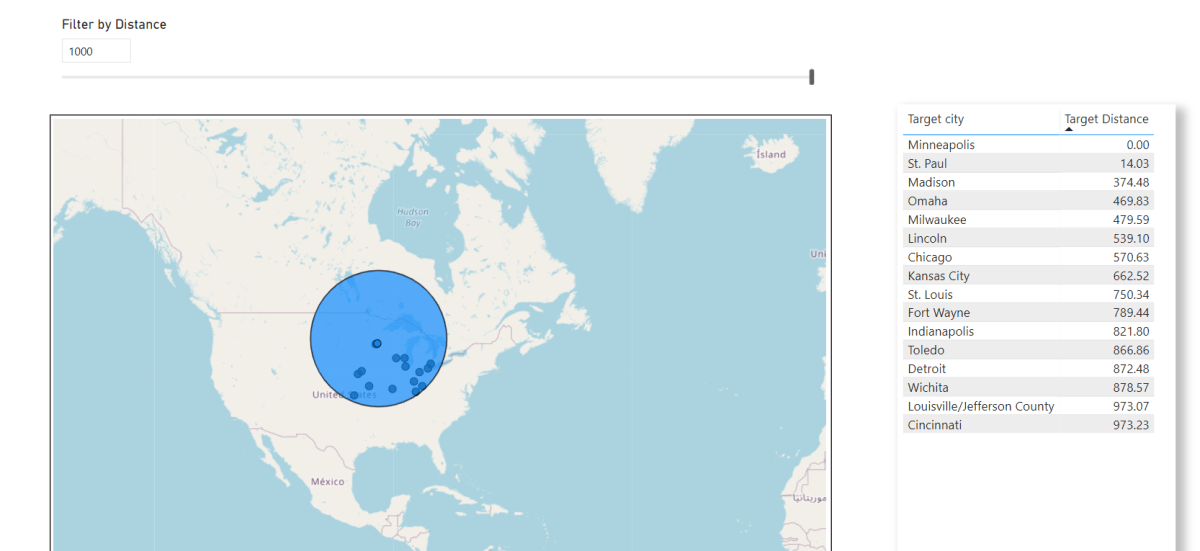
Filtering by Dynamic Distance in PowerBI

TL:DR , the blog show some tricks using DAX and Icon Map, pattern like dynamic filtering by distance and showing a Buffer when selecting a point, The Publish to web report and pbix are here

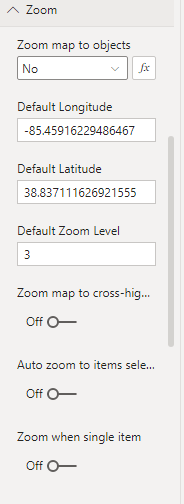
before you get too excited Currently to make it works you have to block the Zoom Functionality.

The Formula for calculating distance in PowerBI is very well known I think it was first mentioned here , I had used it already for building this report a couple of years ago.

what changed is Icon Map, with the 3.0 release basically nearly everything can be customized which make some new scenario Possible.

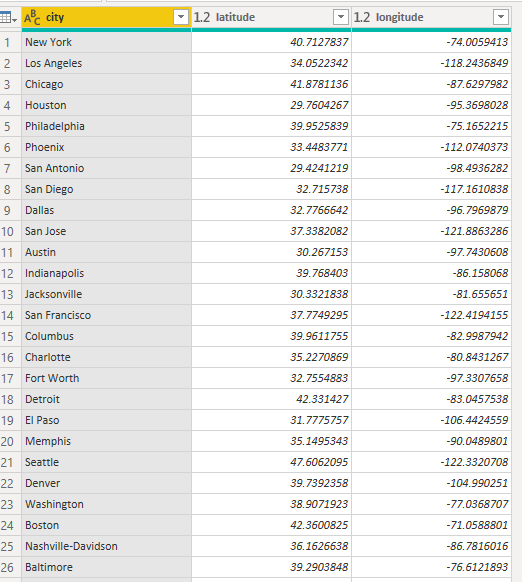
you need only 1 table with coordinates

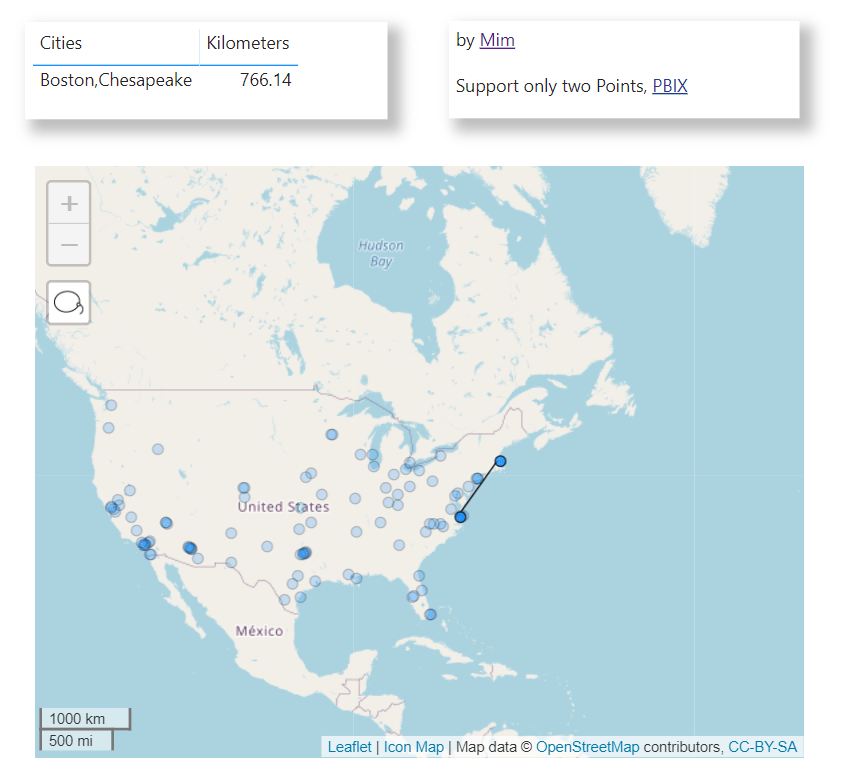
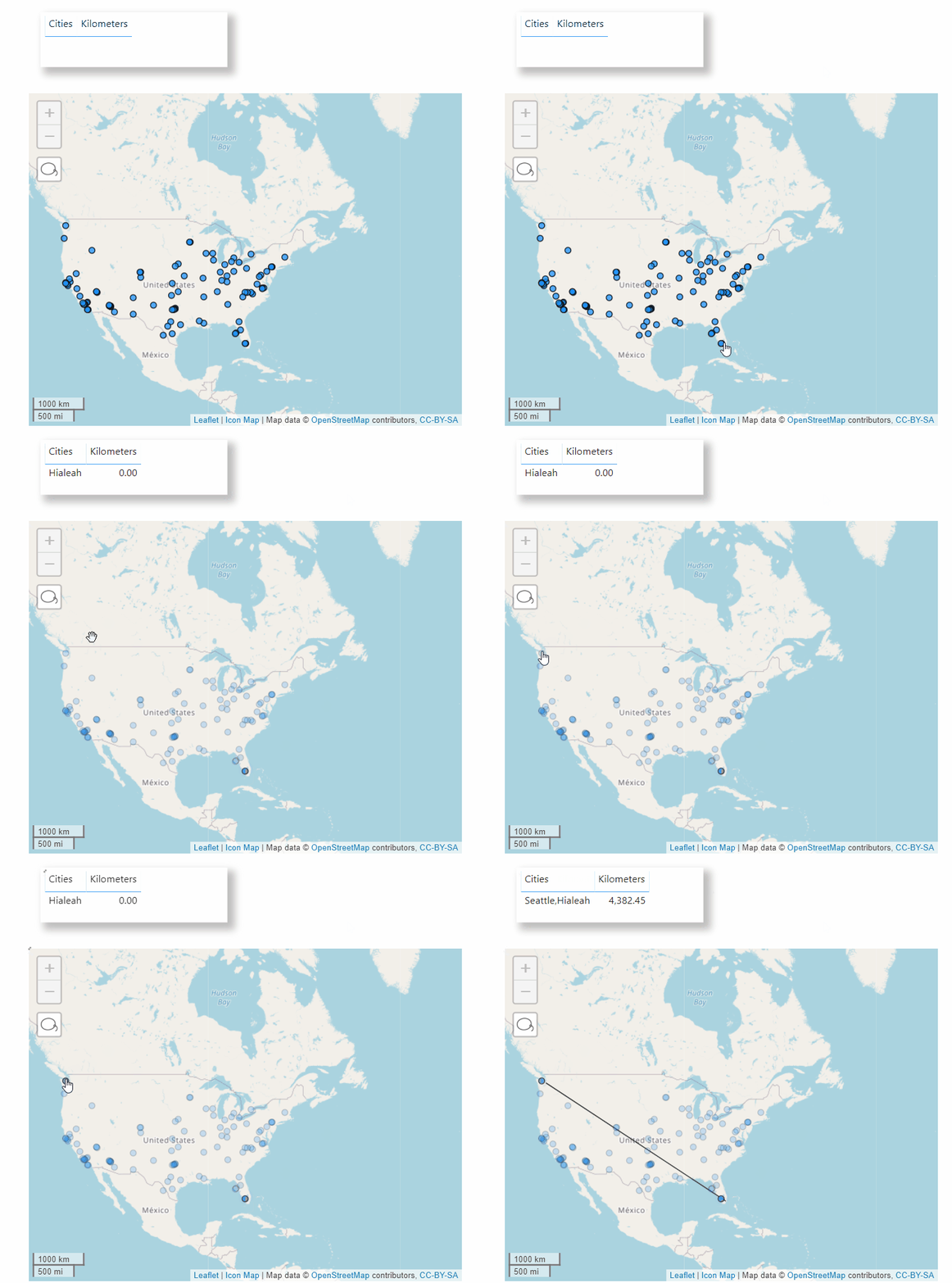
Draw a Line Between Two Points and show Distance

1- You Build first an Icon map just using point

2-Create the second Layer by creating a new Map Visual

This Map will show the line based on the Point selected

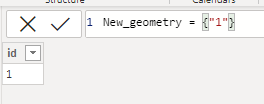
we need first a dummy table with one row

Build a measure that capture the selection

linestring = var Geo="LINESTRING("&CONCATENATEX(reference,[longitude]&" "&[latitude],",")&")"
return
if(ISFILTERED(reference[city]),Geo,BLANK())

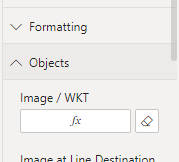
add the Line String Measure here

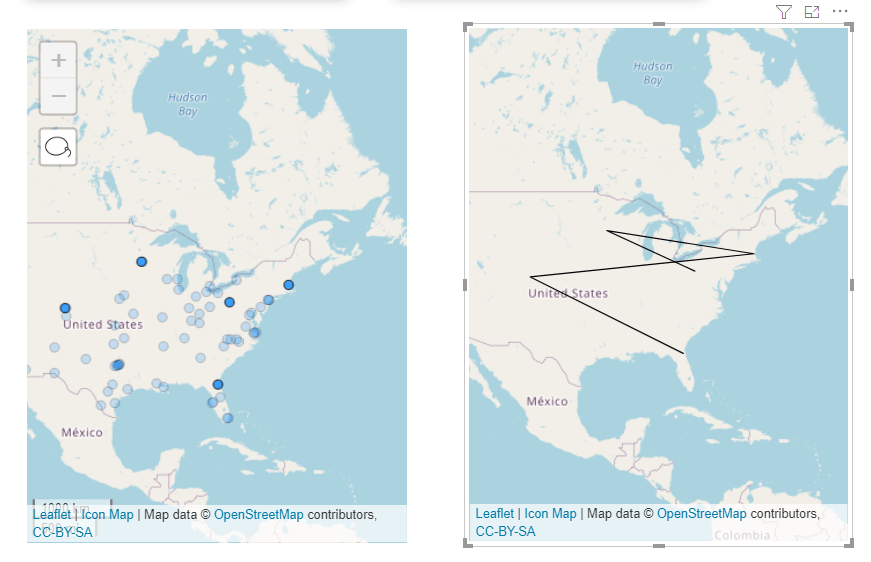
and Voila now you have two Map, The Point Selected in the first Map will be shown as a line in the second Map, CONCATENATEX does not respect the Order of Selection, so currently it is useful only for two Points ( M parameter respect the selection but that will be another Blog)

3- Merge the Two Map together

I guess this is the trick of the Blog, if you want this behavior

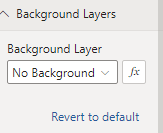
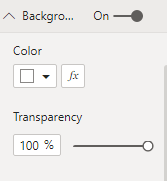
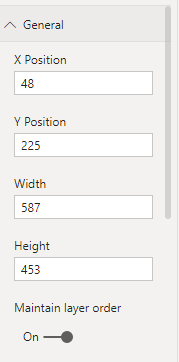
Stack the two layers on top of each other; Make the Point layer background transparent, Remove Background, Lock the Map, keep both layer having the same Dimension , Layer Layout and zoom Value

You have to remove the Zoom otherwise the two layers will not be synchronized, Technically speaking we need only 1 Map, but unfortunately DAX table can not filter itself, feel free to vote on this idea and complain on Linkedin and Twitter 🙂

Select a Buffer Selection

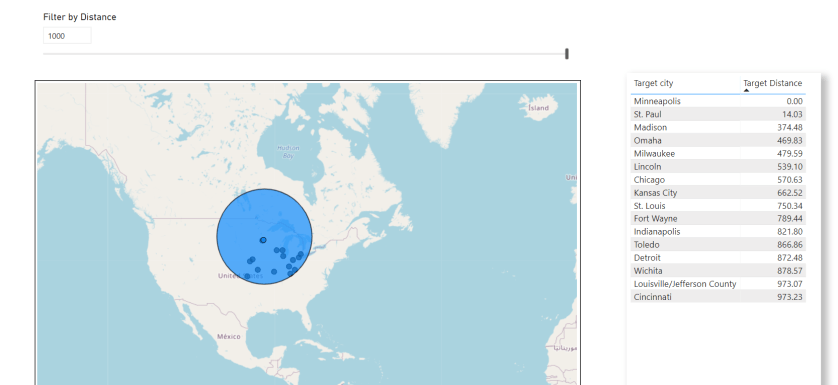
When you Select a Point, the Map will draw a Circle and filter only the Point inside the Circle, it is a very Powerful GIS pattern.

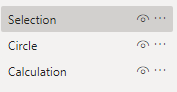
The Same approach, but now we create three Layers

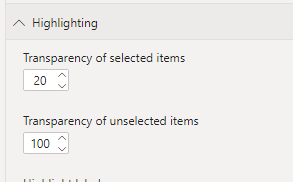
The Selection Layer we use this option ( the point not selected will be hidden, I love Icon map )

The Circle Layer

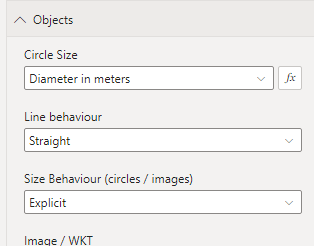
we use this Option

to get the Radius of the Circle we use this Measure

diam_M = if(ISFILTERED(reference[city]),SELECTEDVALUE(Dis_Parameter[Dis])*1000)

The Parameter is used to control the Size and the measure Works only when a point is selected

The Calculation Layer is where we show the Point filtered , we will use a bit of DAX, we create a new disconnected Table , make sure there is no relationship between the two Tables

to reduce data duplication we need only ID from the first table, I am using a measure to get the coordinates ( Probably LookupValue is no the most performant Option)

Target_Lat = LOOKUPVALUE(reference[latitude],reference[city],min(Target[Target City]))
Target_Lng = LOOKUPVALUE(reference[longitude],reference[city],min(Target[Target City]))

The Measure to calculate the Distance is

Target Distance = 
-- see https://radacad.com/dynamic-distances-in-power-bi
var Lat1 = min(reference[latitude])
var Lng1 = min(reference[longitude])

var Lat2 = [Target_Lat]
var Lng2 = [Target_Lng]
---- Algorithm here -----
var P = DIVIDE( PI(), 180 )
var A = 0.5 - COS((Lat2-Lat1) * p)/2 + 
    COS(Lat1 * p) * COS(lat2 * P) * (1-COS((Lng2- Lng1) * p))/2
var final = 12742 * ASIN((SQRT(A)))
return if(ISFILTERED(reference[city]),final)

And then another Measure to filter the Result

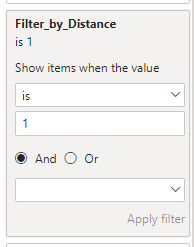
Filter_by_Distance = if(ISFILTERED(reference[city]),if([Target Distance]<=SELECTEDVALUE(Dis_Parameter[Dis]),1,BLANK()),BLANK()) 

Then add the measure filter to the Viz

Icon Map is a fantastic Tool, and there are plenty of possibilities, hopefully the author keep adding more options and customisation

Using PowerBI M Parameter to calculate a polygon Area

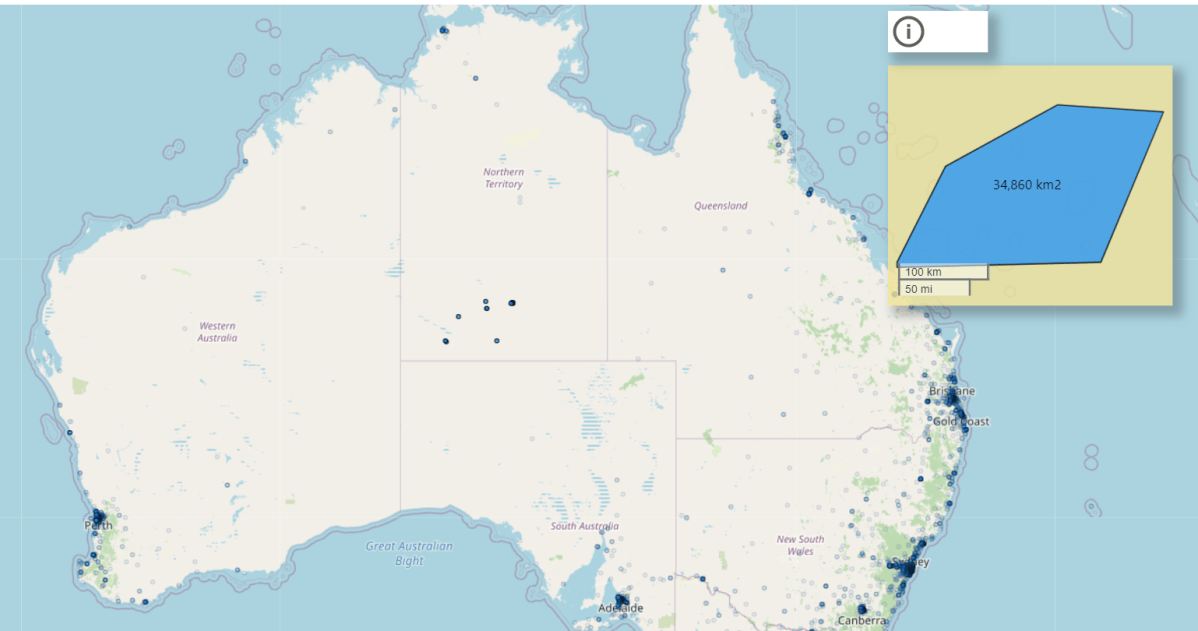
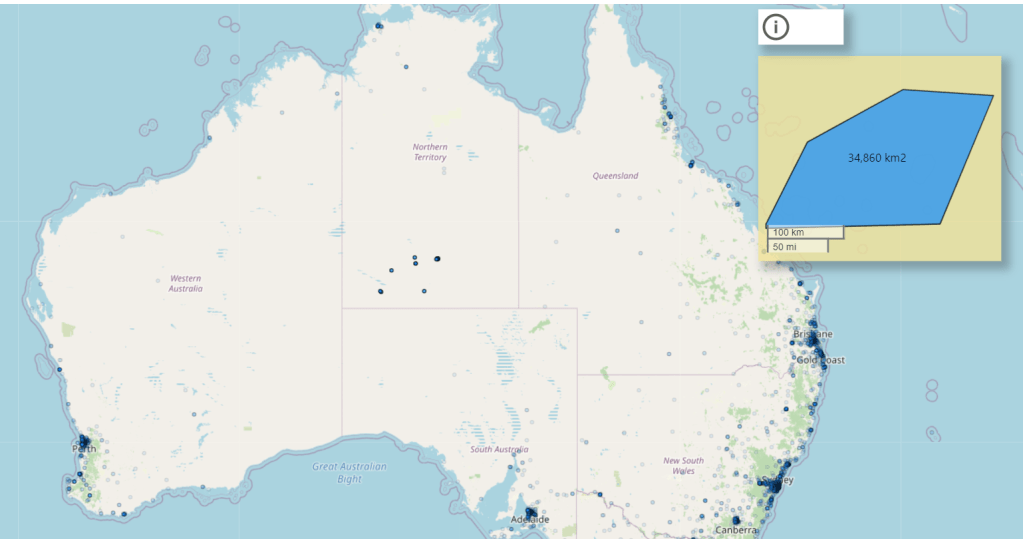
TL;DR : PowerBI does not support GIS Area calculation, in this blog we use M Parameter to leverage third party Database to do the calculation, Works only In Direct Query Mode.

ink to Public report

With the Update of August 2021, M Parameter support multi value selection, see this Previous blog for a little background, this open some interesting new use cases that was not possible before in PowerBI.

Again, before you get too excited, it works only with Direct Query and Database that support M Parameter ( BigQuery, Snowflake, Azure ADX etc)

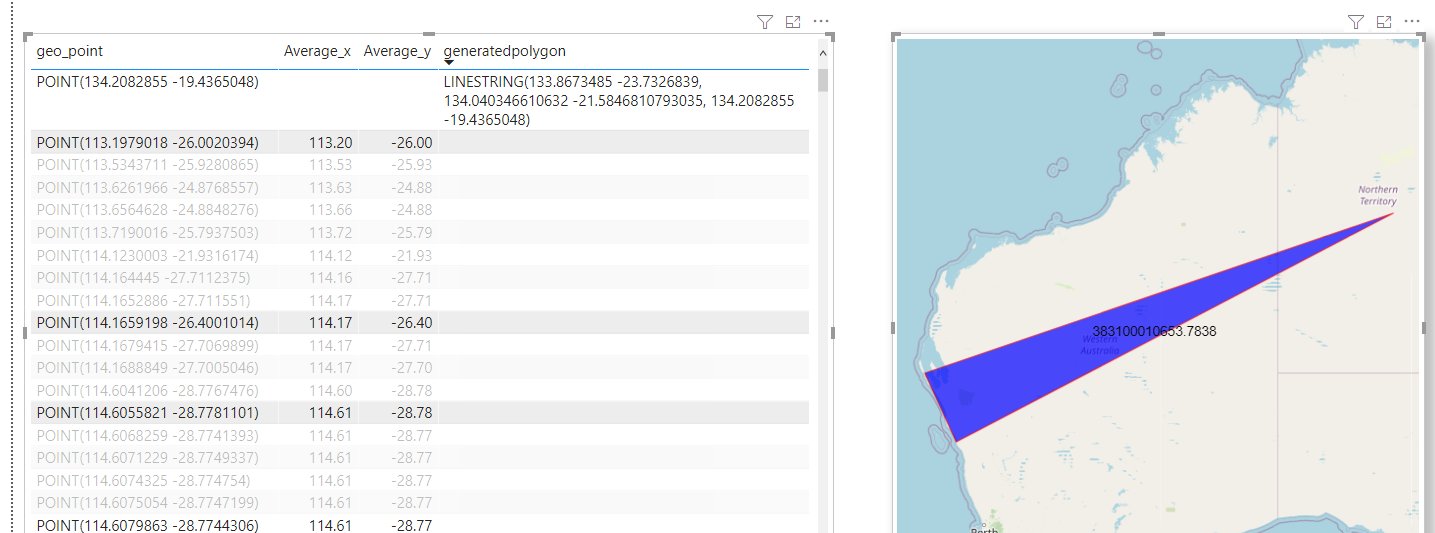
One example is calculating the area of a group of arbitrary points

  • In Icon Map, I select a group of points (Notice here, Icon map is acting as Parameter Action filter )
  • The List of points are used in an M Parameter
  • A SQL Query is sent back to the Database that support M Parameter in my case I am using BigQuery
  • BigQuery generate a wkt and calculate the area , you can calculate the distance too or any metrics that use geometry
  • Plot the results in another Icon Map

The Query is straightforward, and the best part because we are not running a Query against any table in BigQuery , it does not cost anything, you can register here for free and no credit card is required

Here is the M Query

let
TagsList = 
    if 
    //check to see if the parameter is a list
      Type.Is(
        Value.Type(tag_selection), 
        List.Type
      ) then 
        //if it is a list
        let
          //add single quotes around each value in the list
          AddSingleQuotes = List.Transform(
              tag_selection, 
              each "'" & _ & "'"
            ),
          //then turn it into a comma-delimited list
          DelimitedList = "[" & Text.Combine(
              AddSingleQuotes, 
              ","
            ) &"]"
          
        in
          DelimitedList
    else 
      //if the parameter isn't a list
      //just add single quotes around the parameter value
      "['" & tag_selection & "']",
      
Source = Value.NativeQuery(GoogleBigQuery.Database([BillingProject="xxxxxx"]){[Name="xxxxx"]}[Data], "WITH
  xxx AS (
  SELECT
    *
  FROM
    UNNEST( "& TagsList &" ) AS element),
  yyy AS (
  SELECT
    ST_CONVEXHULL( ST_UNION_AGG(ST_GEOGFROMTEXT(element))) AS geo
  FROM
    xxx)
SELECT
  ST_ASTEXT(geo) AS WKT,
  st_area(geo) AS area
FROM
  yyy", null, [EnableFolding=true])
in
    Source

And here is the result.

Future Improvement

One thing I would really like is the possibility to show the result in the same Map, unfortunately to the best of my knowledge a Table in DAX can not filter itself, see this example

Image

in Icon map it is possible to display wkt and points at the same time , but as you can see from the screenshot wkt geometry in the table does not change based on internal filter selection, the other viz works fine.

M Parameters has a very interesting application, and I am excited to try other tricks 🙂

Edit : I appreciate some votes here for the option to pass filter selection to the same Visual

Multi select parameter support in BigQuery when using PowerBI

At last in the August 2021 update of PowerBI we finally can create custom Queries when connecting to BigQuery, this is a very big deal for two reasons.

  • For users who can’t write views on the Database
  • Passing complex parameter values to a SQL Query

To show an example, I am using the same Query from this previous blog, I am not going going to repeated here, have a look as it has more details about BigQuery GIS Clustering.

First issue I did not know how to pass multiple values, as it is a list, luckily Chris has written this excellent blog using Snowflake please read his blog first, and the code works the same

Here is the a pseudo M code, notice I copied Chris code verbatim, I had just to add Square Brackets “[]” to the parameter TagsList , so BigQuery understand it as an array.

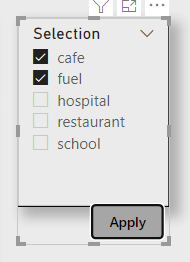
For example when a user select fuel, cafe

the SQL became

UNNEST( “& TagsList &” ) ——-> UNNEST( [‘cafe’,’fuel’] )

let
TagsList = 
    if 
    //check to see if the parameter is a list
      Type.Is(
        Value.Type(tag_selection), 
        List.Type
      ) then 
        //if it is a list
        let
          //add single quotes around each value in the list
          AddSingleQuotes = List.Transform(
              tag_selection, 
              each "'" & _ & "'"
            ),
          //then turn it into a comma-delimited list
          DelimitedList = "[" & Text.Combine(
              AddSingleQuotes, 
              ","
            ) &"]"
          
        in
          DelimitedList
    else 
      //if the parameter isn't a list
      //just add single quotes around the parameter value
      "['" & tag_selection & "']",
      
Source = Value.NativeQuery(GoogleBigQuery.Database([BillingProject="xxxxxx"]){[Name="test-187010"]}[Data], "select  from xxx WHERE    value IN UNNEST( "& TagsList &"  ))
    Source

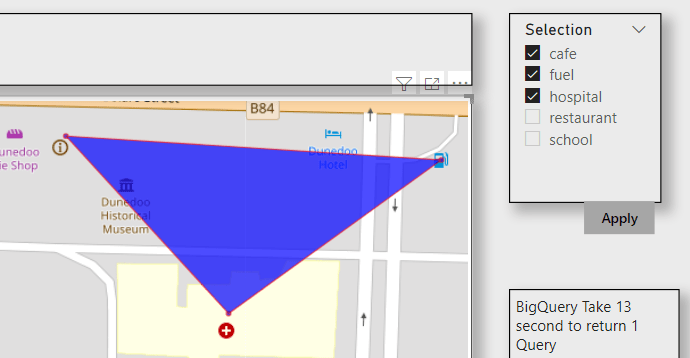
and here is the final report, using the Excellent icon Map custom Visual

As the data is free, I made a publish to web report , the report is a bit slow as it take in average 12 second for BigQuery to return the results, either GIS Clustering is expensive or The SQL Query is not optimized.

I think it is an exciting new functionality, there are a lot of uses cases where you want to exactly control the SQL generated by PowerBI.